Do Not Contact List for LinkedIn Outreach: OutFlo Setup Guide
Protect leads across your workspace or organization with OutFlo's Do Not Contact list.
OutFlo's Do Not Contact (DNC) list is a block list for protected leads. When you add a LinkedIn profile to DNC, OutFlo excludes that profile from automated LinkedIn campaign activity, at either workspace or organization scope. You can add profiles one at a time, import them in bulk with a CSV, export the current list whenever you need it, and decide whether the protection applies to a single workspace or the entire organization. This guide walks through every part of the feature so you know exactly how to keep the right leads out of your campaigns.
How DNC scope works
Before adding anything, decide how far the protection should reach. Every profile you add is protected at one of two scopes.
Scope Where the lead is protected Can another workspace contact the lead? Current workspace Only the workspace where the lead was added Yes Organization-wide Every workspace in the organization No
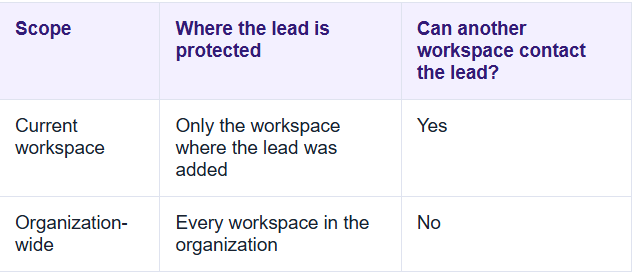
Use Current workspace when the exclusion applies to one team or campaign workspace. Use Organization-wide when nobody in the organization should contact that profile.
Open the Do Not Contact list
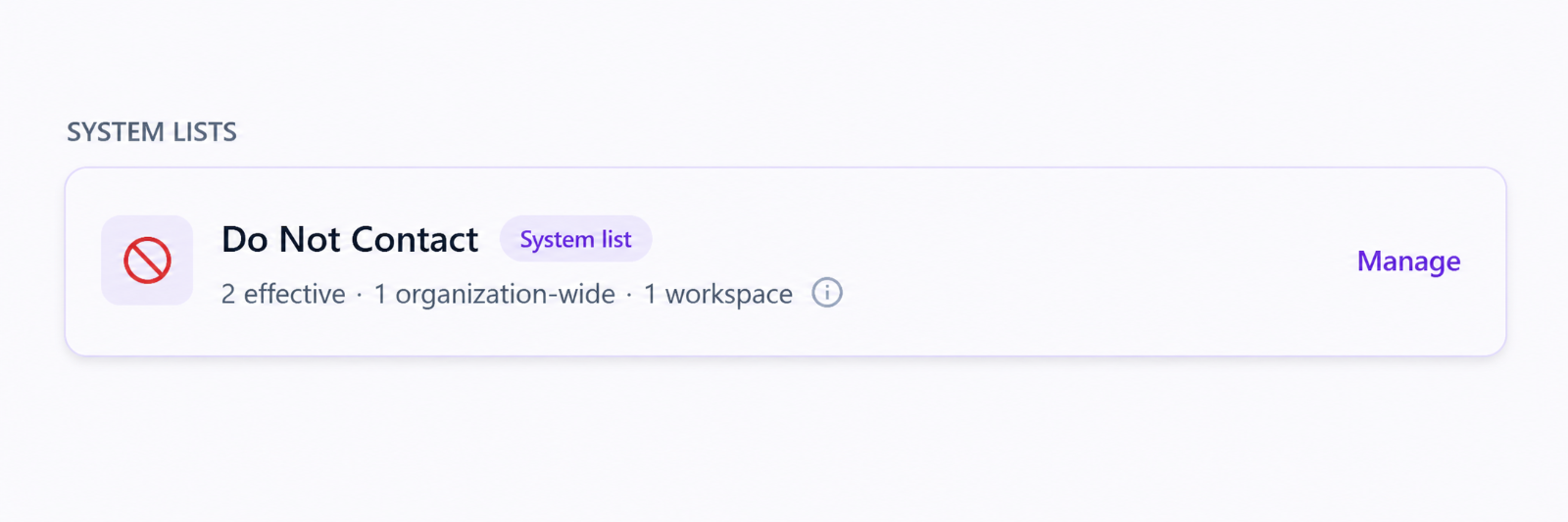
To reach the list, open Lead Management in OutFlo, find the System Lists section, and select Do Not Contact. Then select Manage to view and update the protected profiles.
Add one or more profiles manually
Use this method when you need to protect a small number of profiles quickly.
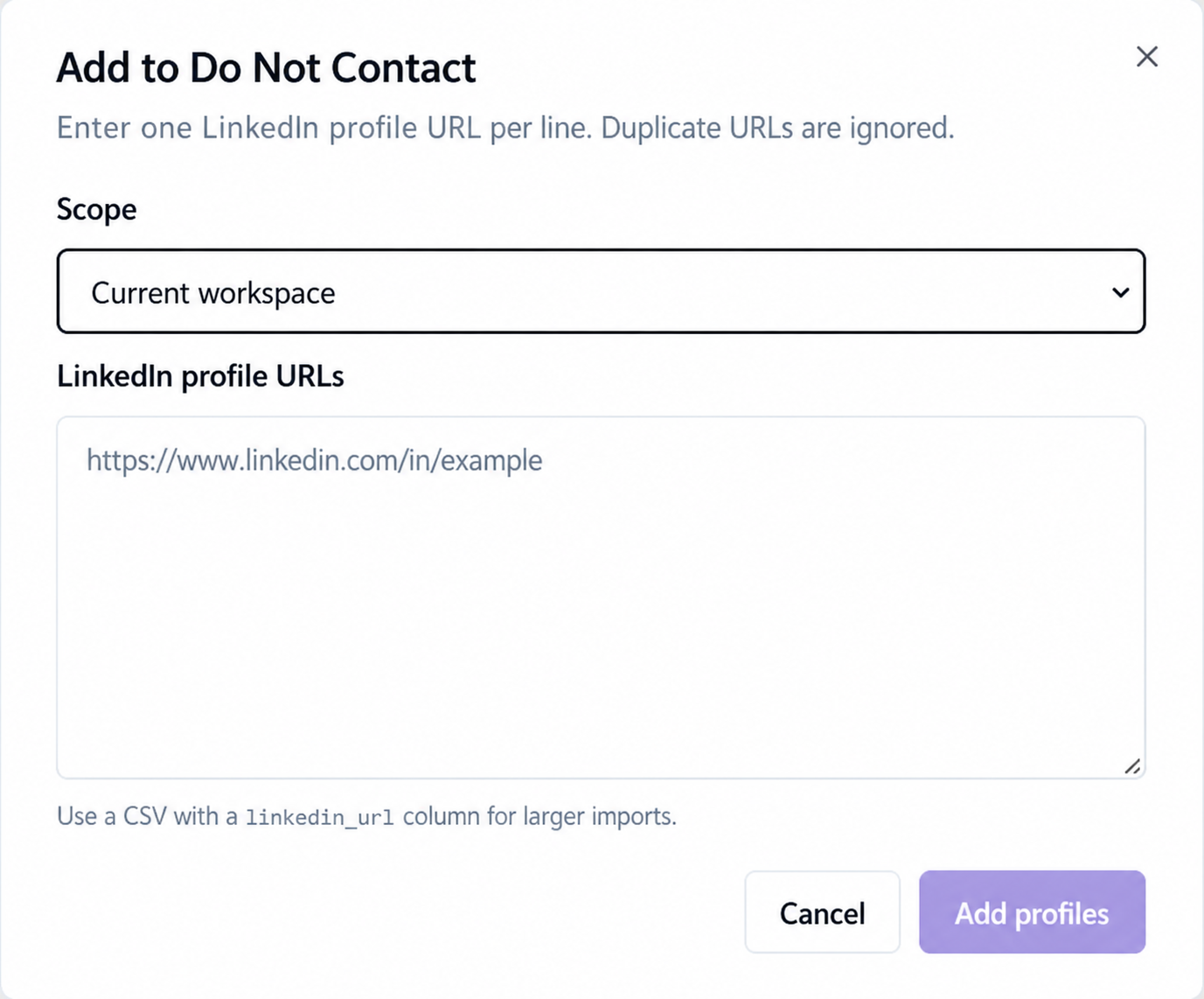
1. Select Add profiles.
2. Choose Current workspace or Organization-wide.
3. Enter one LinkedIn profile URL per line.
4. Select Add profiles to save.
Duplicate URLs are ignored, and each lead needs a direct LinkedIn profile URL.
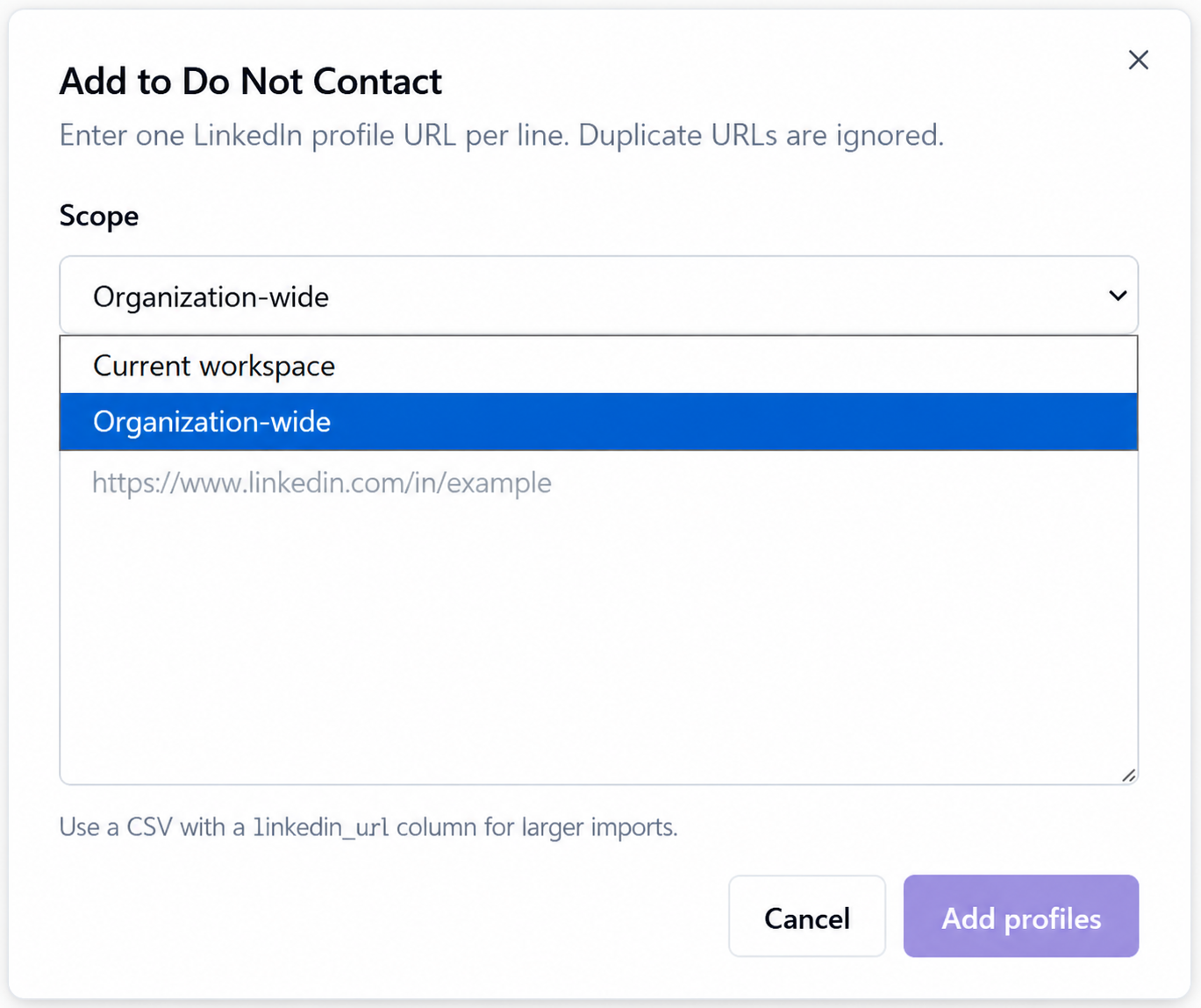
For a workspace-only exclusion, select Current workspace before adding the profiles.
Import a DNC list with CSV
For larger lists, import a CSV instead of pasting profile URLs one at a time. Your CSV should include a single column named linkedin\_url.
linkedin\_url https://www.linkedin.com/in/example-lead https://www.linkedin.com/in/sample-contact
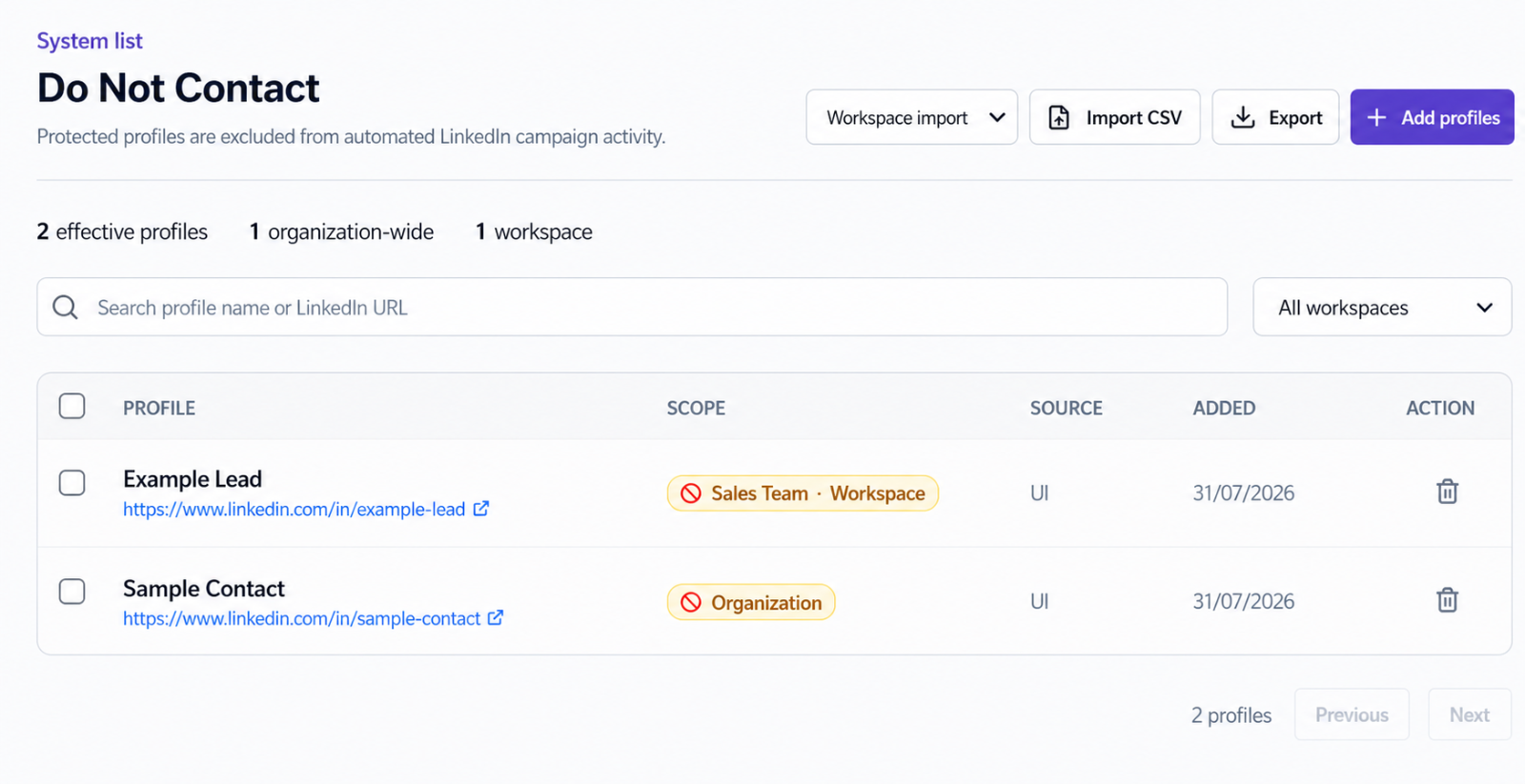
From the Do Not Contact list, select Import CSV, choose the file, and confirm the scope for the imported profiles.
Export the DNC list
Select Export from the Do Not Contact management page to download the current list as a CSV file. Exporting helps when you want to keep a backup of protected profiles, review workspace and organization scope, share the list with an operations or compliance team, or reuse it in another internal process.
What happens inside a campaign
When a lead is on the Do Not Contact list, OutFlo marks the lead with a Do Not Contact status and excludes the profile from automated LinkedIn campaign activity.
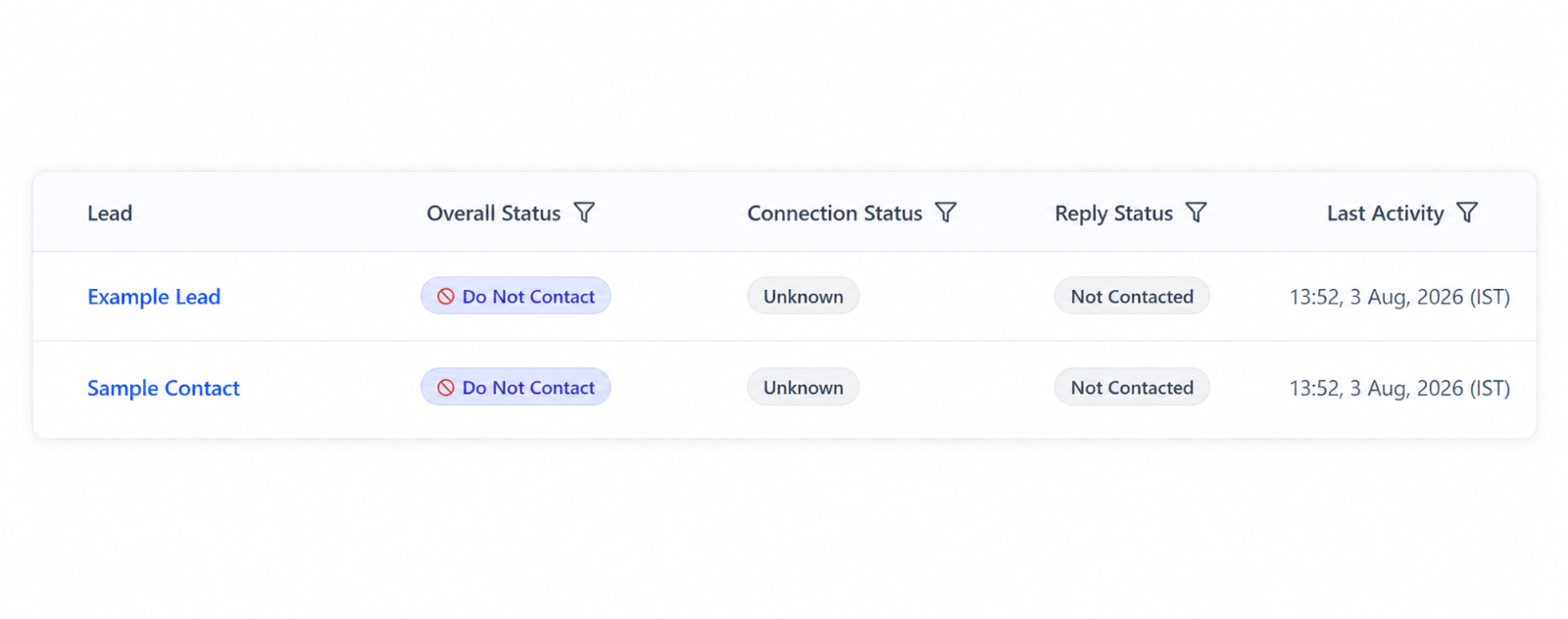
This gives campaign operators a visible confirmation that the profile is protected, instead of leaving the lead in an unclear pending state.
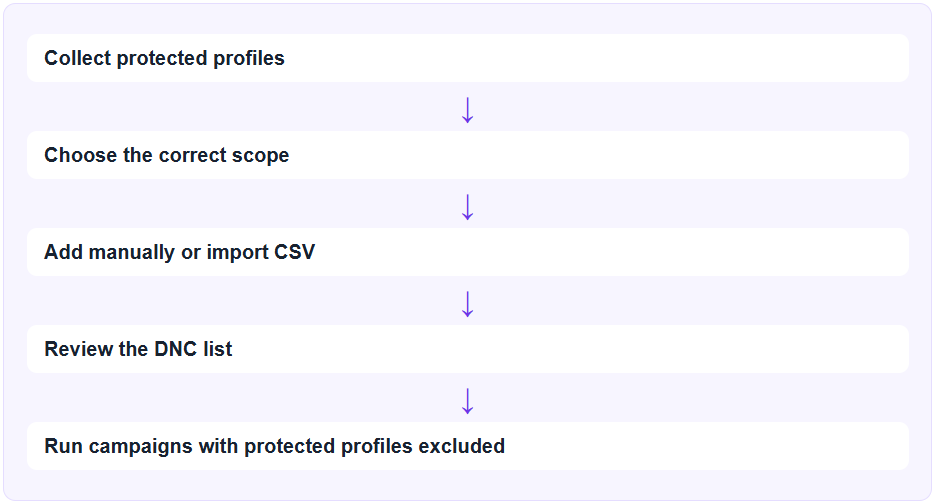
Recommended DNC workflow
Quick Summary
1. Open Lead Management, then System Lists, then Do Not Contact, and select Manage.
2. Decide scope first: Current workspace for a local exclusion, Organization-wide for a company-wide one.
3. Add a small number of profiles with Add profiles, one LinkedIn URL per line.
4. For larger lists, use Import CSV with a linkedin\_url column.
5. Review the list after importing, and select Export to keep a backup.
6. Confirm protected leads show the Do Not Contact status inside your campaigns.
The Do Not Contact list gives your team one place to manage protected leads and apply the right level of exclusion before automated outreach begins.
FAQ
Common questions
What is a Do Not Contact list?
A Do Not Contact list is a block list of LinkedIn profiles that should be excluded from automated campaign activity.
What is the difference between workspace and organization scope?
Current workspace scope blocks the profile only in the selected workspace. Organization-wide scope blocks the profile across every workspace in the organization.
Can I add profiles one by one?
Yes. Select Add profiles, choose a scope, and enter one LinkedIn profile URL per line.
Can I import a CSV file?
Yes. Use Import CSV with a linkedin_url column for larger lists.
Can I export the Do Not Contact list?
Yes. Select Export from the Do Not Contact management page to download the list as a CSV file.
What happens when a DNC lead appears in a campaign?
OutFlo marks the lead as Do Not Contact and excludes the profile from automated LinkedIn campaign activity.