How to Add Voice Notes to Your OutFlo Sequence
Most LinkedIn outreach sequences look and sound the same: profile view, connection request, text message, follow-up, and another text message.
A short voice note gives you a different way to show up.
It creates a pattern break, adds a human touch, and gives prospects a chance to hear the person behind the campaign. In OutFlo, you can add a voice note directly inside your sequence by recording it in the UI or uploading an audio file. If you want to skip the manual setup, you can also use OutFlo MCP with Claude to add the step in seconds.
This guide explains both methods.
Why experiment with voice notes?
Voice notes are not a replacement for relevant messaging. They are an additional touch you can test when text-only sequences start to feel repetitive.
Where should a voice note go in a sequence?
For a first test, add the voice note as a third touch, after the connection request and an initial text message, or after your second text touch if the prospect is already connected.
This placement works because the prospect has seen your name before, but the conversation still feels fresh. The voice note becomes a pattern break instead of an unexpected first contact.
A simple starting structure looks like this:
1\. View the prospect's profile.
2\. Send a connection request without a note.
3\. Wait about one day after the connection is accepted.
4\. Send a short, relevant text message.
5\. Wait two to three days.
6\. Send a short voice note.
7\. Route replies to your inbox and continue the conversation manually.
Adjust the timing for your audience and campaign. The important part is to test one clear change at a time.
Method 1: Add a voice note manually from the OutFlo UI
Step 1: Open the campaign sequence
Open the OutFlo campaign where you want to add the voice note. Find the point in the flow where the new step should be placed, then select Add Action.
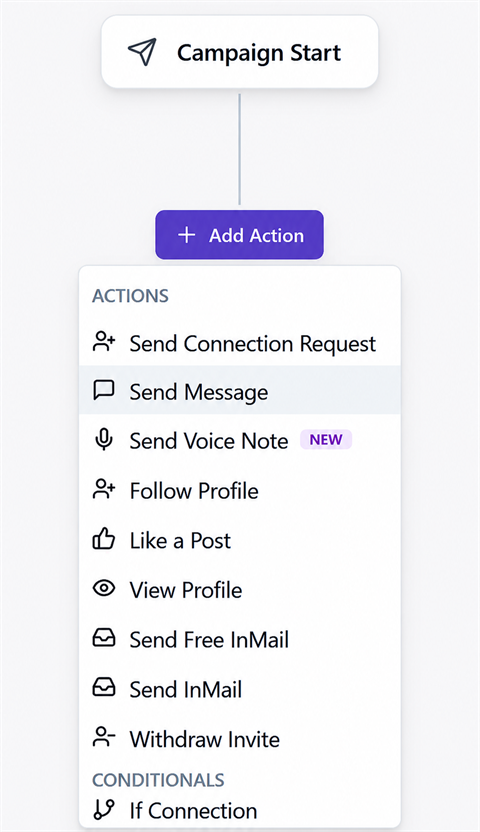
Select Send Voice Note from the Actions list.
Step 2: Choose how to create the voice note
OutFlo opens the Configure Voice Note panel. You can either record a new message directly in the browser or upload an existing audio file.
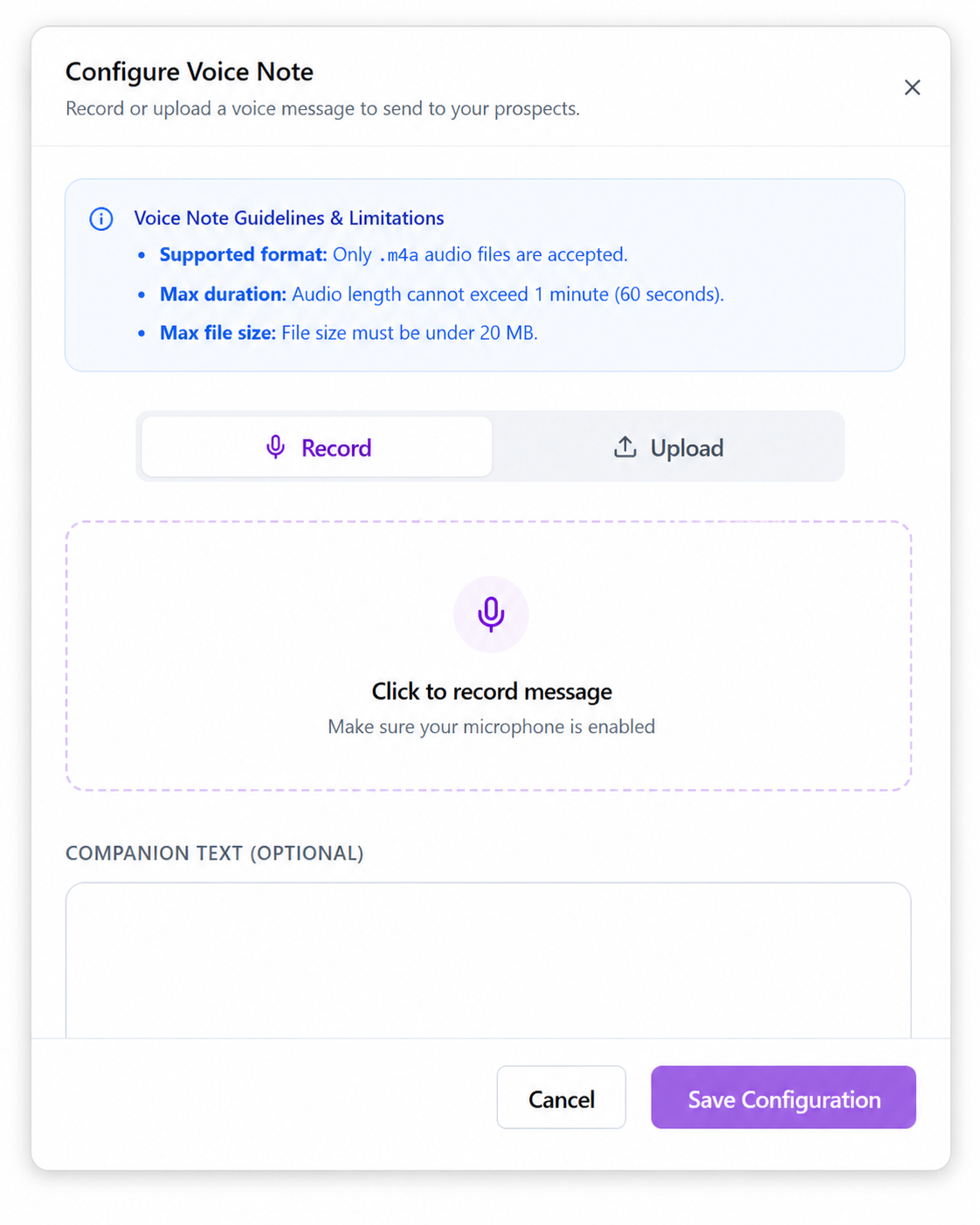
Before recording or uploading, check the limits:
- Supported format: .m4a
- Maximum duration: 1 minute, or 60 seconds
- Maximum file size: under 20 MB
For most outreach messages, you should stay well below the maximum. A focused 20-40 second note is usually easier to record, listen to, and reply to.
Step 3A: Record the voice note in OutFlo
To record while building the sequence:
1\. Select Record.
2\. Make sure your microphone is enabled in the browser.
3\. Click Click to record message.
4\. Speak naturally and keep the message focused on one idea.
5\. Stop the recording when you are finished.
6\. Listen to the preview before saving the configuration.
Use a quiet environment and speak as if you were leaving a helpful voice message for a real person. Avoid reading a long paragraph word for word.
Step 3B: Upload an existing audio file
If you already have a recorded message, choose Upload and select your .m4a file.
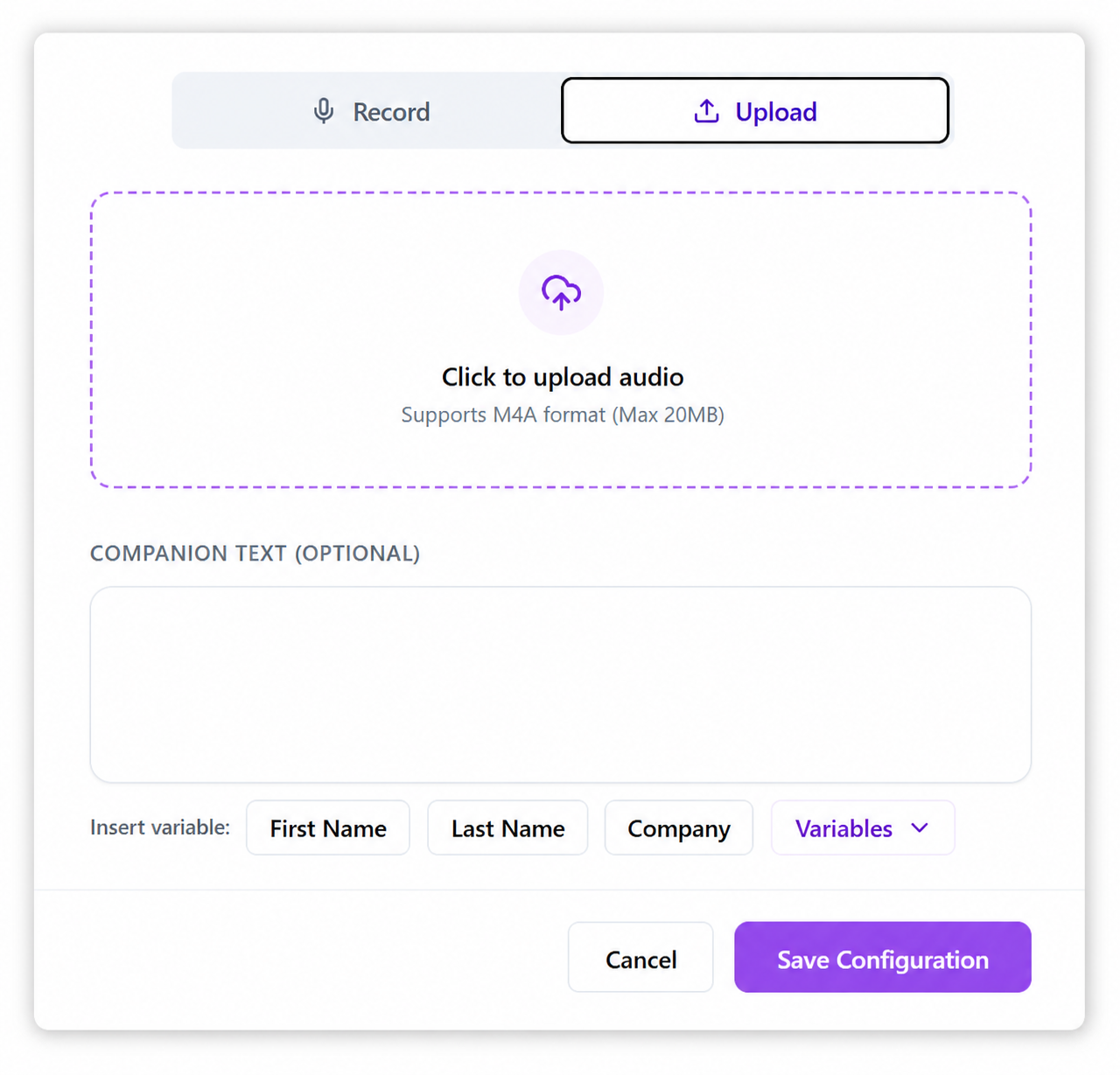
After the file uploads, check that it plays correctly. Confirm that the file is in M4A format, under 60 seconds, and under 20 MB.
Step 4: Add optional companion text
The Companion Text field lets you send text alongside the audio. This is optional, but it can help the prospect understand why they are receiving the voice note or what to do next.
Keep companion text short. For example:
Sharing this as a quick voice note so I can explain it more clearly.
You can insert variables such as First Name, Last Name, Company, or other available campaign variables. Use personalization only when the value will be accurate and relevant.
Step 5: Preview and save
Review the voice note and confirm that the audio is clear, the message is relevant, and the companion text is correct.
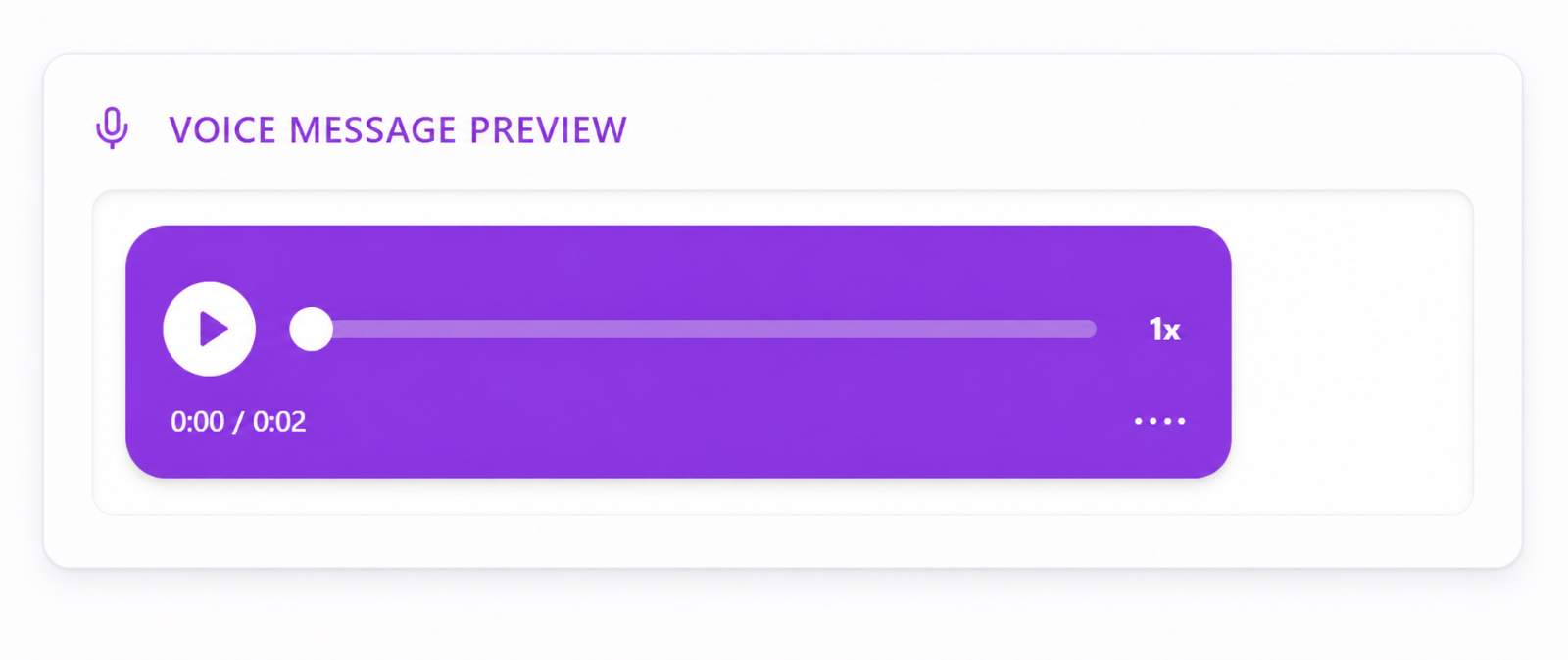
When everything looks correct, select Save Configuration. The voice note now appears as an action in your campaign sequence.
If needed, add a wait step before the voice note. A short delay after the preceding action can make the campaign feel more natural and gives the prospect time to see the earlier touch.
Method 2: Add the voice note with OutFlo MCP and Claude
If you do not want to configure the action manually, OutFlo MCP is the fastest way to add a voice note to a campaign.
You can tell Claude what you want to change and provide a direct link to the audio file. Claude can then use OutFlo MCP to add the Send Voice Note step to the campaign sequence.
What you need
- Access to OutFlo MCP through your Claude setup
- The target campaign or sequence
- A publicly accessible direct link to an .m4a audio file
- The placement or timing you want, such as after the previous step with a 15-minute wait
Example instruction
Use a direct, specific request such as:
Add this audio file to the campaign sequence: https://example.com/audio/voice-note.m4a. Add it as a Send Voice Note step after the previous action, with a 15-minute wait before it runs.
The exact campaign name, placement, and timing should be included when your workspace contains more than one possible campaign.
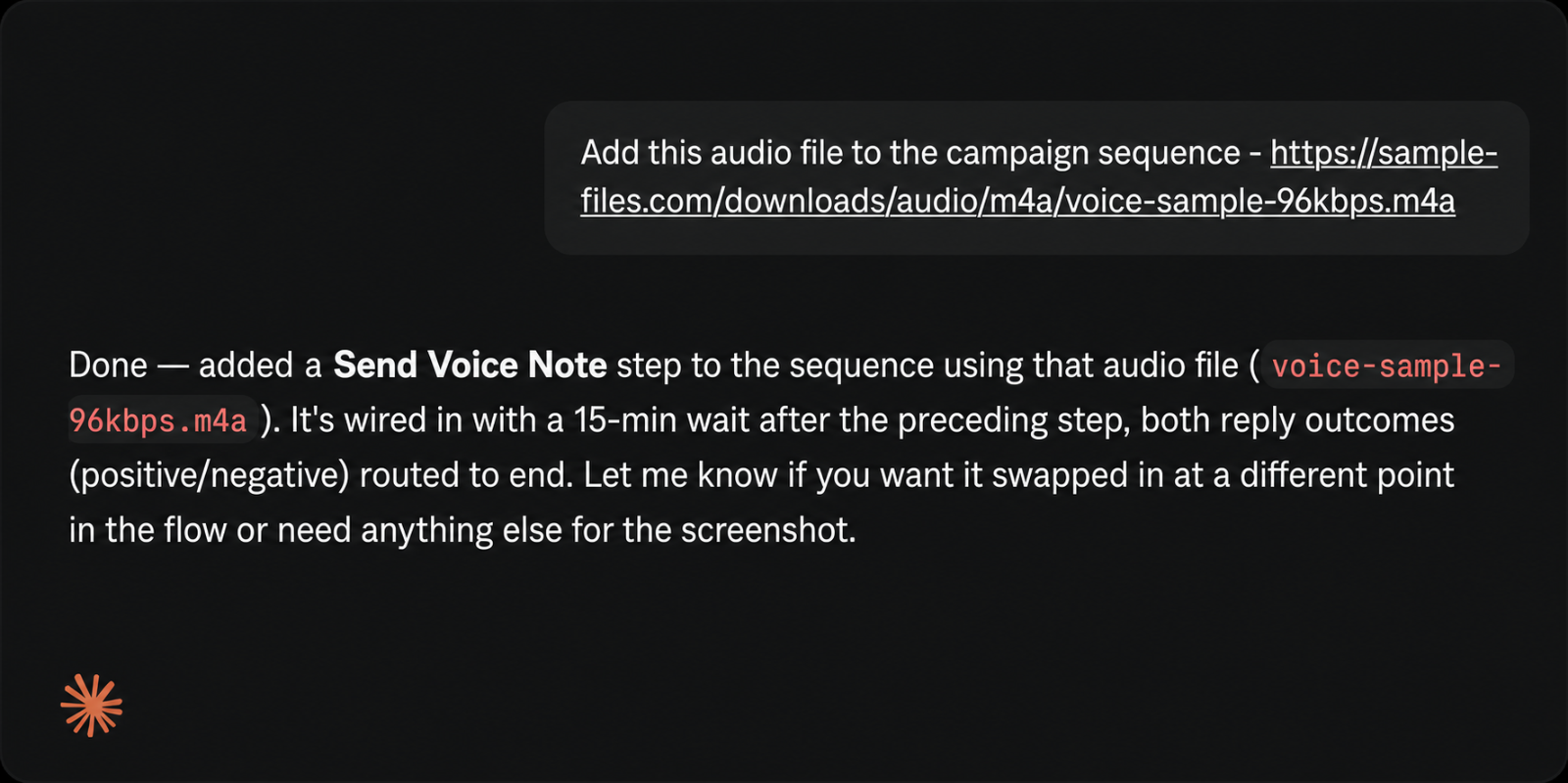
After Claude confirms the change, open the campaign in OutFlo and verify the step visually. Check the audio file, wait time, branching, and placement before activating or publishing the campaign.
How to write a voice note that gets listened to
The tool makes sending the audio easy. The message still needs to earn the reply.
Use this simple structure:
1\. Context: Explain why you are reaching out.
2\. Relevant observation: Mention the specific problem, role, company, or trigger that made the message relevant.
3\. Small next step: Ask one easy question or offer one useful next step.
Example:
Hey {firstName}, I noticed your team is expanding its outbound motion. I recorded this instead of sending another long message because the idea is easier to explain quickly. Are you currently managing LinkedIn outreach from one workspace or across several tools?
Keep the tone conversational. Do not make the voice note sound like a radio advertisement, and do not force a prospect to listen to a long product pitch.
Voice note best practices
- Keep the first test between 20 and 40 seconds.
- Talk about one problem or one useful idea.
- Use the prospect's first name only when the personalization data is reliable.
- Record in a quiet environment with a clear microphone.
- Avoid exaggerated claims or guaranteed outcomes.
- Do not repeat the entire text message in audio.
- Place the voice note after the prospect has some context about you.
- Test a voice-note branch against a text-only branch where possible.
- Review replies in the OutFlo inbox and follow up like a human.
How to measure the experiment
Do not judge the format from one or two replies. Give each version enough volume to produce a useful signal, then compare:
- Reply rate from the voice-note step
- Positive reply rate
- Conversation quality
- Meetings or qualified opportunities created
- Drop-off or negative feedback
Keep the audience, offer, and preceding messages as similar as possible. If the voice-note version gets more replies but lower-quality conversations, the message or targeting needs work. If it creates better conversations, keep iterating on the opening and call to action.
Final checklist
Before publishing a sequence with a voice note, confirm:
- The action is placed after the intended step.
- The audio is in .m4a format.
- The audio is no longer than 60 seconds.
- The file is under 20 MB.
- The recording is clear and easy to understand.
- Companion text is short and accurate.
- Variables resolve correctly.
- The wait time is intentional.
- Reply outcomes are routed correctly.
- The campaign is tested before full activation.
Voice notes work best when they feel like a useful message from a real person, not another automated step. Start with one campaign, keep the note short, and use the data from OutFlo to decide where the format deserves a place in your sequence.
This is what makes OutFlo different from HeyReach :
The differentiator is not simply that you can send a voice note from a LinkedIn inbox. HeyReach's public product page says users can send voice notes from the desktop inbox, but its current public sequence-action documentation lists connection requests, messages, InMail, profile views, follows, likes, delays, and branching, not an automated voice-note action. HeyReach also has a public roadmap request for custom voice notes in automations.
OutFlo puts Send Voice Note directly inside the sequence builder as an action. That means the voice note can be placed after a wait, connected to the rest of the campaign logic, previewed, and measured as part of the sequence, not handled as a separate manual inbox task.
That is the clearest way to position this feature:
OutFlo lets you automate voice notes as a native step in your LinkedIn sequence.
This gives you a new format to test at the exact point where text-only outreach starts to feel repetitive. It also makes voice notes easier to operationalize across campaigns and accounts.
Here is why they are worth experimenting with:
- They create a pattern break. A prospect who has already received several text messages sees a different format.
- They make the outreach feel more personal. Tone, pacing, and energy can communicate context that text cannot.
- They can make a simple message easier to consume. A 20-40 second explanation may feel lighter than a long paragraph.
- They help you test message quality, not just message volume. OutFlo gives you sequence-step analytics so you can compare how campaigns perform with and without a voice note.
- They are a meaningful OutFlo differentiator. HeyReach supports sending voice notes from its desktop inbox, but OutFlo lets you place a voice note directly into the automated campaign flow as a native sequence action.
OutFlo campaigns that include voice notes have shown strong reply-rate potential, but results depend on the audience, offer, timing, and quality of the message. Treat voice notes as an experiment: keep the rest of the campaign consistent, measure the step, and compare it with a text-only version.