Say you are running outreach across 10 connected accounts and replies are arriving all day. Not every reply deserves the same urgency. Someone saying “yes, let's talk” needs attention now. Someone saying “not right now” needs a lighter touch, if any. Many responses are simply an emoji or a quick “thanks.”
Unibox sorts these replies automatically. The moment a response arrives, it is assigned Interested, Not Interested, or Generic, so you can see what deserves attention before opening every conversation.
1. Where the Statuses Come From
There is nothing to turn on. Every incoming reply is read and sorted into one of three status groups:
- Interested (green): replies that show genuine intent or a clear next step.
- Not Interested (red): replies that decline or close the conversation.
- Generic (orange): acknowledgements, reactions, and small talk with no clear signal either way.
2. Filter by Status
Click the filter icon at the top right of Unibox and open Select Status. Choose Interested on its own when you want the highest-value conversations, or combine it with Select Tags and a tag such as Need to reply.
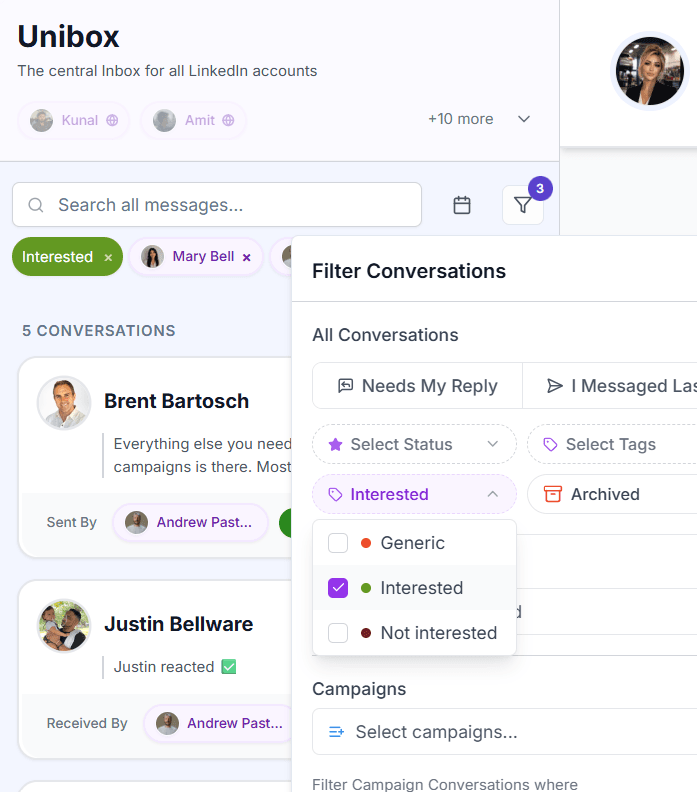
Once the filter is applied, Unibox shows only matching conversations, so you do not have to scroll past replies that do not need action right now.
3. Correct the Status If It Is Wrong
Automatic sorting gets most replies right, but language is nuanced. If something lands as Generic when it deserves a real response—or the reverse—you can change the status on that thread. The corrected status is then used by your filters.
When to Use This
Start with Interested every time you open Unibox. That is the highest-value queue. Review Generic when you have time to catch anything that was misread. Not Interested usually needs no action unless the conversation changes.
Quick Summary
- Every reply is automatically sorted as Interested, Not Interested, or Generic.
- Use Select Status in the Unibox filter panel to isolate one or more groups.
- Combine status with Select Tags for a focused queue such as Interested + Need to reply.
- Correct a status manually whenever the system reads a reply incorrectly.
- Prioritize Interested, sweep Generic periodically, and leave Not Interested for exceptions.
Unibox already tells you what is waiting. Automatic statuses tell you what is worth opening first.