Say you run outreach for your team. OutFlo has 20 LinkedIn accounts connected, and by mid-afternoon you are sitting on 50 unread replies across all of them. Answering each one the moment it lands means constant context switching all day. What you actually want is to build up a queue of ready replies and clear the whole thing in one focused pass.
That is what Drafts is built for. Start typing a reply, get pulled away, and come back later—it is still there, saved automatically. If you want that queue built for you, Claude can connect to OutFlo through MCP, read every thread tagged Need to reply, and fill in a draft on each one for you to review and send.
1. Drafts, the Feature
Drafts are native to Unibox, with no setup required. Open any thread and start writing a reply. If you navigate away without sending it, OutFlo automatically saves what you typed to that thread.
Every thread with a saved draft shows a purple Draft: preview line beneath the lead's name. You can see what is waiting without opening each conversation.
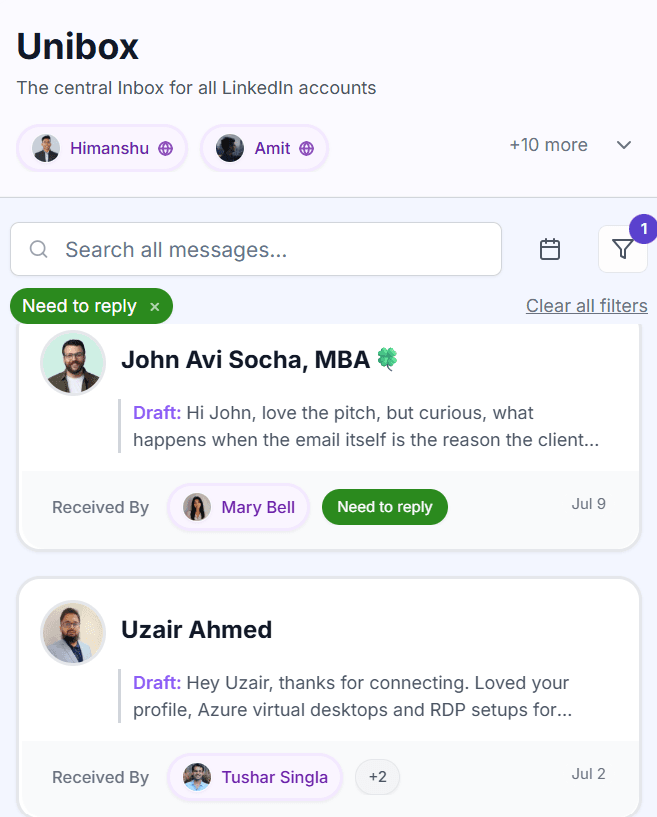
Use the tag filter at the top of Unibox to show only the threads that still need action. Together, the filter and draft previews give you a complete view of the queue: what already has a first pass and what is still open.
2. Let Claude Fill the Queue for You
Drafting 50 replies by hand is still 50 replies. Once Claude is linked to OutFlo through MCP, you can ask it to read every thread tagged Need to reply and prepare a response using the conversation and the lead's profile for context.
Claude writes into the same draft field Unibox already uses. It does not send the message on its own.
Connect Claude to OutFlo
This is a one-time setup in Claude Desktop:
- 1.Open Claude Desktop → Settings → Connectors.
- 2.Click Add custom connector.
- 3.Paste the OutFlo MCP server URL from your OutFlo MCP setup page.
- 4.Open Advanced settings and add the OAuth client ID if OutFlo issued one. Most setups do not need it.
- 5.Click Add and approve the connection on the OutFlo sign-in page.
After approval, Claude can use the OutFlo scopes you authorize, such as campaigns, leads, and messages. The connection remains active until you revoke it.
Inside a Claude conversation, turn on the OutFlo connector using the + button in the chat bar or by typing /.
Ask Claude to Draft Your Replies
With the connector enabled, give Claude a direct instruction such as: “Go through every Unibox thread tagged Need to reply and draft a response for each one.”
Claude reads the thread, uses relevant lead-profile context, and writes the response as a draft. You stay in control of review, edits, and sending.
3. When to Use Which
Write your own draft when a reply depends on a personal read only you would catch, or when the volume is low enough that doing it yourself is fastest. Bring Claude in when the queue is large enough that reading and drafting every thread is taking over your day.
4. Drafts Work Across Teammates Too
A draft is not locked to the person who started it. Because Unibox is shared across your team's connected accounts, one teammate can leave a first pass and anyone else with access can open the same thread, finish it, or send it.
Open the filter panel and choose Drafts to show only conversations with something waiting. Combine it with Need to reply for a clean view of the replies that are partly done and need another pair of eyes.
A simple handoff looks like this: one teammate drafts first passes—manually or with Claude—and a second teammate reviews, edits, and sends. Each thread still shows Sent By, so the sending account and owner remain clear.
Quick Summary
- Drafts save automatically after you begin a reply and step away without sending.
- Filter Unibox by Need to reply to see the open queue and draft previews.
- Connect Claude once through Settings → Connectors → Add custom connector using OutFlo's MCP server URL.
- Ask Claude to draft replies for every thread tagged Need to reply.
- Filter by Drafts so a teammate can review and finish everything waiting.
- Review each response, edit what needs it, and send on your schedule.
Unibox already gives you one inbox for every connected account. Drafts means you are never starting from a blank reply box—whether you write the first pass yourself or hand it to Claude.