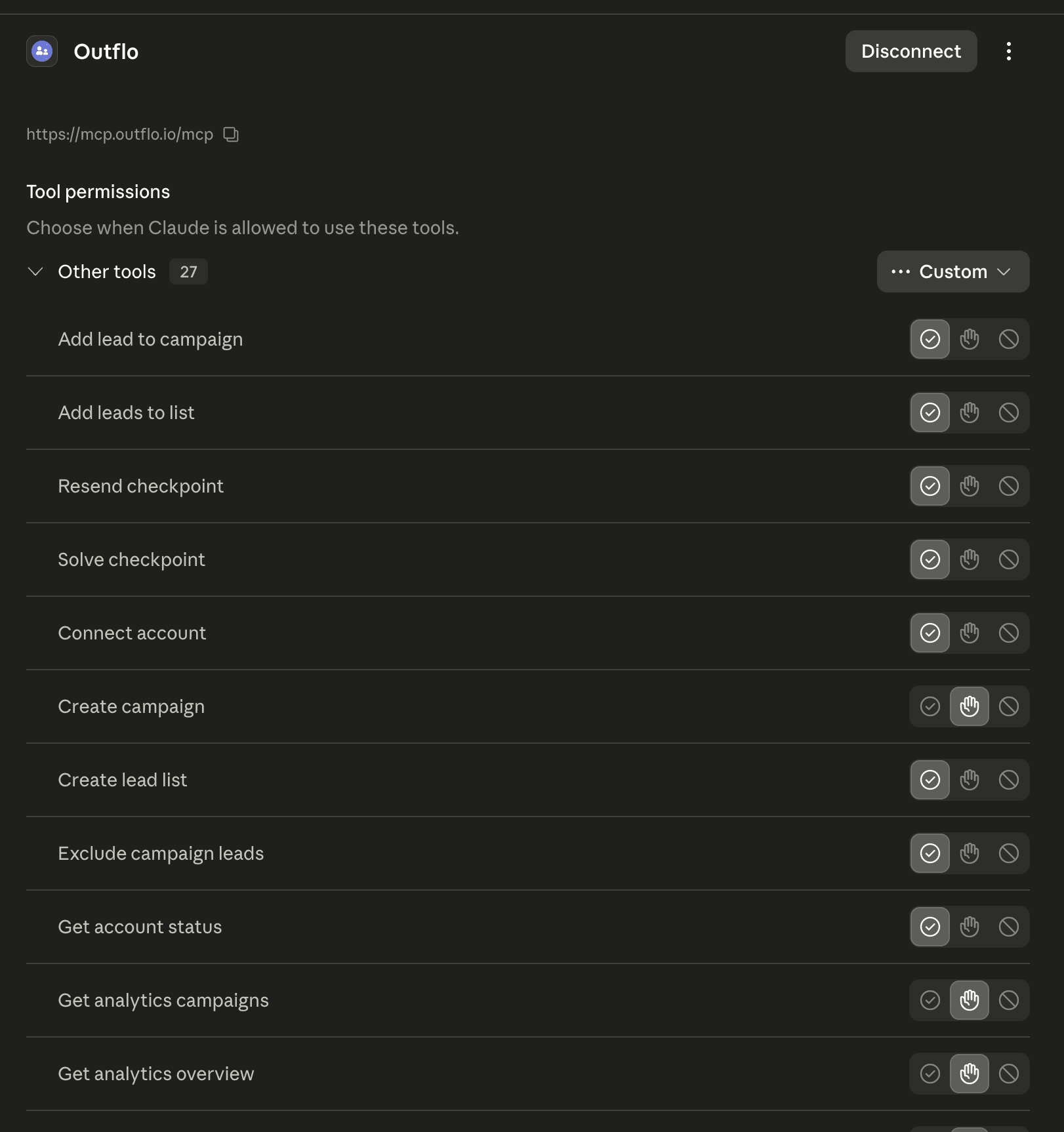
The Model Context Protocol (MCP) allows Claude to interact directly with external applications, servers, and APIs. By connecting the OutFlo MCP Server to Claude.ai as a custom connector, you enable Claude to command your LinkedIn campaigns, manage lead lists, look up conversation threads, and monitor account sync health directly inside your Claude chat screen.
This step-by-step guide walks you through registering the OutFlo MCP server as a custom connector in your Claude.ai account.
Step 1: Open the Claude Connectors Settings
To configure a new custom connector, log into your Claude.ai account and navigate to the Customize dashboard:
- 1.Click your profile avatar in the lower-left or upper-right corner of Claude.ai.
- 2.Select Customize Claude or click Customize in the menu.
- 3.In the sidebar, select Connectors.
Here you will see all available integrations. Under the Not connected or Custom sections, click the + (plus icon) or the Add custom connector button to open the configuration popup.
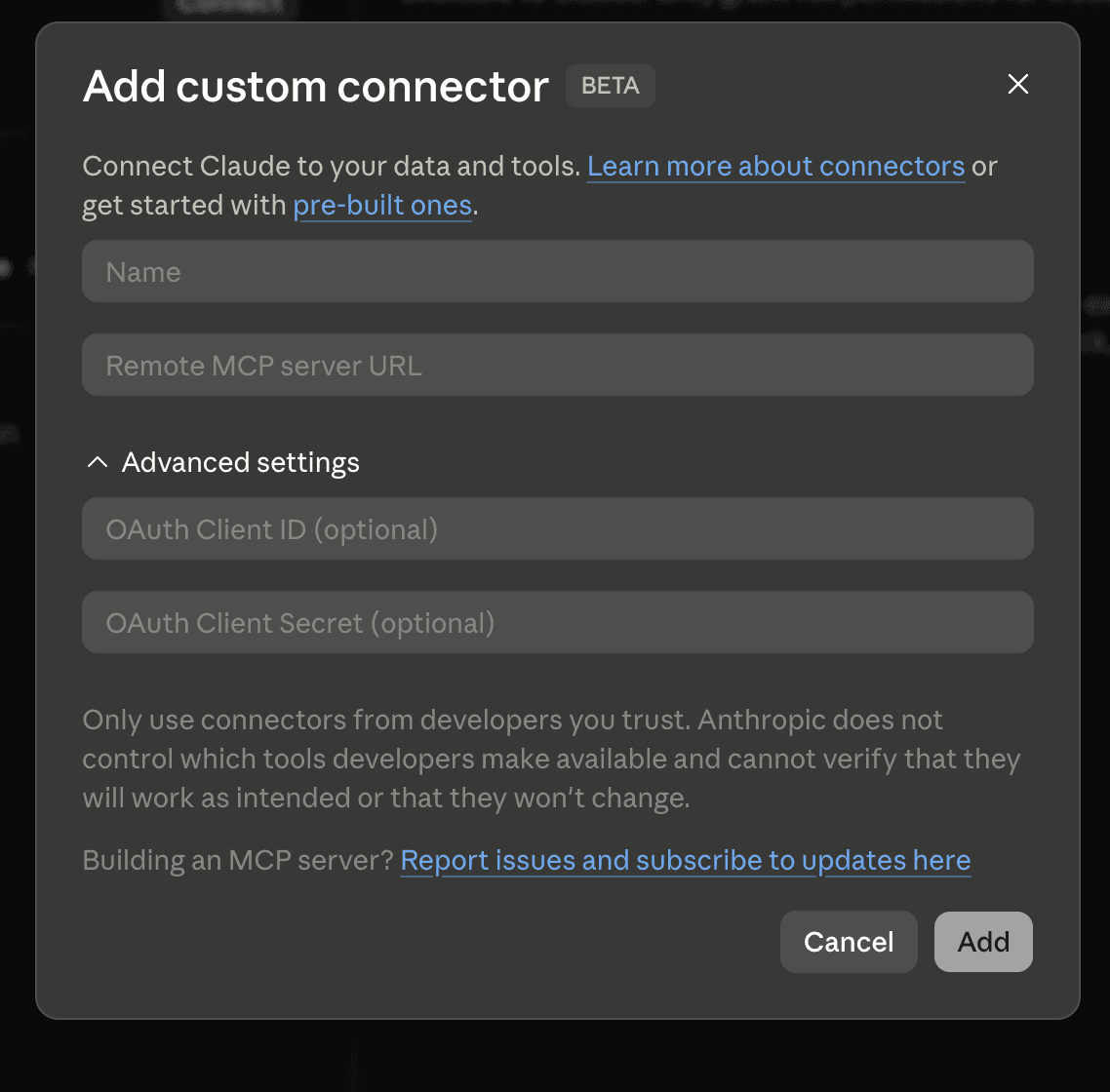
Step 2: Add the OutFlo Custom Connector
To connect OutFlo, you need to register its remote MCP server endpoint:
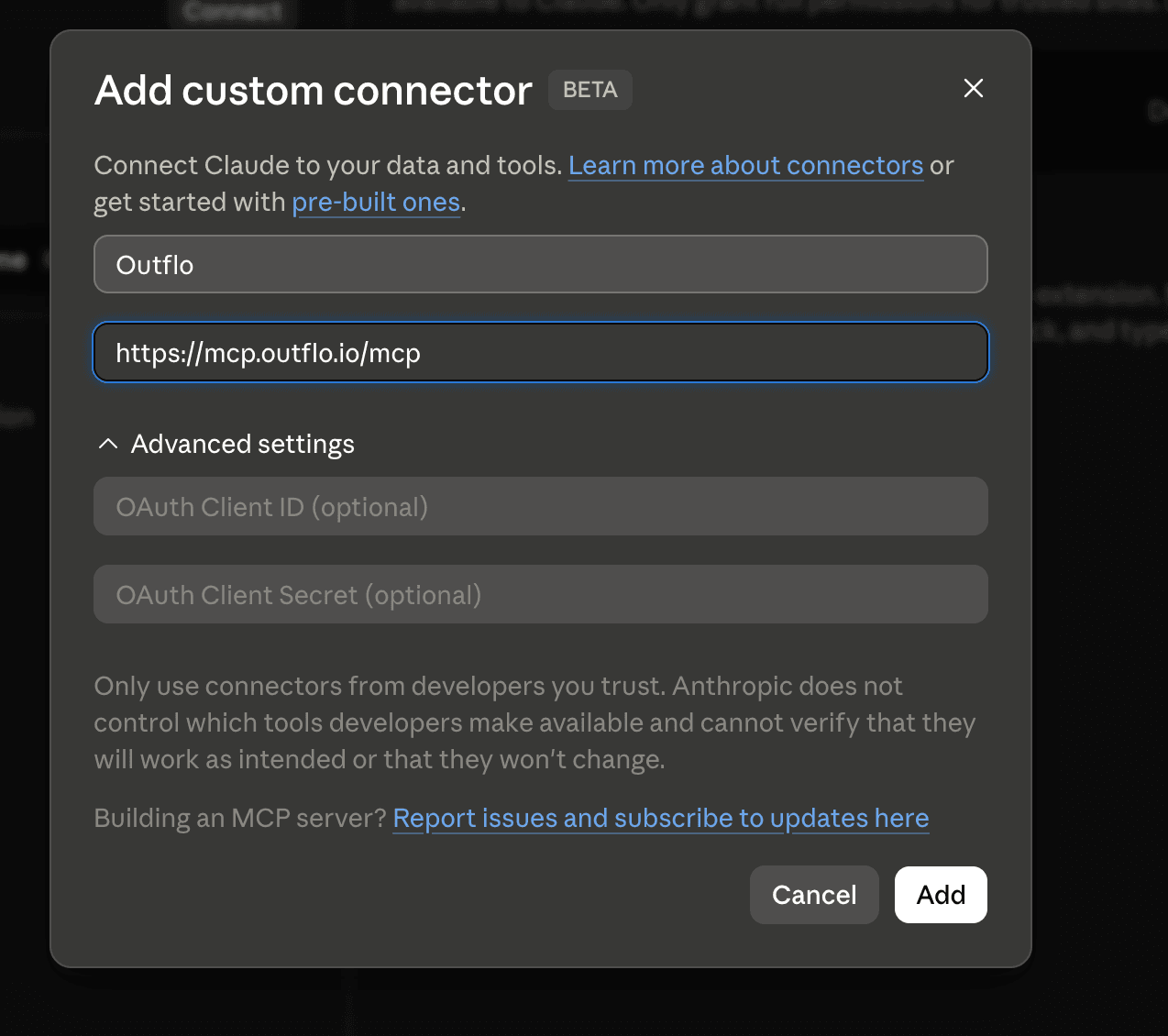
- 1.Fill in the following connection details in the popup:
- Name:
OutFlo - Remote MCP server URL:
https://mcp.outflo.io/mcp
- 2.Click Add to register the connector.
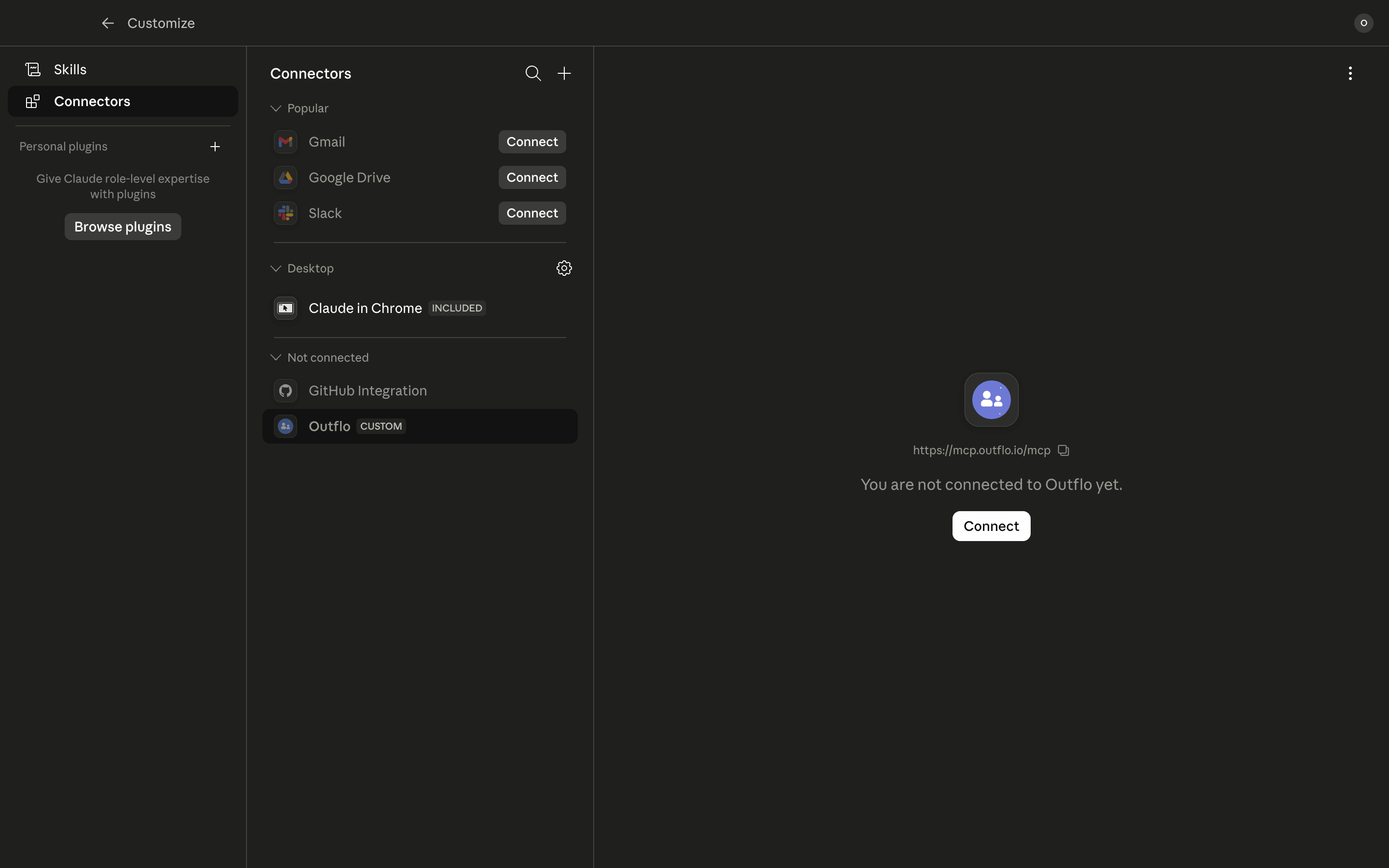
Step 3: Click Connect on the OutFlo Connector Card
Once added, the connector will appear in your Connectors list under "Not connected".
- 1.Locate the OutFlo card.
- 2.Click the Connect button to initiate the connection.
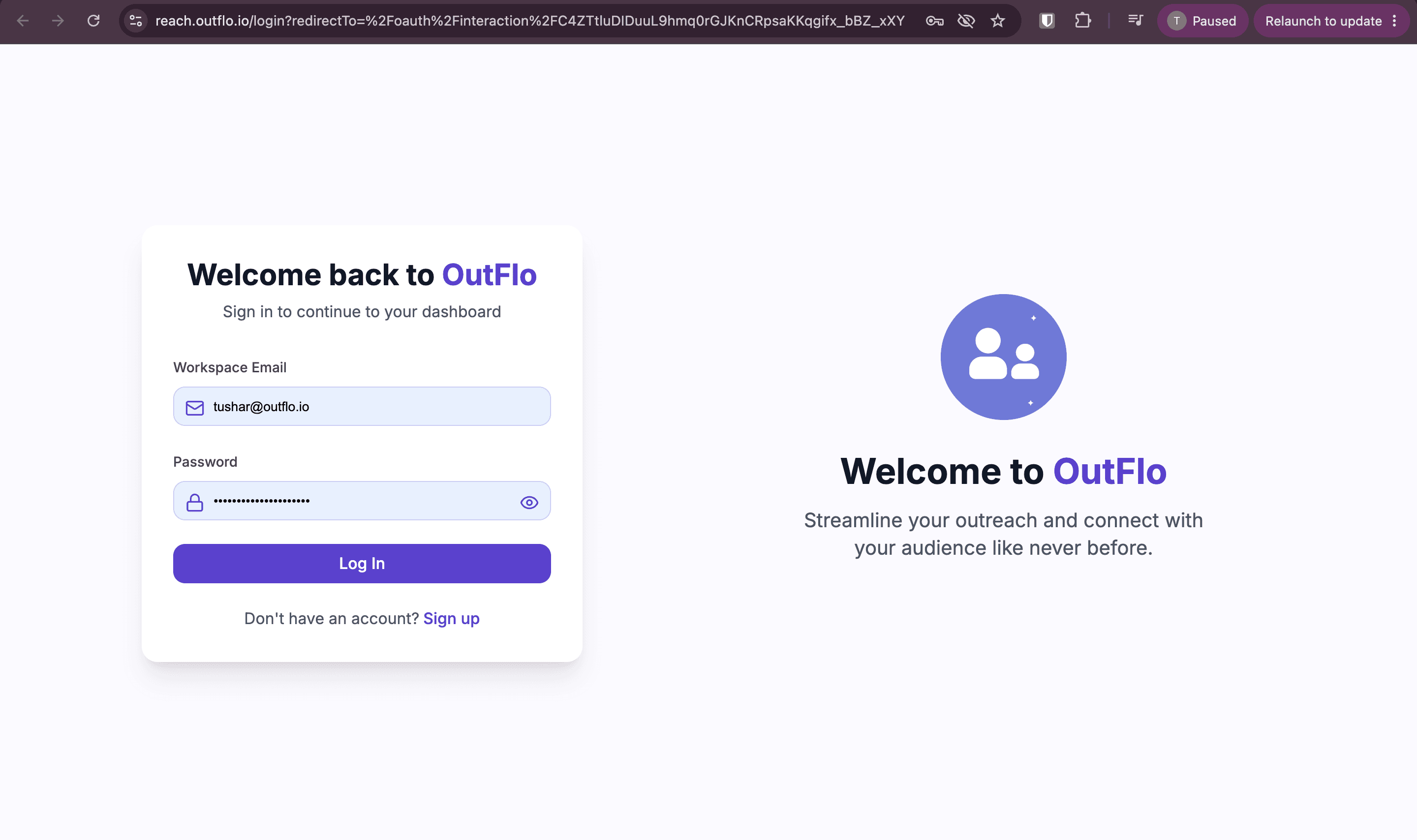
Step 4: Sign In with Your OutFlo Credentials
Clicking connect will redirect you to the secure OutFlo workspace sign-in screen:
- 1.Enter your OutFlo registered email and password.
- 2.Click Log In.
Step 5: Authorize Claude Workspace Access
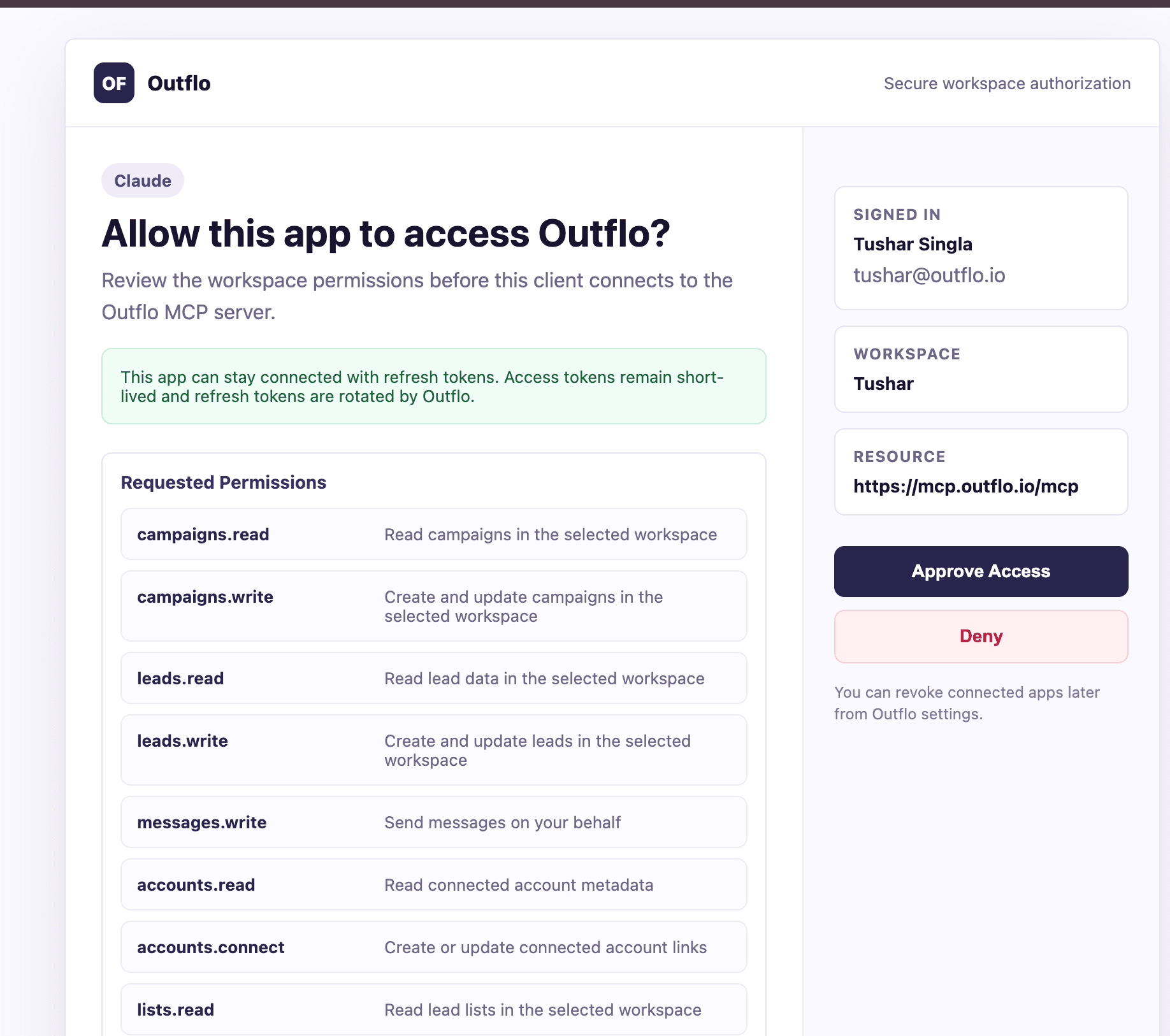
After logging in, you will be shown the OAuth consent screen to authorize workspace permissions:
- 1.Review the requested permissions (such as campaigns, leads, accounts, and messages access).
- 2.Click Approve Access to grant permissions.
Step 6: Configure Tool Permissions in Claude
Once authorized, you are redirected back to Claude.ai. OutFlo is now connected!
You can configure fine-grained tool permissions for Claude, choosing whether to allow, require confirmation, or deny each tool call.