We use essential technologies to keep this site running. With your permission, we also use analytics, advertising, and functional tools to understand and improve it.Read our Privacy Policy

    All features

    Connect LinkedIn outreach to the rest of your stack.

    Send activity to Slack, hand leads to email campaigns, synchronize configured HubSpot data and connect your own workflows with webhooks.

    What moves between your tools.

    Choose the connection you need, then follow its setup guide.

    Native Slack integration

    A first reply on LinkedIn can become a notification in the Slack channel your team already watches.

    1. Choose the trigger. Connect Slack, select “First Reply from a Lead in OutFlo Campaign,” and choose the channel, campaigns and accounts.
    2. Send the context. The notification includes the lead, sender account, campaign and reply, with a link back to the OutFlo inbox.
    3. Pick up the conversation. Your team opens the inbox from Slack to respond. Use Test send to check channel access before relying on the rule.
    Set up Slack notifications
    Slack# linkedin-replies
    OutFlo

    First Reply from Lead

    Lead
    Alex Morgan
    Replied To Account
    Jamie Lee
    Campaign
    Founder outreach

    “Thanks for reaching out. Can you send me a little more detail?”

    Includes a link to the OutFlo inbox
    Example notification with fictional names and reply. The fields follow OutFlo’s Slack notification format.

    Smartlead and Instantly handoffs

    Choose when a lead moves from LinkedIn outreach into an email campaign. You can review the leads yourself or make the handoff part of a sequence.

    Select leads yourself
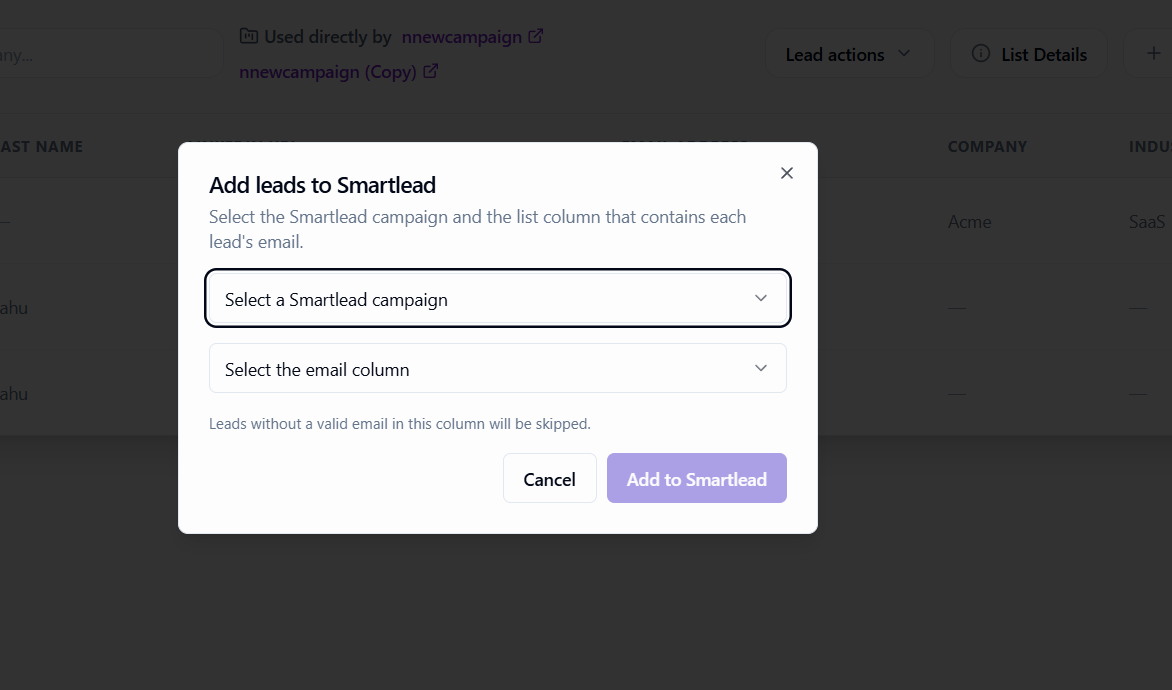
    Select leads in your OutFlo list, choose Add to Smartlead or Add to Instantly, and select the destination campaign and email column.
    Use a campaign step
    Add the provider’s action to your OutFlo sequence. Choose an email campaign and the variable that holds each lead’s email address. The handoff happens when the lead reaches that step.

    Leads need a valid email address. Email sending follows the destination campaign’s status, sequence and schedule; review those settings before adding leads.

    OutFlo Add leads to Smartlead dialog with destination campaign and email column selectors, plus a notice that invalid emails are skipped
    The Smartlead handoff in OutFlo: choose the campaign and the email column before adding leads.

    HubSpot synchronization

    Bring a HubSpot contact segment into an OutFlo lead list, then send configured outreach outcomes back to the matching contacts.

    HubSpot → OutFlo
    Import contacts from a contact segment into a lead list.
    OutFlo → HubSpot
    Update the contact property you select for accepted connections or replies, and add reply activity as a contact note.

    Your workspace needs enabled HubSpot access. Review your mappings: only configured fields and events are synchronized.

    Review HubSpot setup and mappings
    HeyReach

    Moving from HeyReach?

    Bring your existing outreach into OutFlo, then review the import before launching.

    HeyReach migration

    • Campaigns
    • Lead lists
    • Conversation history

    Check how imported campaigns, lists and conversations map into OutFlo, and resolve mapping issues before continuing outreach.

    Read the connections and migration guide

    Connect a workflow of your own.

    Choose the activity that matters, decide where it should go, and test the connection.

    Campaign action updates

    Listen for a selected campaign action or a particular step in your sequence, rather than every event from your workspace. Choose a supported delivery channel for those updates.

    Webhook configuration and testing

    For example, send a reply event to your own workflow’s URL. Choose the event, limit it to the campaigns or LinkedIn accounts you need, then send a test and inspect the data your destination receives.


    Configure and test your connection

    See how it fits your workflow.

    Try OutFlo for freeCompare plans →