Speed to lead is one of the most critical factors in outbound success. When a prospect replies to a LinkedIn message, responding quickly can be the difference between booking a qualified meeting and losing their attention.
OutFlo's native Slack integration delivers real-time notifications directly into your team's Slack workspace the moment key outreach events happen. You can route first replies to a dedicated deal room, track inbound responses across your sender profiles, and notify specific reps when leads accept connection requests, all without context switching or relying on third-party automation tools.
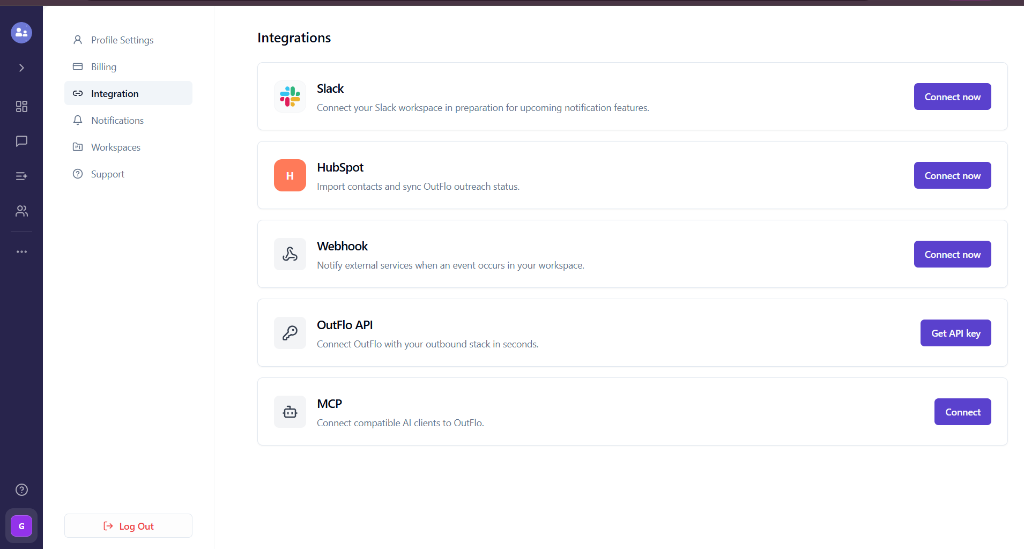
Step 1: Connect Your Slack Workspace
To begin routing notifications, authorize OutFlo to send messages to your Slack workspace:
- 1.Sign in to your OutFlo account and select your workspace.
- 2.In the left navigation menu, click Profile Settings and select Integrations.
- 3.Locate the Slack card and click Connect now.
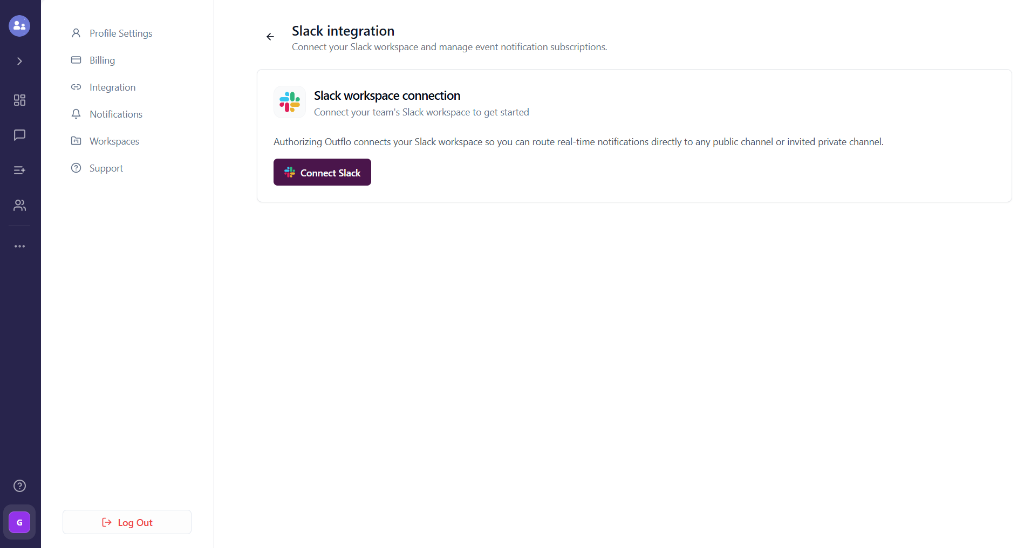
- 4.On the Slack authorization screen, review the requested permissions (which allow OutFlo to post messages and discover public channels).
- 5.Ensure the correct Slack workspace is selected in the top-right dropdown, then click Allow (or Connect Slack).
Once authorized, you will be redirected back to OutFlo. The card will update with a green Connected badge showing your connected workspace name and connection date.
Step 2: Set Up an Event Notification
After connecting your workspace, you can configure one or more notification rules to dictate who receives which alerts.
- 1.On the Slack integration page, click the + Add Subscription button.
- 2.Enter a descriptive Subscription Name (e.g.,
Hot Inbound Replies,Outbound SDR Alerts, orEnterprise Campaign Replies). - 3.In the Target Slack Channel dropdown, choose the destination channel where notifications should be delivered.
Delivering to Private Slack Channels
Public channels within your Slack workspace appear automatically in the dropdown list. If you want to send notifications to a private channel:
- 1.Open the private channel in Slack.
- 2.Type
/invite @Outfloin the message box and press Enter to add the OutFlo bot. - 3.Return to OutFlo, open the channel dropdown, and click the Refresh button next to the label.
- 4.Select your private channel from the list.
Step 3: Configure Triggers and Granular Filters
Customize which events trigger notifications and which accounts or campaigns they apply to:
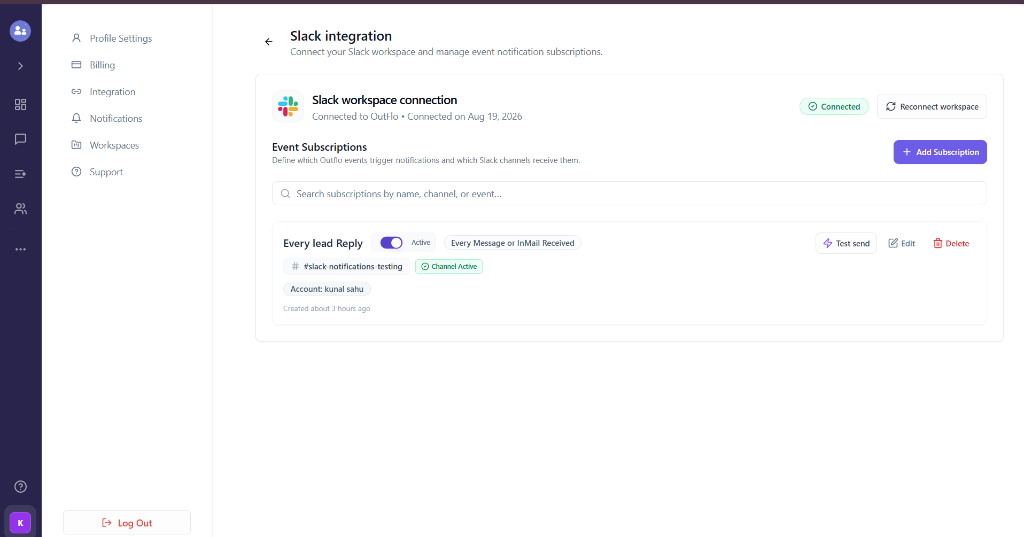
1. Select the Action / Event Type
Choose the trigger from the Action dropdown:
- First Reply from a Lead in OutFlo Campaign
- Every Reply from a Lead in OutFlo Campaign
- Every Message or InMail Received
- Connection Accepted
2. Apply Campaign Filters
- All Campaigns: Receive alerts from every active campaign in your workspace.
- Specific Campaigns: Select individual campaigns so specialized teams or product pods only receive relevant lead notifications.
3. Apply Account (Sender Profile) Filters
- All Accounts: Route notifications for all connected LinkedIn accounts.
- Specific Accounts: Select one or more sender profiles (e.g., only specific sales reps' LinkedIn accounts). This makes it easy to route each rep's replies to their personal notification channel or pod channel.
When you have finished configuring the trigger and filters, click Save Subscription.
Step 4: Test Your Alert Delivery
Before relying on live campaign alerts, verify that OutFlo can post to your chosen channel without issues:
- 1.In the Event Subscriptions list, find your newly created alert rule.
- 2.Click the Test send button on the card.
- 3.Check your Slack channel. You should immediately see a formatted test notification from OutFlo confirming channel access, message formatting, and active status.
If the test notification does not appear:
- Confirm that the channel still exists in Slack.
- If using a private channel, verify that the
@Outflobot has been invited. - Click Reconnect workspace if your Slack workspace permissions were modified.
Step 5: Manage and Maintain Your Alerts
Your outreach strategy evolves over time, and OutFlo makes it simple to manage your alert pipelines:
- Toggle Active / Inactive: Use the toggle switch on any notification card to temporarily pause alerts without deleting your filters or channel configuration.
- Edit Rules: Click Edit to modify names, change destination channels, or update campaign and account filters.
- Delete Rules: Click Delete when a campaign concludes or a dedicated channel is retired.
- Reconnect Workspace: Click Reconnect workspace in the header if you need to update workspace authorizations or re-authenticate after Slack workspace administration changes.
Summary
OutFlo's direct Slack integration bridges the gap between LinkedIn outreach execution and team communication. By configuring real-time alert rules tailored to your team's workflow, you ensure every reply is actioned immediately, driving faster response times and higher meeting conversion rates.