
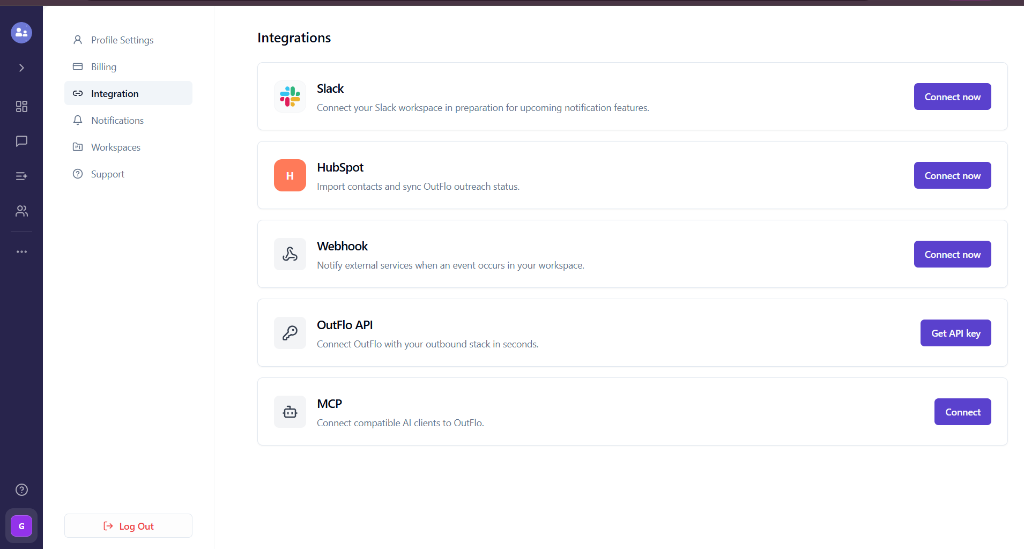
An integration should solve a specific handoff: notify someone about a reply, place an eligible lead into an email campaign, or update a CRM field. Connecting a tool is the beginning; you still need to verify which events and data move between systems.
Start with one event, one destination and a small authorized verification before expanding the scope.
Choose the connection that matches the job
- Job
- Notify a team about LinkedIn activity
- OutFlo workflow
- Native Slack subscriptions
- Main check
- Event type, channel and campaign/sender filters
- Job
- Send selected leads to email outreach
- OutFlo workflow
- Smartlead or Instantly handoff
- Main check
- Destination campaign or list and required email data
- Job
- Synchronize CRM contact/status data
- OutFlo workflow
- Enabled HubSpot integration
- Main check
- Import fields and configured status/reply mappings
- Job
- Build custom event processing
- OutFlo workflow
- Webhook subscription
- Main check
- Supported event, scope and actual payload
- Job
- Let an authorized client operate OutFlo
- OutFlo workflow
- API, MCP or CLI
- Main check
- Permissions and whether the operation reads or changes data
| Job | OutFlo workflow | Main check |
|---|---|---|
| Notify a team about LinkedIn activity | Native Slack subscriptions | Event type, channel and campaign/sender filters |
| Send selected leads to email outreach | Smartlead or Instantly handoff | Destination campaign or list and required email data |
| Synchronize CRM contact/status data | Enabled HubSpot integration | Import fields and configured status/reply mappings |
| Build custom event processing | Webhook subscription | Supported event, scope and actual payload |
| Let an authorized client operate OutFlo | API, MCP or CLI | Permissions and whether the operation reads or changes data |
A tool appearing in a custom automation example does not mean it has a native OutFlo integration. Choose the route that is actually supported.
Configure a Slack notification
Connect the intended Slack workspace from OutFlo's integration settings. Add a subscription, choose the event and target channel, then narrow the campaign and sender filters.
A first campaign reply, every campaign reply and every received message are different triggers. Use the smallest scope that answers the team's need. A client-specific channel should receive only the intended activity.
For a private channel, invite the OutFlo bot and refresh the channel list. Use Test send and inspect the destination. A test confirms channel access and formatting; follow it with an authorized real-event check to verify the filters and actual notification flow.
Follow the native Slack guide for the detailed controls.
Verify an email-campaign handoff
For Smartlead or Instantly, connect the destination account and select the supported campaign or list. Decide whether the handoff is manual for selected leads or part of a sequence step.
Inspect the required email data and destination configuration. A LinkedIn profile is not automatically a usable email address. A successful handoff does not itself mean the email platform sent a message: that platform's campaign state and sending requirements still apply.
Use one appropriate lead to check field mapping, destination membership and the recorded result. Do not test by enrolling an entire audience into an active email campaign before reviewing the downstream behavior.
See Smartlead setup and Instantly setup.
Define HubSpot mappings before synchronizing
Confirm HubSpot access is enabled, then identify the contact segment and fields to import. Review the configured connection-status and reply mappings back to the CRM.
Write down which system owns each field. For example, an OutFlo reply event may update a configured CRM property, but it should not be described as replacing every sales-stage rule in your CRM.
Inspect representative contacts on both sides. Check what changed and what did not. Do not assume a universally bidirectional sync of every object because a contact integration is connected.
Use the HubSpot walkthrough for the supported configuration.
Inspect webhook events before building automation
Choose supported event types and the relevant sender/campaign scope. Campaign-action subscriptions can also narrow activity to supported action types or sequence nodes.
Capture a controlled sample at your destination and inspect its actual fields before writing mappings. Distinguish notification receipt from business success: a downstream system accepting the request is not proof that the lead was correctly updated.
As an integration-design recommendation, make downstream processing safe to repeat when the same event is received again. Log enough status to investigate failures without broadly exposing message contents or lead details. Do not assume a particular retry or ordering guarantee unless the relevant contract provides it.
Review API authorization and migration separately
For API, MCP and CLI use, grant the scopes needed for the intended operations. Review whether an assistant is being asked to draft, add leads or launch a campaign; those have different consequences. Revoke authorizations that are no longer needed.
For a HeyReach migration, inspect imported campaign, list and conversation mappings before launch. Migration success does not validate current sender access, message variables or the destination campaign's schedule. Treat the imported setup as something to review before using.
Explore Integrations and Migration. For assistant-based workflows, see custom campaign variables through MCP.