With the Smartlead integration, you can send leads from OutFlo to a Smartlead email campaign without exporting and uploading a CSV. You can choose a group of leads yourself or add a Smartlead step to an OutFlo campaign so the handoff happens when each lead reaches that step.
OutFlo manages your LinkedIn workflow. Smartlead manages the email sequence, sending accounts, and sending schedule. Together, they let you follow up across both channels from a planned outreach flow.
Before you start
Have these ready:
- An OutFlo workspace.
- A Smartlead account with an API key available in its settings.
- A campaign already created in Smartlead.
An API key is the connection key you copy from Smartlead and paste into OutFlo. You do not need to write code. Keep it private, just as you would a password.
1. Connect Smartlead to your OutFlo workspace
- 1.Sign in to Smartlead and copy your key from its API settings. If you need help finding it, see Smartlead’s key management guide.
- 2.In OutFlo, select the workspace where you want to use the integration.
- 3.Open Settings, then the Integration tab.
- 4.Find Smartlead and select Configure.
- 5.Paste the key into Smartlead API key and select Connect Smartlead.
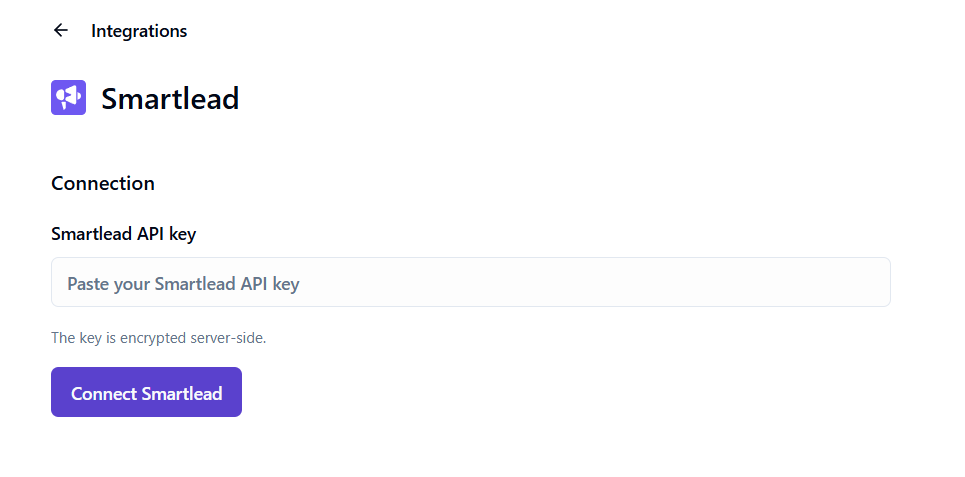
Once connected, the Smartlead page shows your available campaigns. Use Refresh if you have just created a campaign in Smartlead and it does not appear yet.
2. Send selected leads to a Smartlead campaign
Use this option when you want to review a group of leads before starting email follow-up.
- 1.Open your lead list in OutFlo.
- 2.Select the individual leads you want to send.
- 3.Open Lead actions and choose Add to Smartlead.
- 4.Select the destination Smartlead campaign.
- 5.Choose the Email column containing the addresses you want Smartlead to use.
- 6.Review the preview: valid, missing, and invalid emails, plus example addresses.
- 7.Select Add to Smartlead.
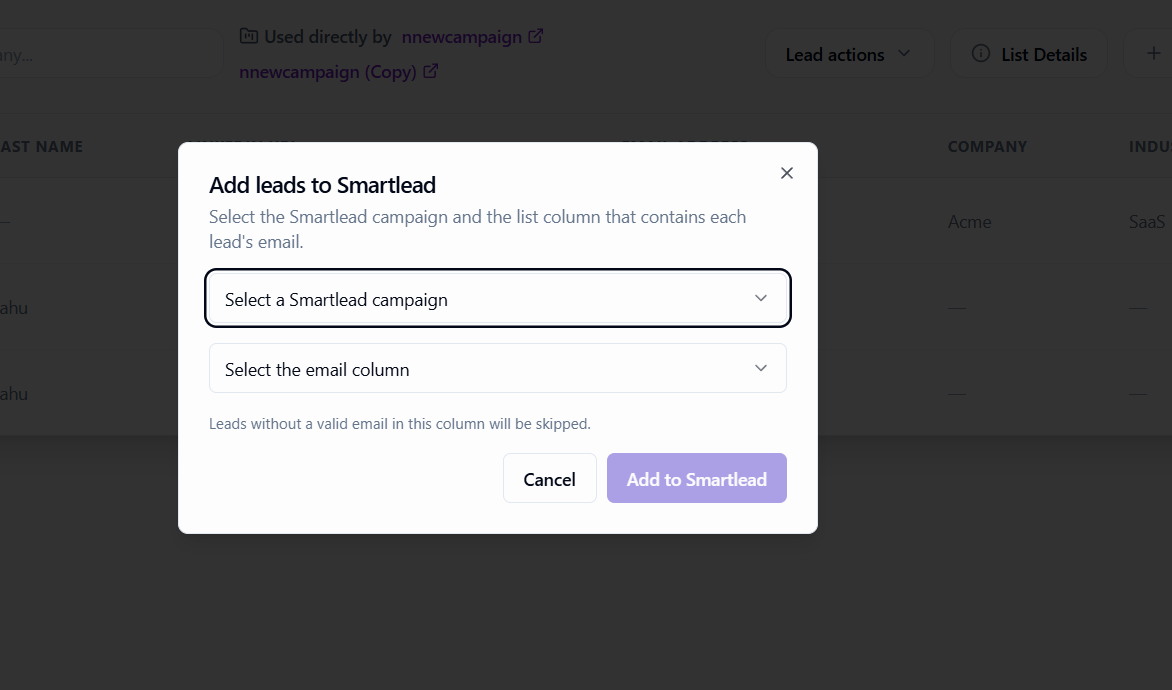
For example, if your list has both a work email and a personal email column, choose the work email column for business outreach. The preview helps you check that you picked the intended field.
Missing and invalid addresses are skipped. Fix those addresses in your list before adding those leads again. OutFlo remembers your email-column choice for that list.
Select individual leads rather than using a selection that spans all pages. You can add up to 4,000 leads per submission.
Before adding leads, review the campaign in Smartlead. Email sending follows that campaign’s status, sequence, and schedule. A running campaign may begin contacting eligible leads according to its settings.
3. Add Smartlead to an OutFlo campaign sequence
Use a campaign step when you want the handoff to happen automatically at a specific point in your outreach.
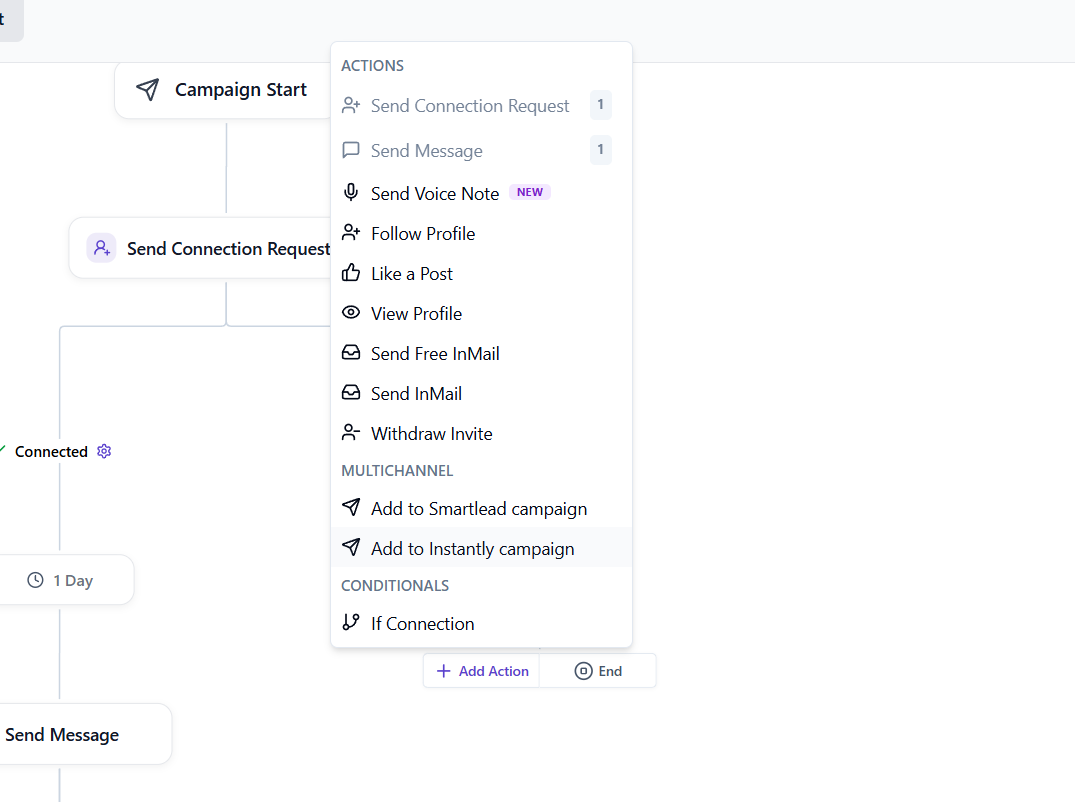
- 1.Open your OutFlo campaign’s sequence editor.
- 2.Select Add Action, then Add to Smartlead campaign under Multichannel, where you want the handoff to happen.
- 3.Choose the Smartlead campaign.
- 4.Select the Email variable containing each lead’s email address.
- 5.Review Pause Smartlead outreach when lead replies in Outflo.
- 6.Save the step and review the sequence before launching the campaign.
An email variable is the campaign field that holds the address for each lead. Make sure it contains email addresses before leads reach this step. Leads without a valid email in the chosen variable skip the step.
Pause email follow-up when a lead replies
The Smartlead step’s Pause Smartlead outreach when lead replies in Outflo option is enabled by default. Keep it on when you want a reply in OutFlo to pause Smartlead outreach for the lead enrolled through that step.
This is useful when a prospect starts a conversation on LinkedIn and you want to avoid continuing the planned email follow-up. Review this option in each Smartlead step you use.
4. Check the result and review linked leads
- 1.Return to Integration → Smartlead.
- 2.Find your campaign and select View linked leads.
- 3.Use Refresh leads to get the latest information.
- 4.To pause selected leads’ email follow-up, tick them and select Pause outreach.
Total provider leads includes the campaign’s full Smartlead lead count. Linked to Outflo counts leads with a saved connection to OutFlo. These numbers can differ, especially if you also add leads directly in Smartlead.
If something does not look right
- What you see
- The key is not accepted
- What to do
- Copy the correct Smartlead key again and check for extra spaces. If the key changed, use Update API key.
- What you see
- A campaign is missing
- What to do
- Create it in Smartlead first, then select Refresh in OutFlo. Check that the key can access the campaign you want.
- What you see
- Add to Smartlead is unavailable
- What to do
- Check the workspace connection and your permissions, then select individual leads.
- What you see
- Emails are missing or invalid
- What to do
- Choose the correct email column or variable and correct the addresses.
- What you see
- Leads were added but no email was sent
- What to do
- Review the campaign’s status, sequence, sending accounts, and schedule in Smartlead.
| What you see | What to do |
|---|---|
| The key is not accepted | Copy the correct Smartlead key again and check for extra spaces. If the key changed, use Update API key. |
| A campaign is missing | Create it in Smartlead first, then select Refresh in OutFlo. Check that the key can access the campaign you want. |
| Add to Smartlead is unavailable | Check the workspace connection and your permissions, then select individual leads. |
| Emails are missing or invalid | Choose the correct email column or variable and correct the addresses. |
| Leads were added but no email was sent | Review the campaign’s status, sequence, sending accounts, and schedule in Smartlead. |
If you use Instantly too, see the Instantly integration guide.