Moving from HeyReach to OutFlo starts in Settings → Integration. With your HeyReach API key, you can review an import and bring your campaigns, lead lists, and conversation history into your OutFlo workspace.
Your HeyReach data stays unchanged, and imported campaigns start as drafts. After the import, review the results and reconnect any sender accounts that need attention before launching outreach.
This guide covers the three screens you will use: the migration entry point, the HeyReach connection screen, and the import results.
Before you start
Have these ready:
- Access to the OutFlo workspace where you want the imported data to appear.
- Access to your HeyReach API key under Settings → Integrations → Public API in HeyReach.
- Access to the LinkedIn sender accounts you may need to reconnect in OutFlo.
Choose the destination workspace before starting. If you manage multiple clients or teams, check that you are importing into the intended workspace.
Keep your API key private. Paste it into OutFlo’s migration form; do not include it in screenshots or support messages.
1. Open the HeyReach migration
- 1.In OutFlo, open Settings.
- 2.Select Integration.
- 3.Scroll to Migrations.
- 4.Find HeyReach migrations and select Import from HeyReach.

The card lists the migration scope: campaigns, lead lists, and conversation history.
2. Connect HeyReach and review your import
The Connect HeyReach screen asks for your HeyReach API key.
- 1.In HeyReach, go to Settings → Integrations → Public API and copy your API key.
- 2.Return to OutFlo and paste it into HeyReach API Key.
- 3.Select Continue to review your import before starting it.
- 4.Review the information presented for your workspace, then follow the on-screen prompts to start the import.
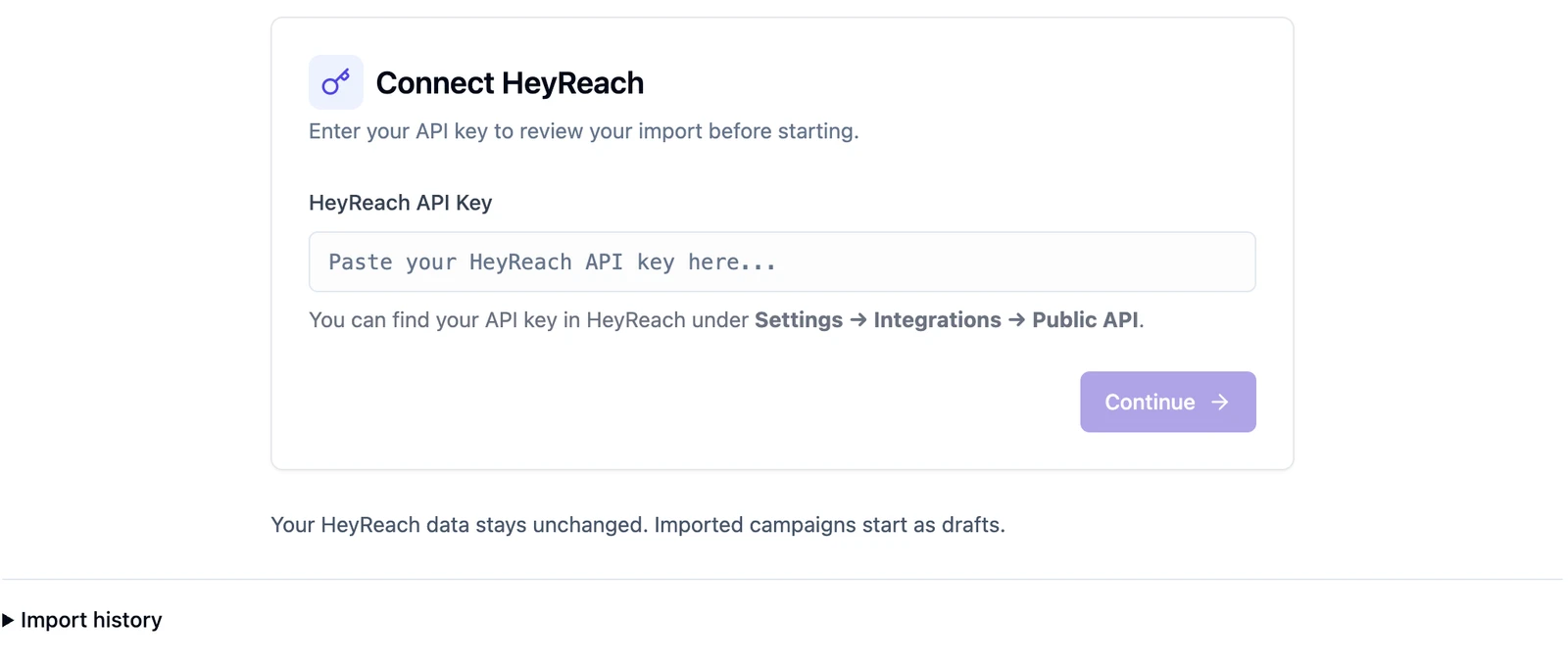
The connection screen confirms two things: your source data in HeyReach stays unchanged, and imported OutFlo campaigns start as drafts. You will review and launch those campaigns separately.
You can also expand Import history on this page to inspect previous imports.
3. Read the import results
When the import finishes, review its summary before moving on. You may see Import finished with items to review. This means the import has completed, but there are items you need to inspect or resolve.
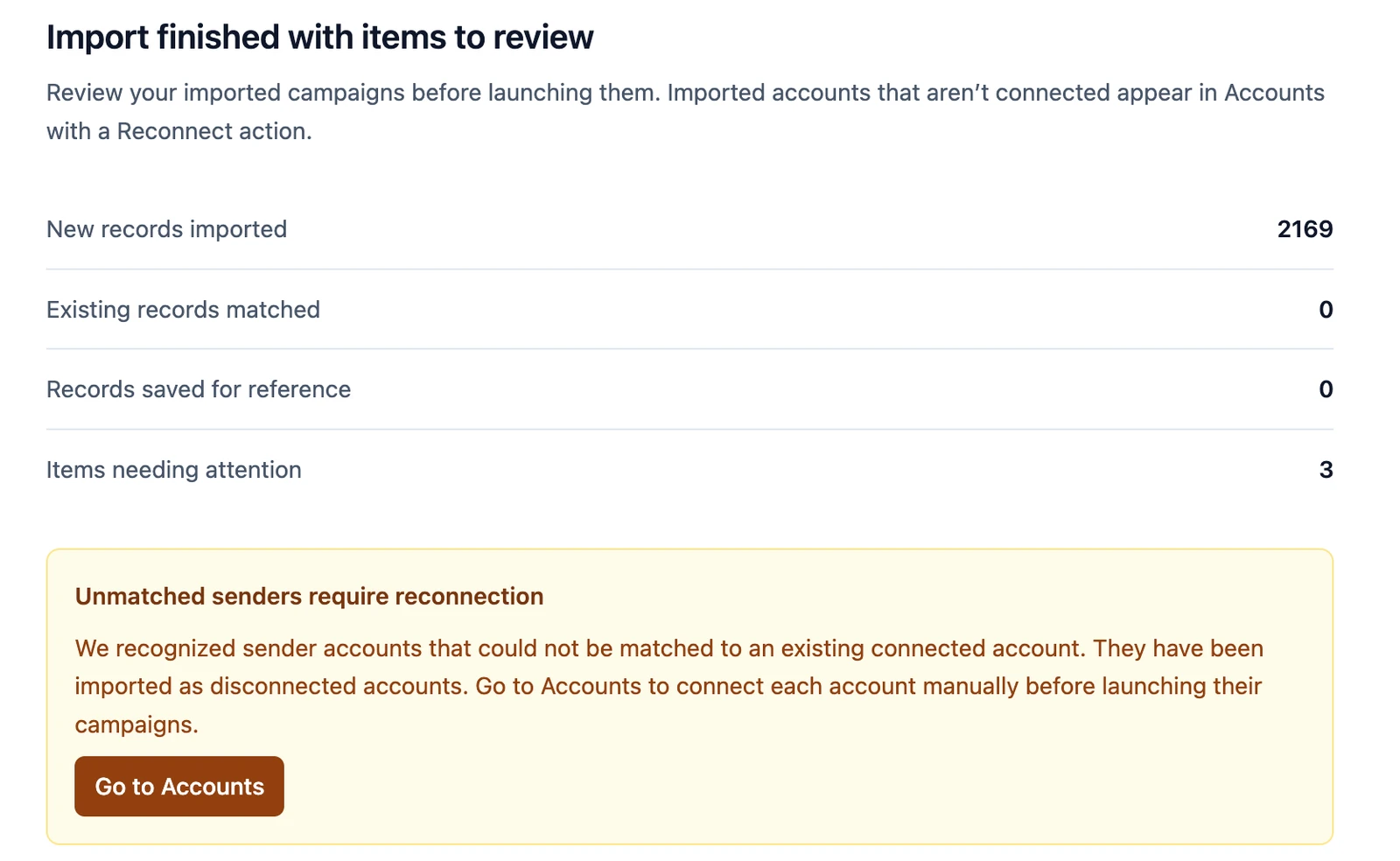
The summary separates the results into four categories:
- Result
- New records imported
- How to use it
- Review the newly imported data in the destination workspace.
- Result
- Existing records matched
- How to use it
- Check the records the import matched to data already in OutFlo.
- Result
- Records saved for reference
- How to use it
- Review the result details for records retained for reference. Do not assume they are ready for active outreach.
- Result
- Items needing attention
- How to use it
- Read the warnings and the individual items to review, then address the issues before launch.
| Result | How to use it |
|---|---|
| New records imported | Review the newly imported data in the destination workspace. |
| Existing records matched | Check the records the import matched to data already in OutFlo. |
| Records saved for reference | Review the result details for records retained for reference. Do not assume they are ready for active outreach. |
| Items needing attention | Read the warnings and the individual items to review, then address the issues before launch. |
The numbers in the screenshot are one example. Your counts will depend on your HeyReach data and the destination workspace. Use the details beneath the summary to understand what needs action; a total count alone does not tell you whether a campaign is ready to launch.
4. Reconnect unmatched senders
If OutFlo cannot match a HeyReach sender to an existing connected account, you may see Unmatched senders require reconnection.
These recognized senders are imported as disconnected accounts. Importing a sender record does not establish an active LinkedIn connection.
- 1.Select Go to Accounts, or open Accounts from the main navigation.
- 2.Find each imported account that needs attention.
- 3.Use its Reconnect action and complete the connection manually.
- 4.Check that the intended account is connected before launching any campaign that uses it.
An item to review may also say that a conversation belongs to a HeyReach sender that is not connected in the destination workspace. Connect that sender in Accounts so OutFlo can link and display its conversations.
Work through the individual items rather than assuming every warning has the same cause. If an item remains unclear after reconnecting the relevant account, contact OutFlo support with the warning and the affected import. Keep API keys and private conversation contents out of your message.
5. Review the imported drafts before launch
Open the imported campaigns and check the setup you intend to run:
- Senders: The correct LinkedIn accounts are connected and assigned.
- Lead lists: The imported audience and campaign associations match your intent.
- Sequence: Messages, steps, and delays are appropriate for the campaign.
- Variables: Personalization fields contain the expected values.
- Sending settings: The schedule and limits match your planned outreach.
- Conversations: Relevant sender connections are resolved so you can review the imported history.
- Import warnings: Items needing attention have been reviewed and relevant issues resolved.
Before activating OutFlo outreach, pause any HeyReach campaigns using the same LinkedIn senders. This avoids overlapping outreach from the two tools. Because the import leaves HeyReach data unchanged, you should manage the source campaigns as part of your switch.
Launch only after you have reviewed the destination campaign. A completed import confirms that the import finished; it does not replace your campaign review.
Return to your import
Use Refresh on the results page to check the latest displayed information. Use Import history to revisit previous imports. The results page also includes New import if you need to begin another migration.
For an import that finished with warnings, start with the existing results and the affected accounts. A new import is not a substitute for reconnecting a disconnected sender.
Explore OutFlo’s integrations, compare HeyReach and OutFlo, or read the broader workflow connection guide.