Do Not Contact List for LinkedIn Outreach: OutFlo Setup Guide
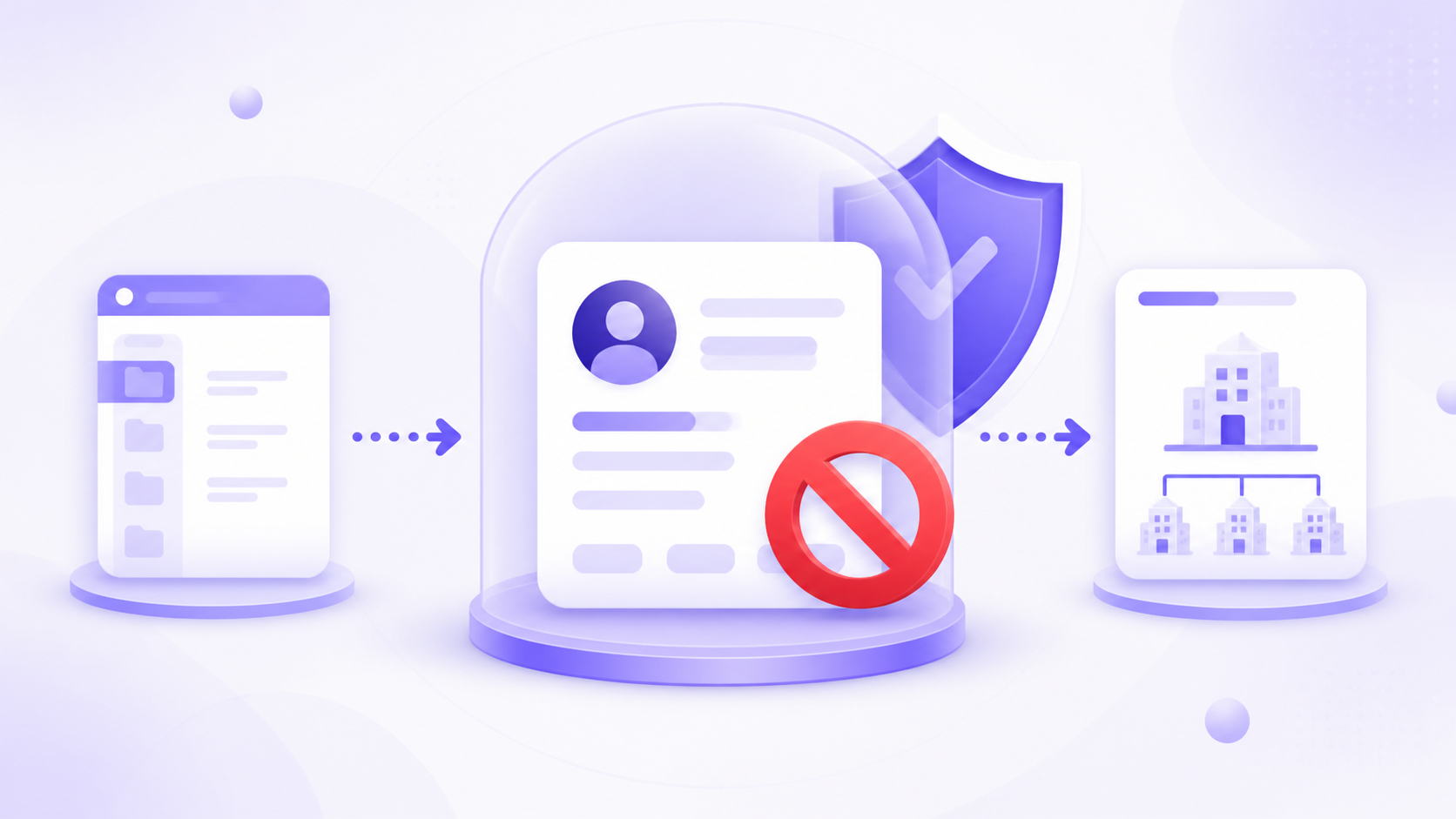
Protect contacts and companies across your workspace or organization with OutFlo's Do Not Contact list.
OutFlo's Do Not Contact (DNC) list is a block list for protected contacts and companies. When a LinkedIn profile or company is added to DNC, OutFlo excludes it from automated LinkedIn campaign activity according to the scope you choose.
You can add contacts one by one, add companies using a name, domain, or LinkedIn company URL, export the current list, and choose whether the protection applies to one workspace or the entire organization.
How DNC scope works
- Scope
- Current workspace
- Where the entry is protected
- Only the workspace where the entry was added
- Can another workspace contact it?
- Yes
- Scope
- Organization-wide
- Where the entry is protected
- Every workspace in the organization
- Can another workspace contact it?
- No
| Scope | Where the entry is protected | Can another workspace contact it? |
|---|---|---|
| Current workspace | Only the workspace where the entry was added | Yes |
| Organization-wide | Every workspace in the organization | No |
Use Current workspace when the exclusion applies to one team or campaign workspace. Use Organization-wide when nobody in the organization should contact that profile or company.
Open the Do Not Contact list
- 1.Open Lead Management in OutFlo.
- 2.Find the System Lists section.
- 3.Select Do Not Contact.
- 4.Select Manage to view and update protected entries.
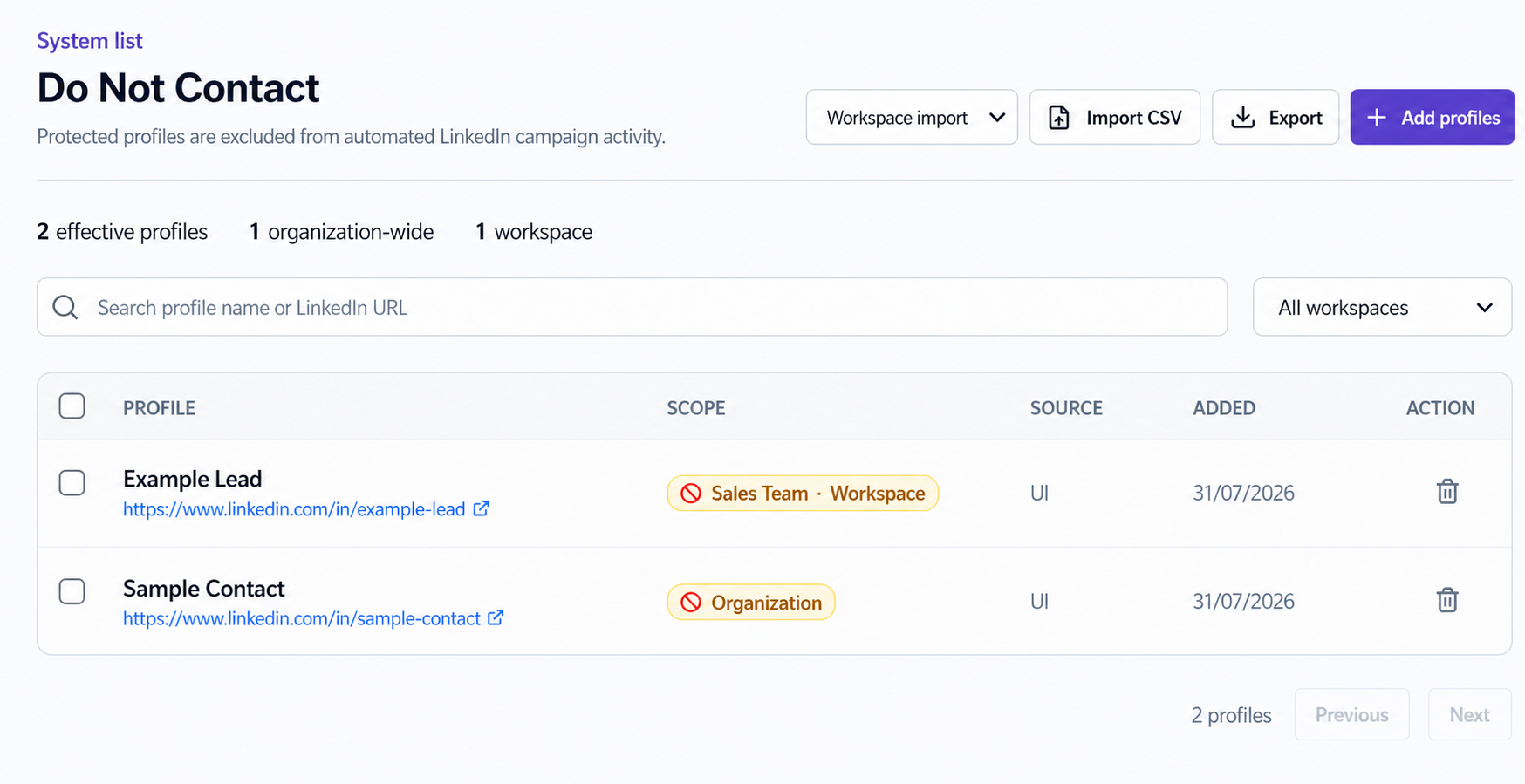
The DNC page separates protected Contacts and Companies into tabs.
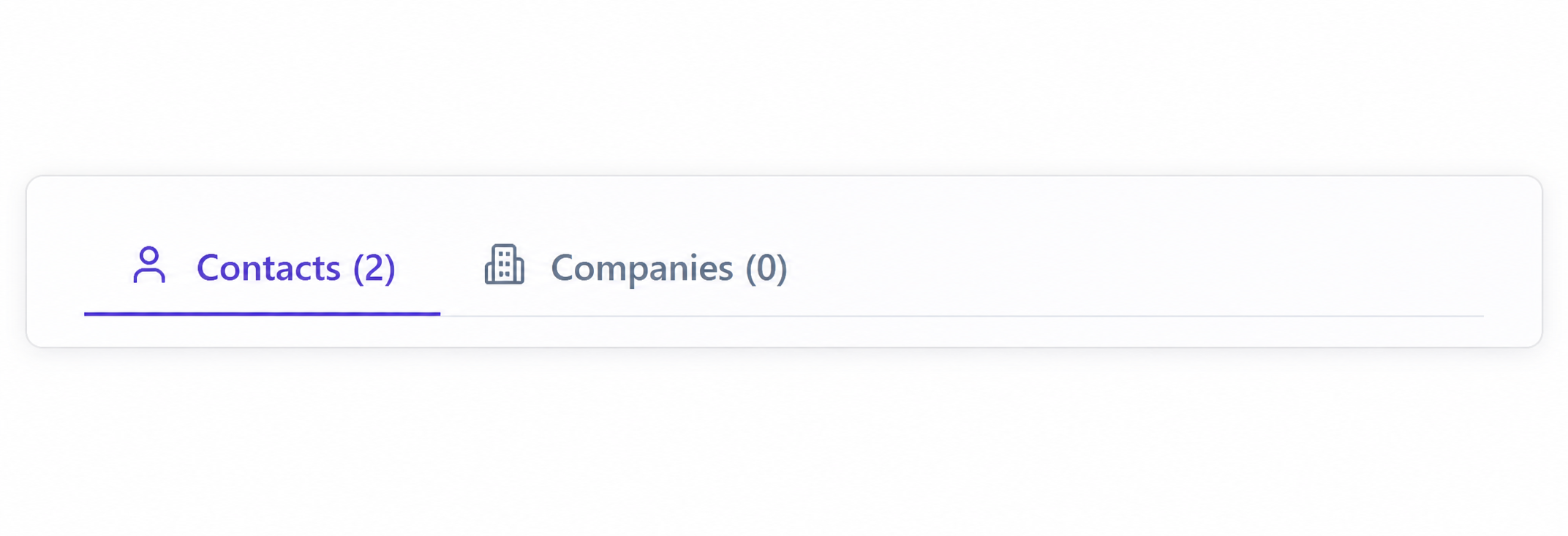
The list summary shows effective entries and how they are split between organization-wide and workspace scope.
Add contacts manually
Use this method when you need to protect a small number of profiles quickly.
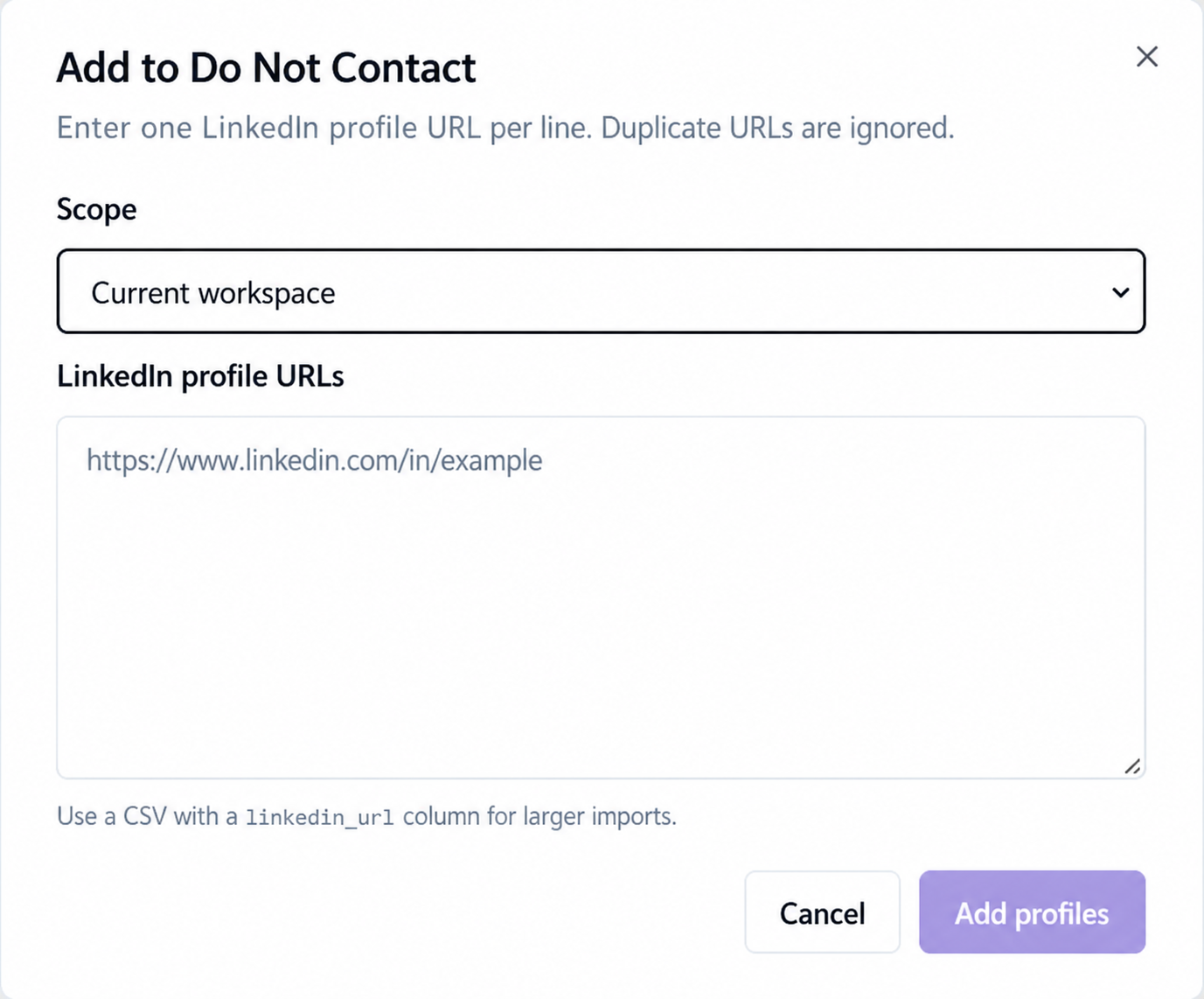
- 1.Select Add profiles.
- 2.Choose Current workspace or Organization-wide.
- 3.Enter one LinkedIn profile URL per line.
- 4.Select Add profiles.
Duplicate URLs are ignored. Use a direct LinkedIn profile URL for each contact.
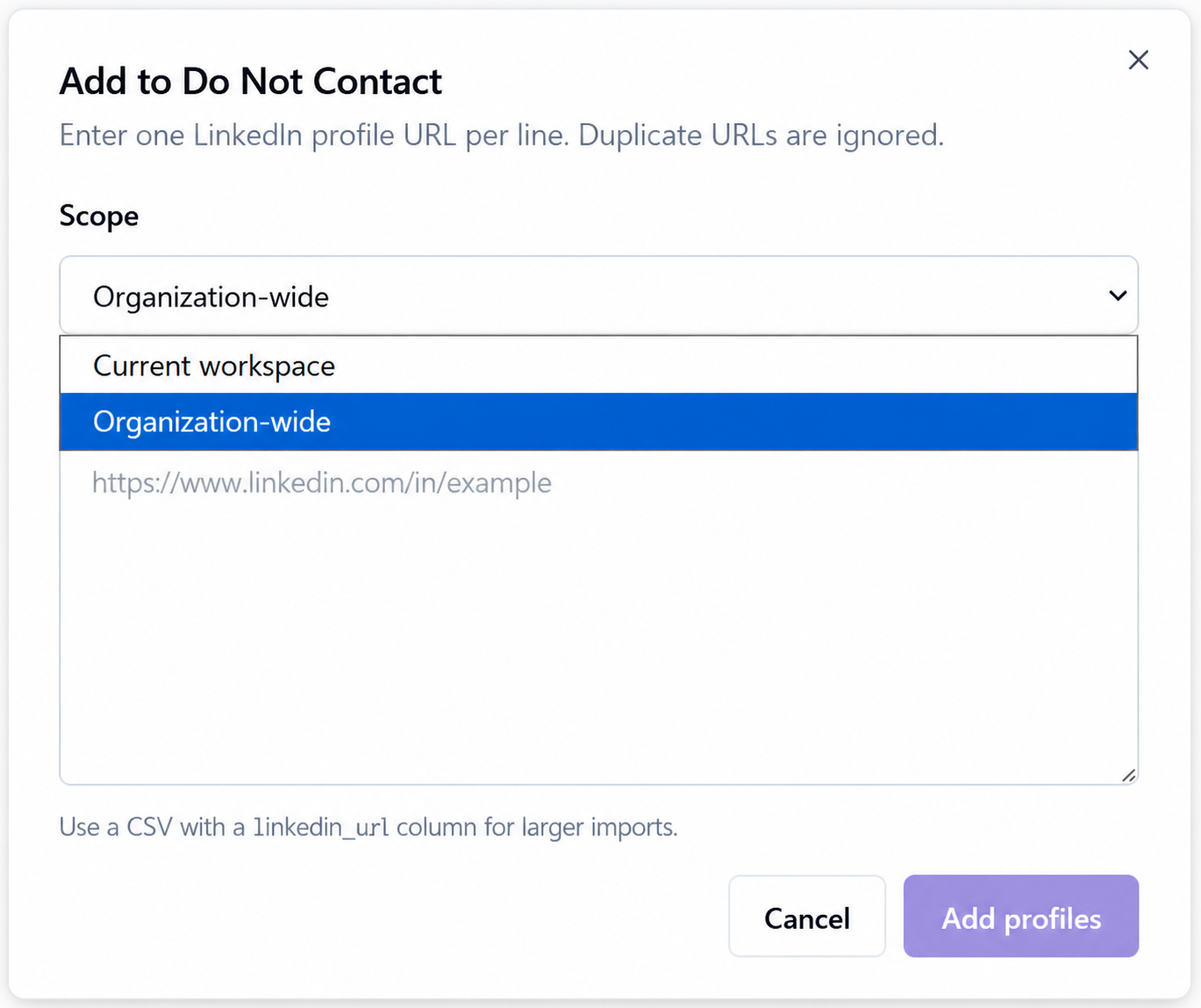
For a workspace-only exclusion, select Current workspace before adding the profiles.
Add a company to Do Not Contact
Company-level DNC protects associated leads from a company that matches the identifier you add. This is useful when your team should not contact anyone from a specific customer, partner, competitor, or restricted account.
- 1.Open the Companies tab.
- 2.Select Add company.
- 3.Choose Current workspace or Organization-wide.
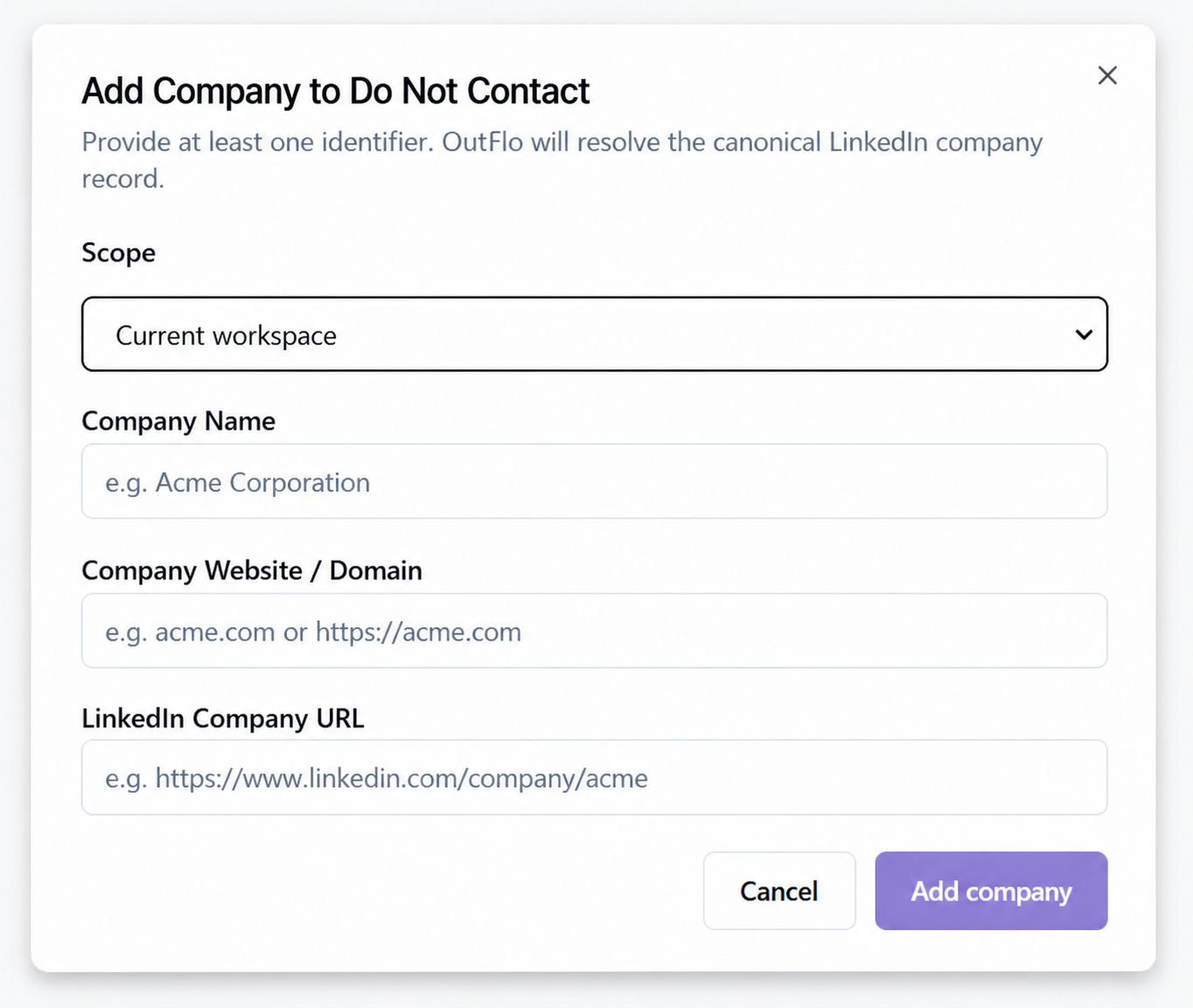
- 4.Enter at least one identifier.
- 5.Select Add company.
You can provide:
- Company Name
- Company Website or Domain
- LinkedIn Company URL
OutFlo resolves the canonical LinkedIn company record from the information you provide.
After adding the company, review its resolution and scope in the Companies list.
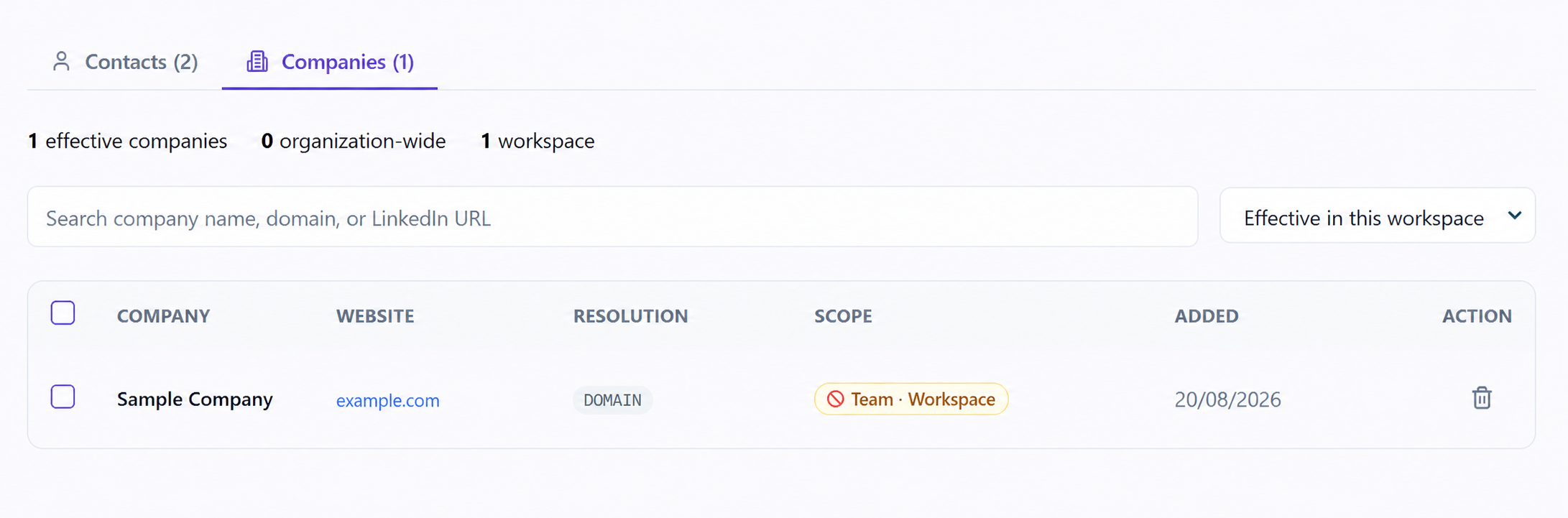
Company DNC entries follow the same scope rules as contact DNC entries. A workspace entry protects the company in that workspace. An organization-wide entry protects the company across every workspace in the organization.
Import a contact DNC list with CSV
For larger contact lists, import a CSV instead of pasting profile URLs one at a time. Your CSV should include a column named linkedin_url.
From the Contacts tab, select Import CSV, choose the file, and confirm the scope for the imported profiles.
Export the DNC list
Select Export from the relevant Do Not Contact tab to download the current contact or company list as a CSV file.
Exporting is useful when you want to:
- Keep a backup of protected entries.
- Review workspace and organization scope.
- Share the list with an operations or compliance team.
- Reuse the list in another internal process.
What happens inside a campaign?
When a contact or company is on the Do Not Contact list, OutFlo marks the matching lead with a Do Not Contact status and excludes it from automated LinkedIn campaign activity.
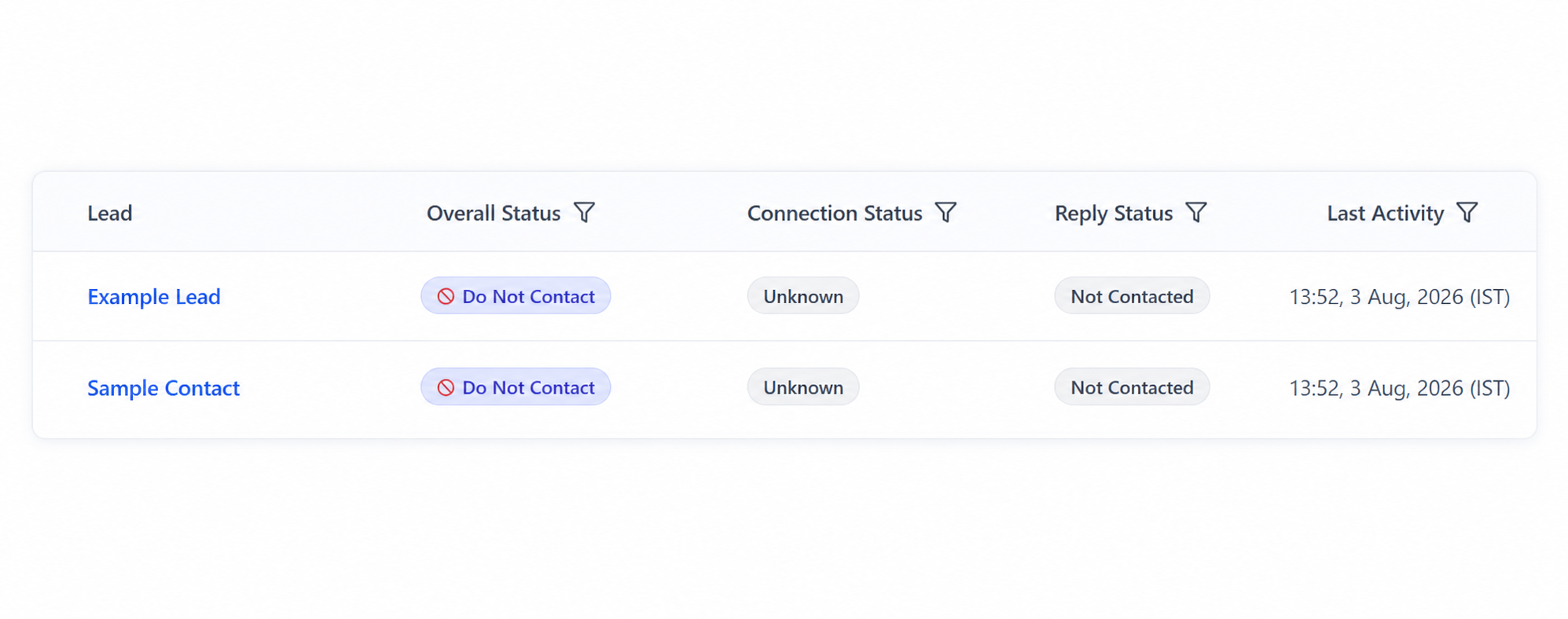
This gives campaign operators a visible confirmation that the contact or company is protected instead of leaving the lead in an unclear pending state.
What happens if a DNC lead is already in an active campaign?
If you add a lead to the DNC list after that lead has already been added to an active campaign, OutFlo marks the lead as Do Not Contact in that campaign as well. This applies whether the lead has already been contacted or is still waiting for its first sequence action.
Once the DNC status is applied, OutFlo prevents all remaining campaign sequence actions for that lead. The existing connection, reply, and activity details remain visible, but the lead is excluded from further outreach.
Recommended DNC workflow
Collect protected contacts or companies, choose the correct scope, add manually or import a contact list, review the DNC list, and then run campaigns with protected entries excluded.
Quick checklist
- Add the correct LinkedIn profile URL, company domain, company name, or LinkedIn company URL.
- Use Current workspace for a local exclusion.
- Use Organization-wide for a company-wide exclusion.
- Use the linkedin_url column for contact CSV imports.
- Review the list after importing or adding a company.
- Export a backup when maintaining a large DNC list.
- Check that protected leads show Do Not Contact in campaigns.
The Do Not Contact list gives your team one place to manage protected contacts and companies and apply the right level of exclusion before automated outreach begins.