Exclude existing LinkedIn connections keeps leads you already know out of an automated campaign. It is useful when a sender should not send a connection request or begin a sequence with someone who is already a first-degree connection.
OutFlo checks two sources for the sender accounts you choose:
- 1.Current LinkedIn relationship data. When OutFlo has a known first-degree connection between a sender and a lead, it treats that lead as an existing connection.
- 2.The sender’s saved connection list. This includes connections stored for the sender account and connections imported through Manage Connections.
If either source finds a match, the lead is excluded when this campaign setting is on. The two sources are used together so a saved CSV can supplement the relationship data already known to OutFlo.
Turn on the campaign setting
- 1.Open the campaign and go to the Leads step.
- 2.Open Lead Exclusion Settings.
- 3.Turn on Exclude existing LinkedIn connections.
- 4.Choose which sender accounts should be checked.
The account scope matters:
- Scope
- Campaign senders
- OutFlo checks
- Every active sender assigned to this campaign. Use this when the campaign’s own senders define the exclusion.
- Scope
- All workspace accounts
- OutFlo checks
- Every eligible account in the campaign workspace. Use this when a lead should be excluded if they are already connected to anyone on the workspace.
- Scope
- Specific accounts
- OutFlo checks
- Only the sender accounts you select. Use this when the policy applies to a smaller group.
| Scope | OutFlo checks |
|---|---|
| Campaign senders | Every active sender assigned to this campaign. Use this when the campaign’s own senders define the exclusion. |
| All workspace accounts | Every eligible account in the campaign workspace. Use this when a lead should be excluded if they are already connected to anyone on the workspace. |
| Specific accounts | Only the sender accounts you select. Use this when the policy applies to a smaller group. |
The setting only evaluates the selected group. For example, a lead connected to an account outside a Specific accounts selection is not excluded by this rule.
Assign a lead to a connected sender
Lead Assignment Settings controls the related sender preference. Choose Prefer a sender they’re connected to when you want known first-degree connections to stay with the sender who already knows them.
What if the lead is connected to multiple campaign senders?
OutFlo builds a preferred pool from the active campaign senders who are known to be connected to the lead. It then assigns the lead to the least-loaded sender in that pool. This preserves the relationship preference without concentrating every shared connection on one account. If the connected senders have the same workload, OutFlo applies a stable account-level tie-breaker.
What if there is no initial connection dump or known relationship?
The connection preference only applies when OutFlo has reliable relationship evidence from the sender’s current LinkedIn relationship data or saved connection list. If neither source identifies a connection when the lead is assigned, OutFlo falls back to its normal least-loaded active campaign sender. The lead is not held back waiting for a CSV import.
You can improve future assignment decisions by importing each relevant sender’s LinkedIn connections in Manage Connections. If OutFlo later discovers a first-degree relationship while checking the sender’s LinkedIn profile before outreach, it records that relationship. The existing-connection exclusion can then stop outreach when enabled; sender assignment itself does not promise to retroactively move a lead that was already assigned.
Open Manage Connections for a sender
Each sender has a Manage Connections tab where you can review the connection list available to OutFlo and upload additional LinkedIn connections.
- 1.Open Accounts.
- 2.Select the sender account you want to maintain.
- 3.Select Manage Connections.
- 4.Stay on Connection List to review known connections or select Upload CSV to add more.
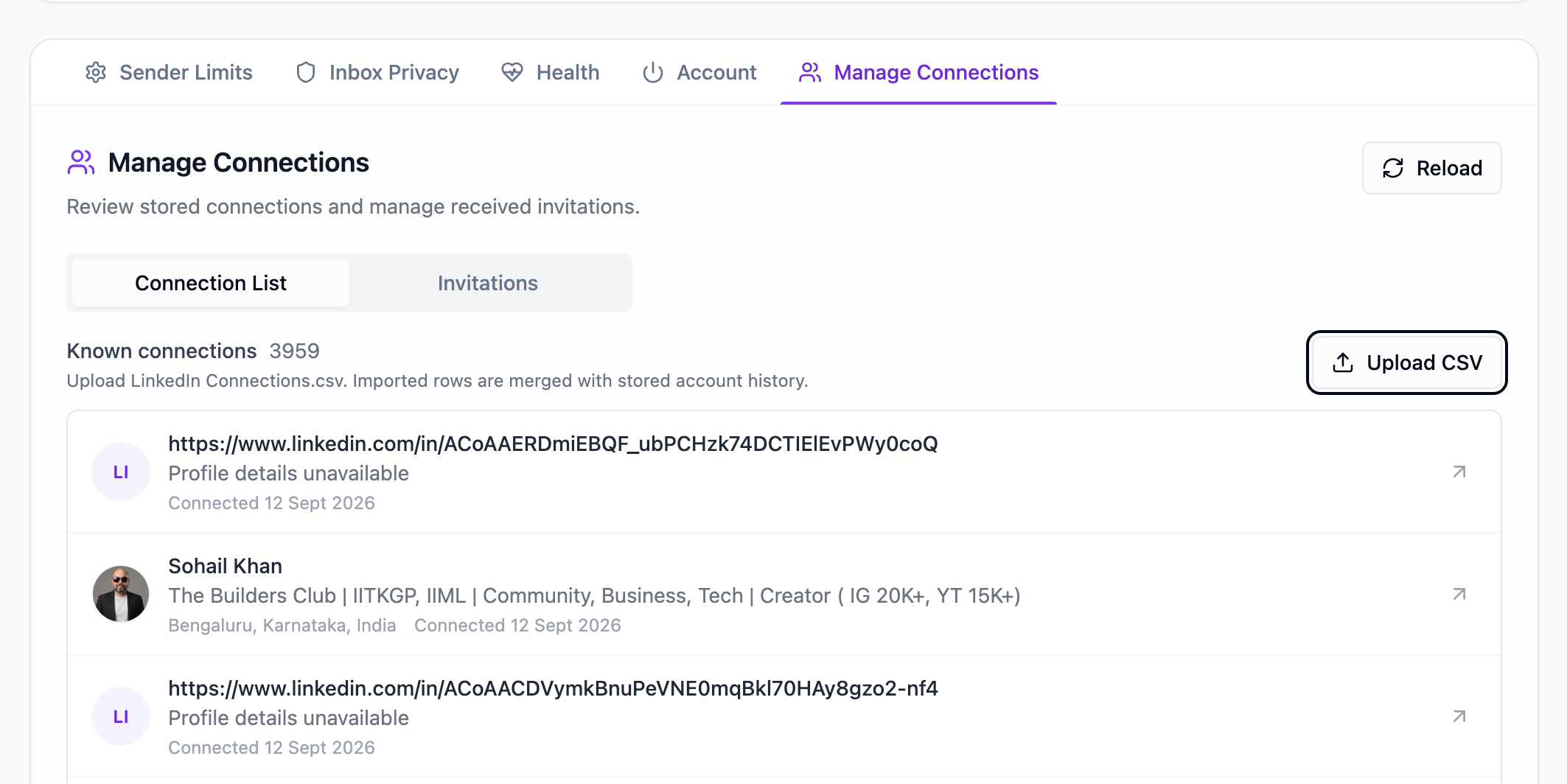
The campaign setting includes a Manage Connections link. It opens a sender account’s Manage Connections tab in a new browser tab, so you can update the list without leaving the campaign editor.
Import a LinkedIn connection list
Use a CSV export from LinkedIn when you want the saved connection list to cover connections that may not yet be represented in the account’s current relationship data.
When you select Upload CSV, OutFlo asks you to map the CSV columns before importing. A LinkedIn profile URL or Profile URN is required. Name, company, title, email, connection date, and similar fields are optional and make the saved list easier to review.
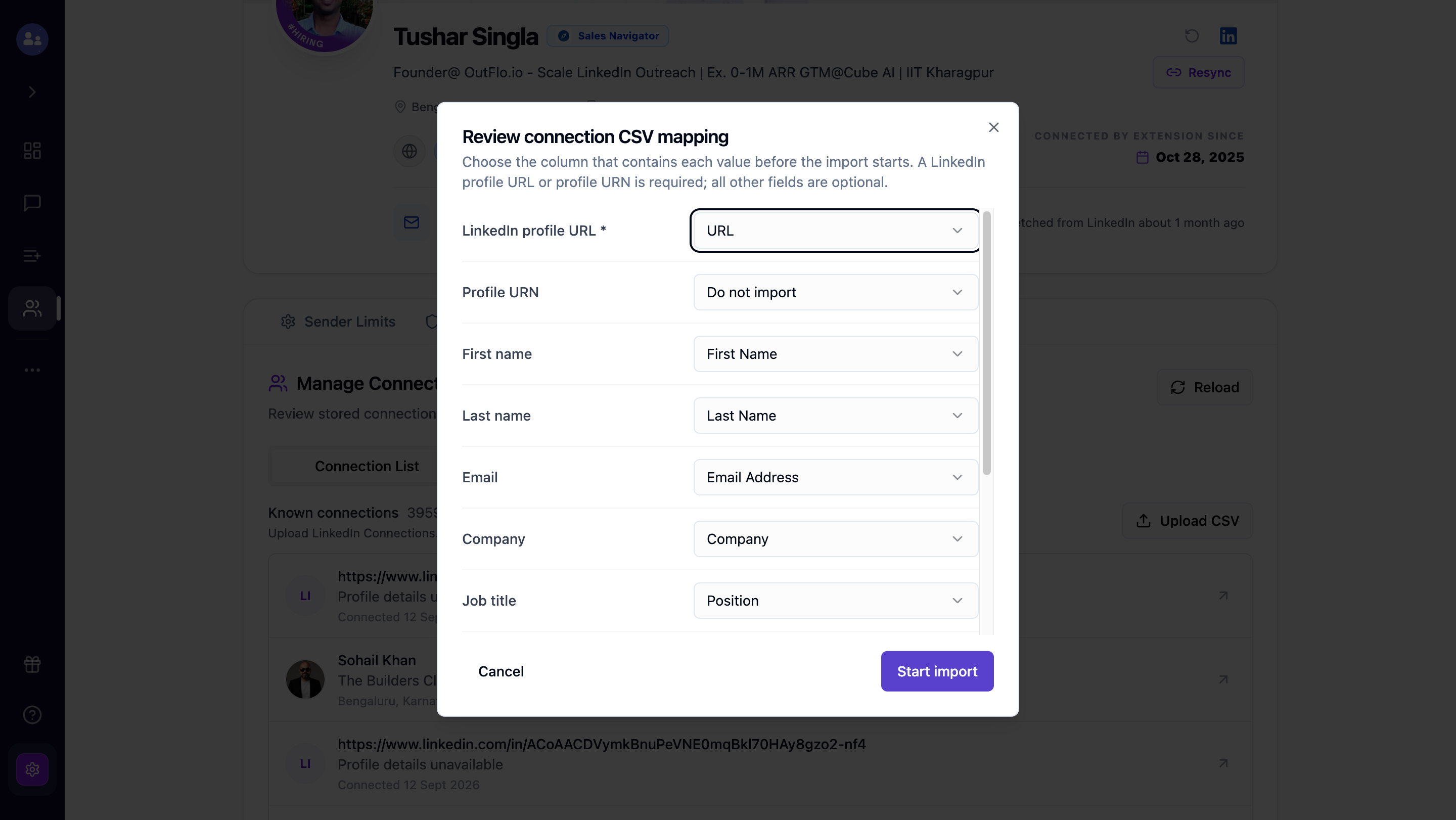
Review the detected columns, correct any mapping that is not right, then select Start import. Imported rows are merged with the sender’s stored connection history rather than replacing it.
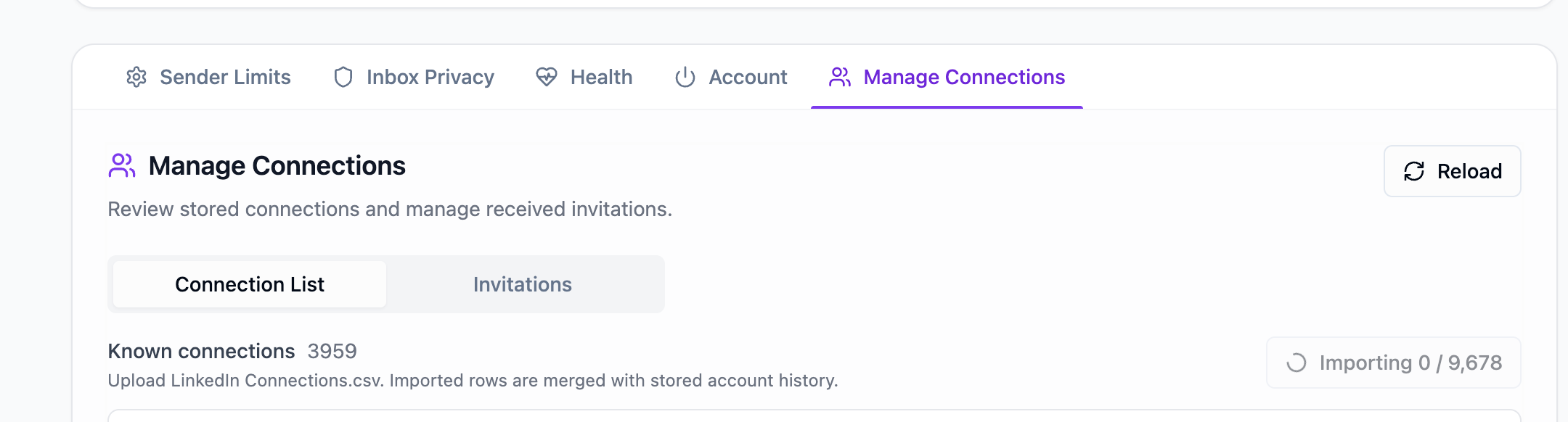
Wait for the import to complete before relying on newly uploaded rows in a campaign exclusion rule. Use Reload to refresh the list and confirm the expected count.
How OutFlo matches a lead to a connection
OutFlo matches identities using the LinkedIn information available for the lead and the stored connection. Depending on what has already been resolved, this can include the LinkedIn profile identity, profile URN, or the stable public identifier in a LinkedIn profile URL.
This lets an uploaded connection record still match a campaign lead after OutFlo has enriched the lead with more complete LinkedIn profile data. The comparison is account-specific: a connection saved for one sender does not automatically become a connection for every other sender.
To prevent a false exclusion, an unresolved or ambiguous identity does not count as a match. In that case, the lead stays eligible for the campaign until OutFlo has enough reliable identity information.
When the check runs
OutFlo evaluates this rule as leads are prepared and assigned to a campaign. It also protects the campaign later: if the sender’s LinkedIn profile lookup identifies the lead as a first-degree connection before outreach, OutFlo records the relationship and excludes the lead before the sequence advances.
That recheck is important because LinkedIn relationships can change after a CSV upload or after a lead is added to a campaign.
Recommended workflow
- 1.Decide whether the rule should check campaign senders, all workspace accounts, or a specific group.
- 2.Open Manage Connections for each relevant sender.
- 3.Upload a recent LinkedIn connections CSV where the stored list needs to be supplemented.
- 4.Verify the import has completed and review the connection count.
- 5.Turn on Exclude existing LinkedIn connections in the campaign.
- 6.Select the same account scope you maintained.
- 7.Review campaign leads after import, especially if the list contains recently connected prospects.
Frequently asked questions
Does OutFlo use only the CSV upload?
No. OutFlo checks both its current LinkedIn relationship data for the sender and the sender’s saved connection list. A match in either source can exclude the lead.
Do I need to upload a CSV for every sender?
Only upload one when the sender’s saved list needs additional coverage. The exclusion still uses the LinkedIn relationship data already known to OutFlo. If the campaign checks multiple senders, maintain the connection list for each sender whose saved connections you want included.
What happens when the same lead is connected to only one sender?
The result depends on the scope you select. The lead is excluded when that sender is part of the checked group. It remains eligible when the connected sender is outside the selected group.
What happens when a lead is connected to multiple campaign senders?
With Prefer a sender they’re connected to, OutFlo chooses the least-loaded active sender among the connected senders. With Exclude existing LinkedIn connections, a match to any sender in the selected exclusion scope excludes the lead.
What if no connection CSV has been imported yet?
OutFlo still uses any relationship data it already knows. If it has no reliable connection evidence at assignment time, it assigns the lead through normal least-loaded distribution across active campaign senders. Importing a sender’s connection list improves the evidence available for later leads.
Can I use a specific set of accounts instead of every campaign sender?
Yes. Choose Specific accounts and select the accounts whose connections should be considered.
What if OutFlo cannot confidently identify the lead?
OutFlo does not exclude a lead from this rule when the identity is unresolved or ambiguous. This avoids excluding the wrong person. A later profile lookup can still establish the relationship before outreach.
Does this setting replace the Do Not Contact list?
No. Do Not Contact is a separate, enforced protection for contacts and companies that should never receive automated outreach. Excluding existing LinkedIn connections is a campaign-level preference for the selected sender accounts.