
A voice note works best when it has a clear reason to exist in the conversation. Write a short message you would comfortably say yourself, then decide whether you need one recording or lead-specific generated audio.
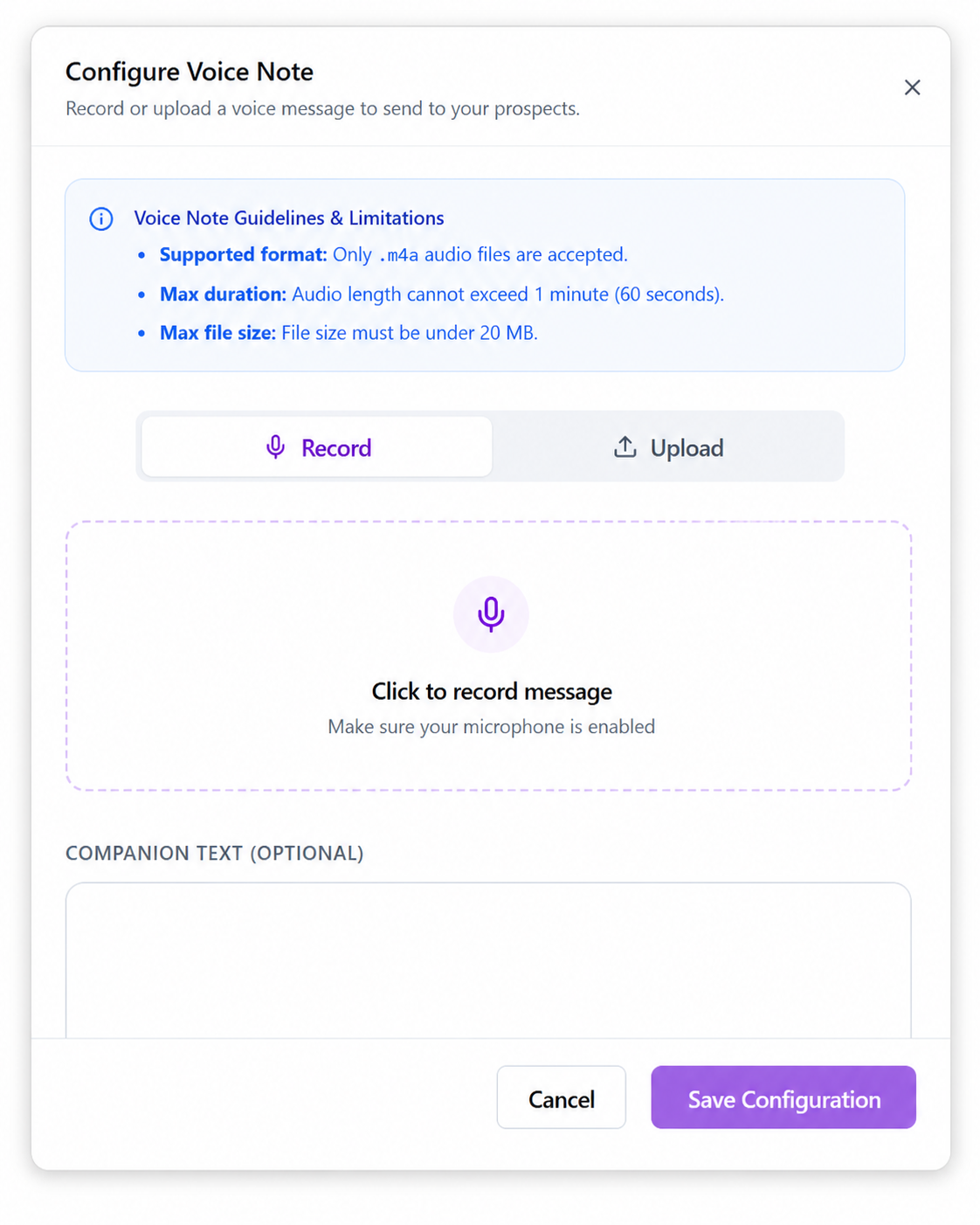
OutFlo supports direct recorded campaign voice notes. AI generation, voice presets, private cloning and personalized previews have separate rollout access. Confirm that your workspace has the AI controls before building a workflow around them.
Choose recorded or generated audio
- Approach
- Record or upload a note
- Appropriate use
- The same spoken message works for the audience
- Main preparation
- Record clean audio and listen to the whole file
- Approach
- Generate from a personalized script
- Appropriate use
- The spoken wording needs recipient-specific details
- Main preparation
- Resolve variables, assign a voice and audition representative leads
| Approach | Appropriate use | Main preparation |
|---|---|---|
| Record or upload a note | The same spoken message works for the audience | Record clean audio and listen to the whole file |
| Generate from a personalized script | The spoken wording needs recipient-specific details | Resolve variables, assign a voice and audition representative leads |
A fixed recording cannot replace a spoken name for each recipient merely because the surrounding campaign uses variables. If personalization must be audible, use the enabled AI-script workflow and inspect the resulting audio.
For exact recorded-step setup, follow the voice-note walkthrough.
Write a script with one purpose
A simple structure is a brief introduction, one relevant reason for contacting the person and one next step. For example: “Hi, this is Alex. I sent a note about coordinating your team's LinkedIn replies. If that is something you handle, would it help if I sent a short overview?”
This is fictional sample wording, not a claim that the recipient owns that work. Adapt it to the actual context. Avoid reading a dense sales email into a voice recording.
The supported maximum is 60 seconds. Stay within it using the actual audio duration, not just an estimate from character count. Leave enough room for longer names or company values in a personalized script.
Set up a voice when AI access is enabled
Choose an available preset or create a private voice clone using a sample you have permission to use. The clone setup asks for 30–60 seconds of clean, single-speaker speech. Avoid music, competing speakers and a noisy recording.
Assign the intended voice to the sender. A voice profile existing in the workspace does not by itself establish that every sender is ready to generate with it. Check the available locale or preset rather than assuming support for any language or accent.
A private clone belongs to the organization. Use it to represent an authorized speaker, and listen to its output before using it with prospects.
Preview the resolved script and audio
Select a representative lead and sender for the AI preview. Inspect the enriched script first, then listen to the entire generated note.
Check:
- Names, company names and abbreviations are pronounced understandably.
- Every variable resolves to a value that fits the sentence.
- The voice matches the intended sender and selected locale.
- Pauses and emphasis sound appropriate.
- The audio stays within the length limit.
Repeat with a lead missing an optional field and with one containing a longer value. An equivalent completed preview can be reused; new synthesis can consume generation credits. Review the in-app balance and usage rather than assuming previews are unlimited.
Place the note in a suitable sequence
Choose a step where the sender can deliver a LinkedIn voice message and where the recipient has enough context to understand it. Review connection eligibility, campaign hours, waits and reply-stop behavior along with the audio.
Generating a note and delivering it are separate stages. A successfully uploaded sample or playable preview does not prove that LinkedIn received the campaign message. Check the lead's action result and conversation after a small, deliberate verification run.
Resolve common problems
If generation controls are absent, check rollout access. If the wrong voice is used, inspect the sender assignment. If a name sounds wrong, revise the script and audition it again. If a note is too long, shorten the wording rather than relying on estimated duration. If generation cannot proceed, review credits and any displayed readiness error.
AI Reply Setter voice follow-ups require the separate setter workflow plus voice readiness. Configuring an ordinary voice-note step does not enable those follow-ups.
Explore AI Voice Notes or continue with the recorded-step guide.