LinkedIn Social Outreach gives your team a single place to write, review, schedule, and confirm LinkedIn posts from connected OutFlo accounts. Instead of treating publishing as a one-click event, it keeps the exact revision, the selected publishing identity, feedback, schedule, and delivery result together.
This walkthrough follows the same journey shown in the screenshots: open the workspace, create a draft, move through review and scheduling, and verify that the post appeared on LinkedIn.
The publishing flow at a glance
- State
- Drafts
- What it means
- Work in progress that is still editable.
- What you can do next
- Write, revise, add media or a first comment, choose an account, and set a publish time.
- State
- In review
- What it means
- The exact current revision is waiting for an approval decision.
- What you can do next
- Add feedback, approve, or request changes.
- State
- Scheduled
- What it means
- An approved revision is reserved for a future publish time.
- What you can do next
- Check it in the calendar; reschedule or cancel where permitted.
- State
- Published
- What it means
- OutFlo has a confirmed delivery outcome for LinkedIn.
- What you can do next
- Open the published record or LinkedIn post; duplicate it to make a new version.
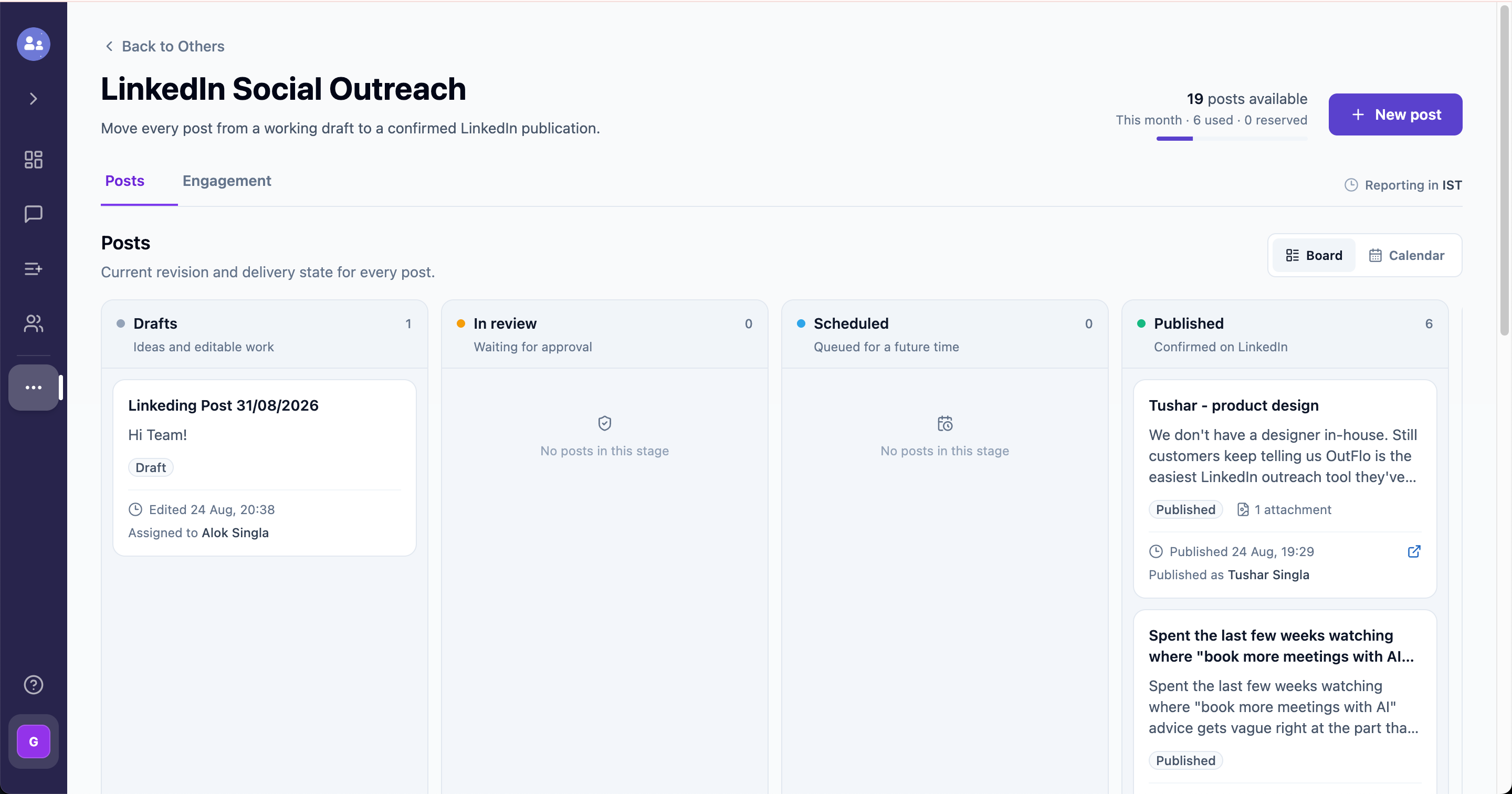
| State | What it means | What you can do next |
|---|---|---|
| Drafts | Work in progress that is still editable. | Write, revise, add media or a first comment, choose an account, and set a publish time. |
| In review | The exact current revision is waiting for an approval decision. | Add feedback, approve, or request changes. |
| Scheduled | An approved revision is reserved for a future publish time. | Check it in the calendar; reschedule or cancel where permitted. |
| Published | OutFlo has a confirmed delivery outcome for LinkedIn. | Open the published record or LinkedIn post; duplicate it to make a new version. |
1. Open LinkedIn Social Outreach
From the left navigation, open Others, then select LinkedIn Social Outreach. This is the publishing and engagement workspace for your connected accounts.
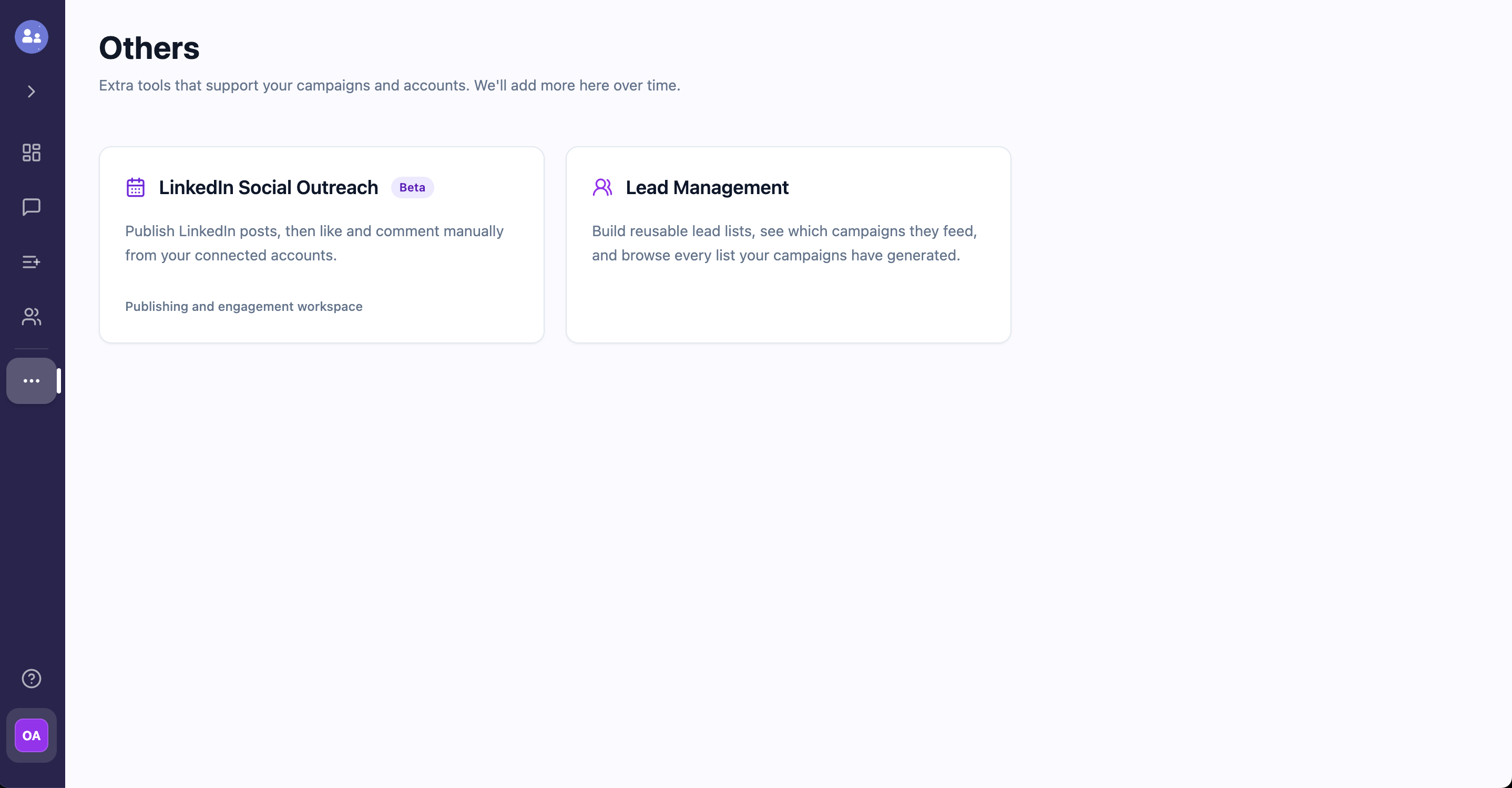
The Posts board is the clearest place to understand what needs attention. It separates editable drafts from posts waiting for a reviewer, posts reserved for later, and confirmed LinkedIn publications. You can also switch to the calendar when timing is the priority.
2. Create a draft and choose the publishing account
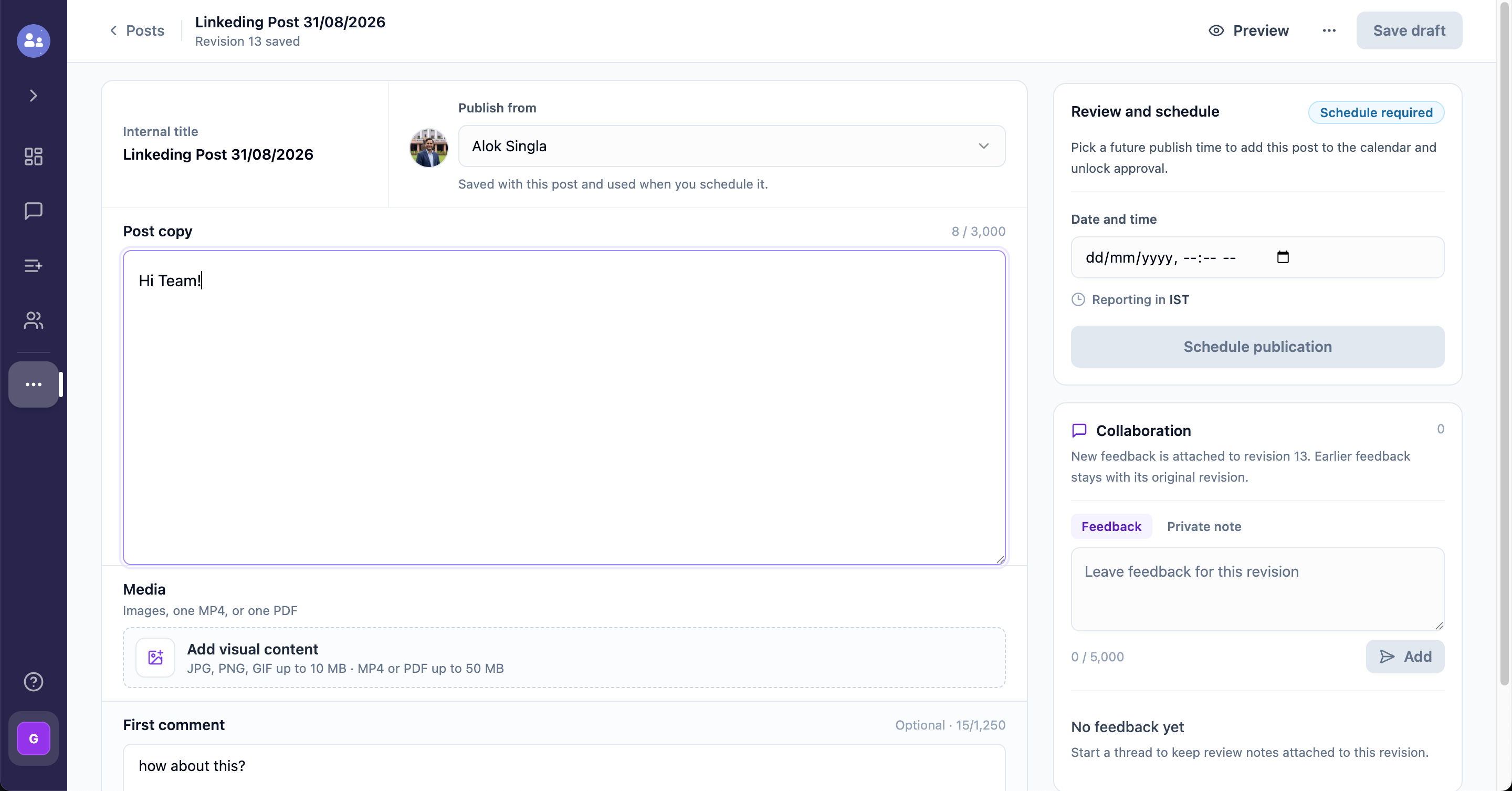
Select New post. Give the post an internal title—useful for your team, even though it is not part of the LinkedIn copy—then select the connected LinkedIn identity under Publish from.
Write the post in Post copy. The composer shows the LinkedIn character allowance as you write. Your work is saved as a revision, so the version sent for review and publishing stays traceable.
You can also add:
- Visual content: up to nine images, or one MP4 or one PDF. Add alt text to images where appropriate.
- First comment: an optional comment that can accompany the post.
- A publish time: enter a future date and time. The workspace reports scheduling in its displayed timezone.
3. Move the post through review and scheduling
After you select a future publish time, the post is ready to enter the review workflow. The review card keeps the two decisions distinct:
- 1.Approval confirms the current revision.
- 2.Scheduling reserves a delivery time for that approved revision.
When a post is In review, comments and private notes stay attached to the current revision. If changes are requested, update the copy; OutFlo creates a new revision, so the revised version can receive its own approval.
Once an eligible admin approves the revision, the post becomes Scheduled for its selected time. It appears in the board and calendar as queued work. If the plan changes before delivery, use the available reschedule or cancel action rather than editing a locked scheduled revision.
4. Confirm the published state
When OutFlo has delivered the scheduled post, it moves to Published. Open the card to see the selected LinkedIn identity, the approved copy and attachments, the publish time, and the delivery result.
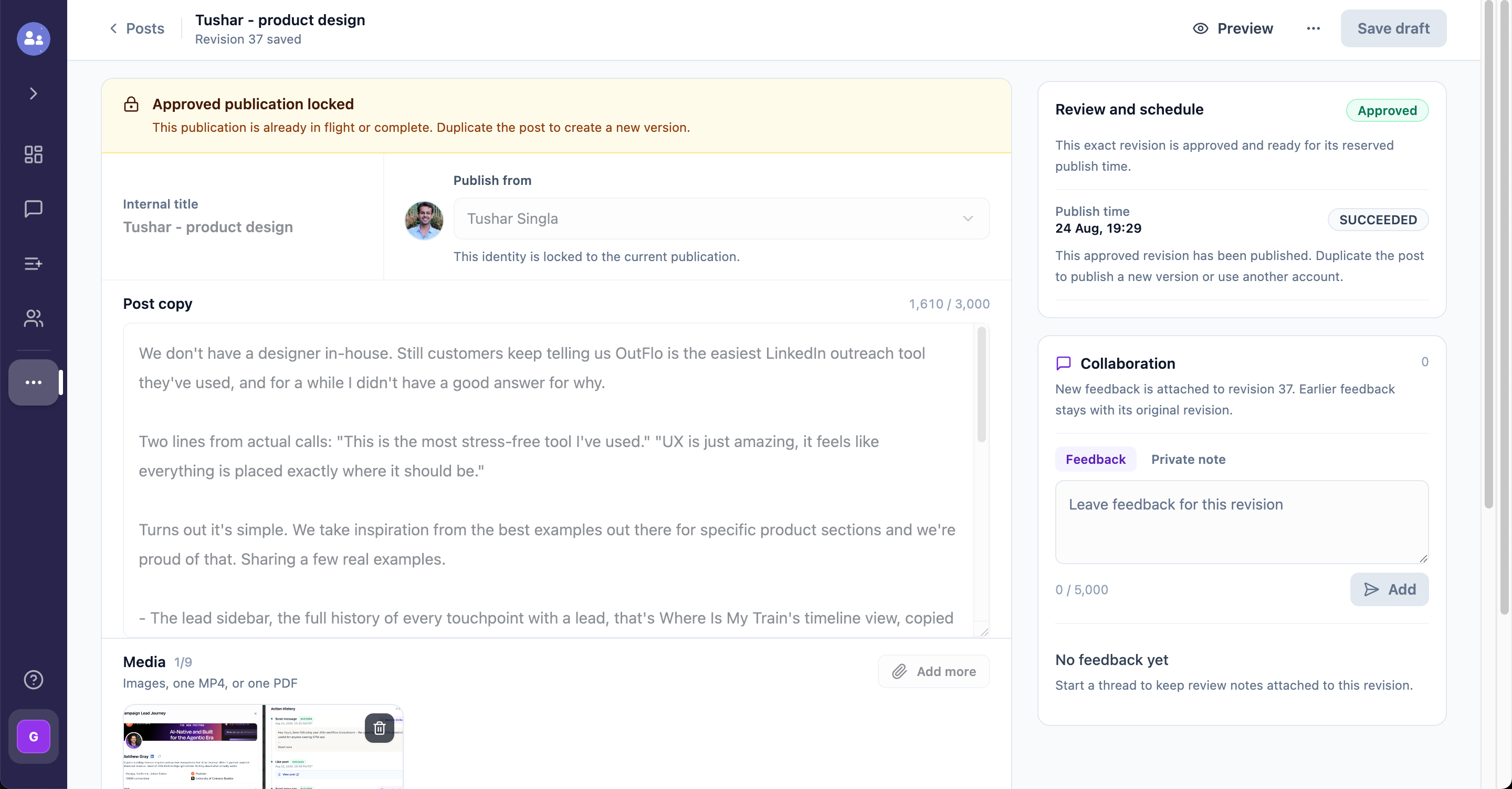
The published revision is intentionally locked. A scheduled, in-flight, or completed publication is an audit record of what was approved and sent. If you want to reuse or revise it, duplicate the post to start a new version.
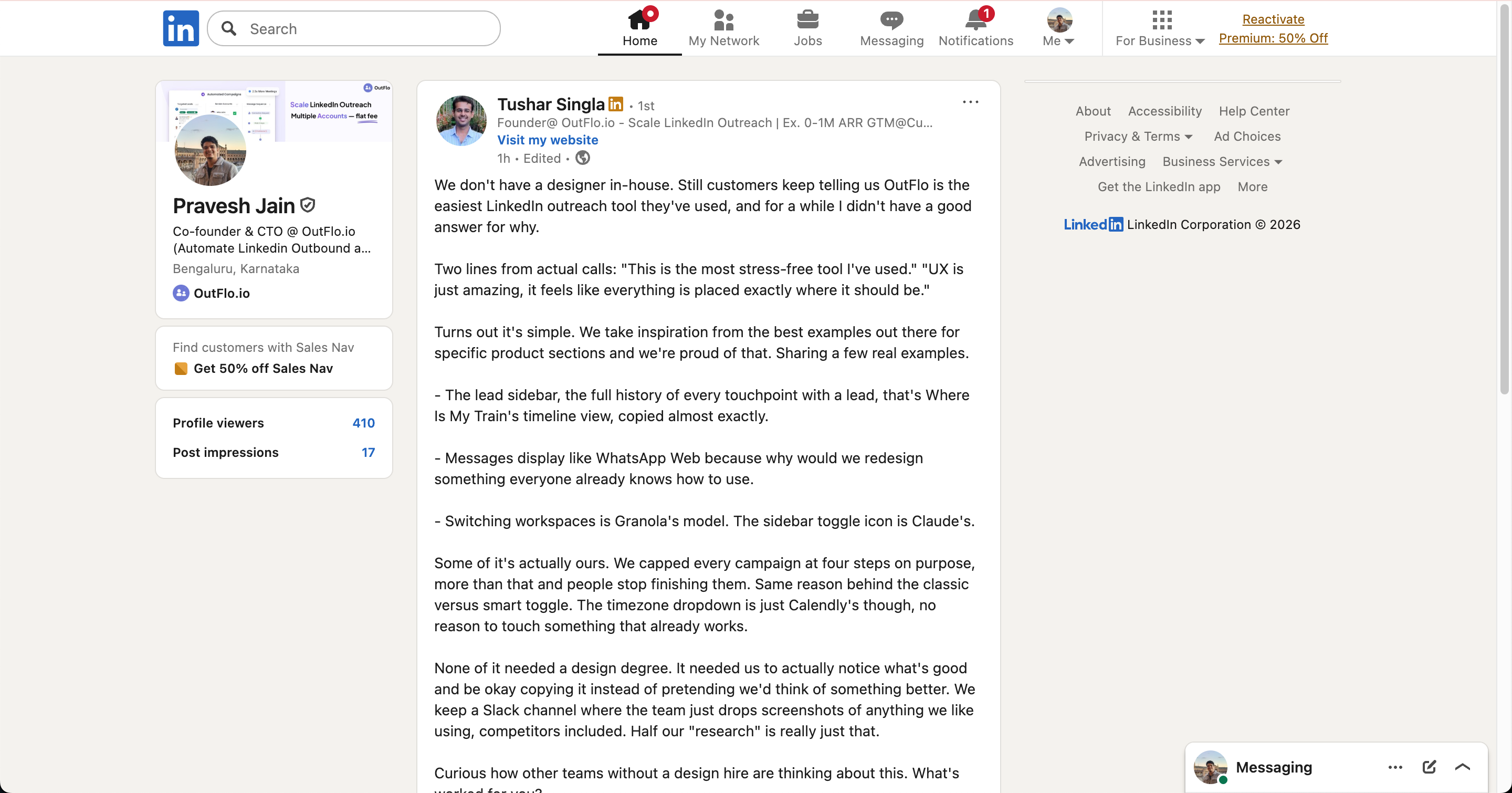
Finally, use the external-link icon on the published card to verify the live post on LinkedIn.
Publish with your OutFlo MCP
If you use an MCP-compatible assistant such as Codex, Claude, Cursor, or another connected client, you can manage this same workflow conversationally through the OutFlo MCP. It can help you find eligible accounts, create a draft, update a revision, add collaboration feedback, check the calendar and usage, request or record approval when authorized, and prepare a publication.
For example, you can ask your assistant to: “Create a LinkedIn post draft for my product update, attach these images, and schedule it for Tuesday at 10:00 AM IST.” It should show you the intended account, exact copy, and publish time before external delivery.
For a technical API and MCP walkthrough, including the standard review path and the explicit direct-publish option for trusted automations, see Publish LinkedIn Posts with the OutFlo Public API and MCP.
A simple team checklist
- Write the post and give it a clear internal title.
- Select the correct connected LinkedIn account.
- Add media and a first comment if they support the post.
- Choose the time and timezone deliberately.
- Review the exact revision—not an earlier draft.
- Confirm the post appears in Scheduled, then check the Published outcome after delivery.
- Duplicate a published post when you need a new version rather than changing the completed record.