Say you have built 133 lead lists from LinkedIn Search, Sales Navigator, CSV imports, and campaigns. Eventually you need to do something more precise than work from one list: combine two audiences, find the people who appear in both, or remove everyone you have already contacted.
Lead Management gives all of those lists one home—and gives you real list operations instead of making you rebuild audiences from scratch.
1. Find Lead Management
Open the three-dot menu at the bottom of the sidebar and choose Lead Management. The Lead Lists tab shows every list you have created, its campaign status, lead count, and creation date.
Use the search bar to find a list by name. Switch to the Leads tab to search across every lead in the workspace, regardless of which lists contain them.
2. Add Leads to a List
Open a list and click Add Lead beside Import More Leads. Paste a LinkedIn profile URL, then enter the lead's first and last name. You can also add location, company, title, email, and any custom fields your team tracks.
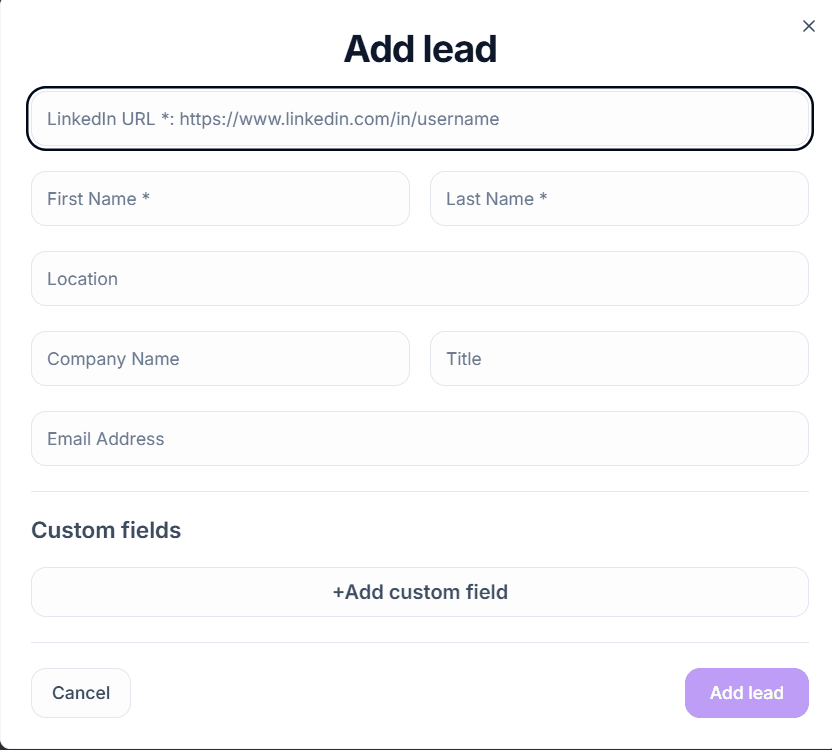
This is the fastest way to add a referral, someone you met, or a prospect who fell outside your usual search—without building a CSV for one row.
3. Combine, Exclude, or Intersect Lists
Open the three-dot menu on any list in the Lead Lists table. Alongside viewing and deleting, you can use three audience-building operations:
- Combine with lists merges two or more lists into a new audience.
- Find intersection creates a new list containing only leads that appear in both the source and comparison lists.
- Exclude leads from list removes anyone found in a second list from your source audience.
- View Details opens the list without making you leave the table first.
Find an Intersection, Step by Step
- 1.Open the menu on your source list and click Find intersection.
- 2.Confirm the locked Primary Source at the top of the builder.
- 3.Name the new intersection list.
- 4.Under Find Overlap With, select one or more lists to compare.
- 5.Click Confirm.
OutFlo builds a fresh list containing only the leads present in the source and comparison selections.
When to Use Each Operation
Use Add Lead for one-off cases: a referral, a conference contact, or a lead outside your normal search. Use Combine to merge sources into a single campaign audience. Use Intersection to check overlap or identify a shared segment. Use Exclude as the cleanup pass that removes everyone you do not want to contact again.
Quick Summary
- Open Lead Management from the three-dot menu at the bottom of the sidebar.
- Use Add Lead inside a list to add one person from their LinkedIn URL.
- Use a list's three-dot menu for Combine, Find intersection, or Exclude.
- For an intersection, choose the source, name the output, and select the comparison lists.
- Search across the full workspace from the Leads tab, not one list at a time.
More lists do not have to mean more manual work. Combine, exclude, and intersect let you shape the exact audience you need from the leads you already have.