The Is Active on LinkedIn step qualifies leads using network strength, recent activity, and profile credibility. Configurable thresholds let you route leads through your campaign based on the signals that matter to your outreach.
What the three checks tell you
- Check
- Network strength
- What it looks at
- The number of LinkedIn connections available for the profile
- What you configure
- A minimum connection count
- Check
- Recently active
- What it looks at
- How recently and regularly the person has engaged on LinkedIn
- What you configure
- A minimum score out of 10
- Check
- Profile credibility
- What it looks at
- How much supporting professional detail the profile contains
- What you configure
- A minimum score out of 10
| Check | What it looks at | What you configure |
|---|---|---|
| Network strength | The number of LinkedIn connections available for the profile | A minimum connection count |
| Recently active | How recently and regularly the person has engaged on LinkedIn | A minimum score out of 10 |
| Profile credibility | How much supporting professional detail the profile contains | A minimum score out of 10 |
Each check answers a different question. You can enable all three or use only the ones relevant to your campaign.
How to set up the LinkedIn activity check
1. Add the step to your campaign
In your campaign sequence, add Is Active on LinkedIn where you want to qualify leads, then open its configuration.
2. Choose your checks and thresholds
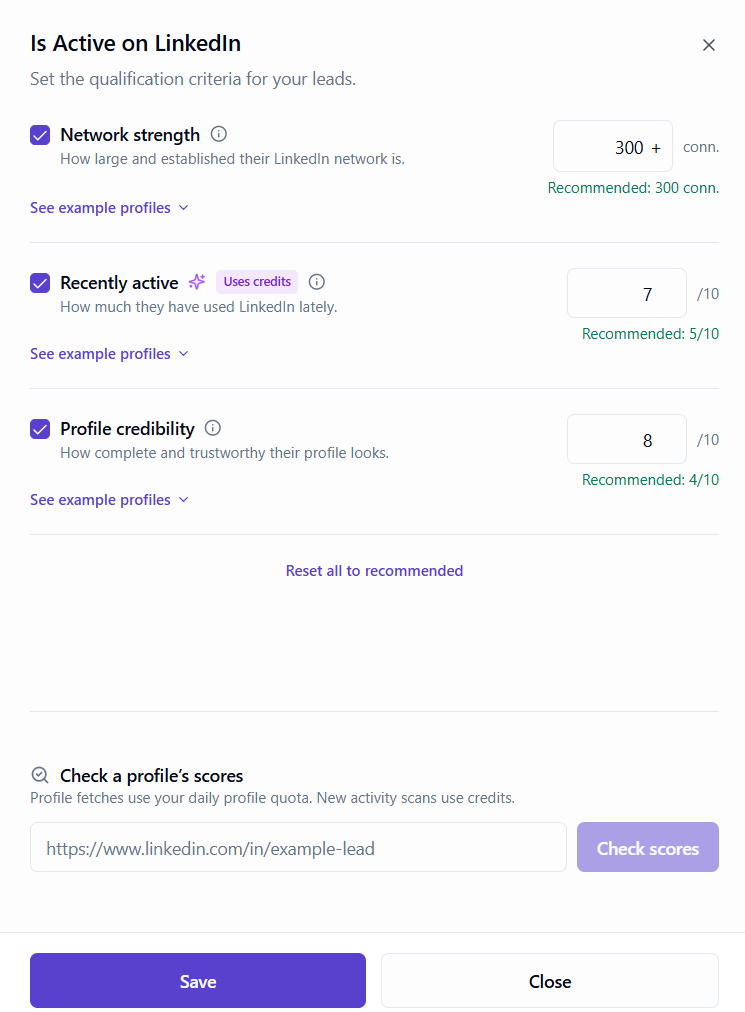
Enable the checks relevant to your audience. Set a minimum connection count for Network strength and minimum scores out of 10 for Recently active and Profile credibility. Use See example profiles for context, or Reset all to recommended to start from the suggested values.
3. Preview a profile and save
Paste a LinkedIn profile URL into Check a profile’s scores and select Check scores to review a sample lead before saving. Profile fetches use your daily profile quota, and fresh successful activity scans use credits. Adjust your thresholds if needed, then select Save.
Recently active: signs of recent engagement
Recently active looks at observed LinkedIn activity, such as reactions, over the last three calendar months. The basic idea is to consider both how recently someone engaged and how regularly they have been engaging.
Profiles with recent, consistent engagement tend to score higher. Profiles with little observed activity, or activity further in the past, tend to score lower. A single recent interaction does not necessarily mean the person is consistently active.
OutFlo presents the result as a score out of 10 so you can compare it with your selected minimum. You do not need to work through the underlying calculation.
Profile credibility: depth of professional information
Profile credibility looks at the information available in a profile and how much detail supports it. This includes:
- A profile photo, headline, and About section.
- Work history with roles, companies, dates, and useful descriptions.
- Education details and the history available for those entries.
- Skills, endorsements, and skills attached to individual roles.
- Supporting information such as certifications, projects, and languages.
- Available verification and creator indicators.
Detailed profiles with an established professional history tend to score higher. Sparse profiles, missing dates, short descriptions, or limited supporting information can produce a lower score.
The result is shown as a score out of 10.
Preview a profile before choosing your settings
Use Check a profile’s scores in the configuration sidebar to test a LinkedIn URL against your current settings.
Review profiles that represent the audience you want to reach. Compare their results with your minimums and adjust the settings to match the professional detail, network size, and activity your campaign needs.
In the lead’s action history, OutFlo shows only the checks you configured:
- Network strength: the connection count and your minimum connection count.
- Profile credibility and Recently active: the score out of 10 and your configured minimum.
Saved settings guide subsequent checks. Changing a minimum does not automatically rewrite a historical assessment.
Choose settings that fit your audience
Use network strength to set the network size your campaign needs, recent activity to look for signs of engagement, and credibility to require enough supporting professional detail.
Start with the checks that matter to your campaign. Review borderline profiles before raising every minimum, and use the saved results to understand which requirement determined the lead’s next branch.