OutFlo Workspaces let you manage multiple LinkedIn accounts in one place, invite team members and clients with role-based permissions, and share one unified inbox and dashboard across every account.
Say you're running outreach for your own pipeline, a sales team, and a couple of clients, all from OutFlo. You want each operation kept separate, with its own campaigns, LinkedIn accounts, and leads. You want your team working out of one shared inbox instead of logging in and out of separate accounts. And you want a virtual assistant answering replies without being able to touch billing or delete a campaign.
Workspaces are how OutFlo does all three. This overview covers what the feature includes, so you know what's available before you set it up.
What a Workspace Is
A workspace is an isolated container for campaigns, LinkedIn accounts, and lead lists. What lives in one workspace stays in that workspace. Under Profile Settings, open Workspaces to see all of yours in one table, each with its name, creation date, and available actions.
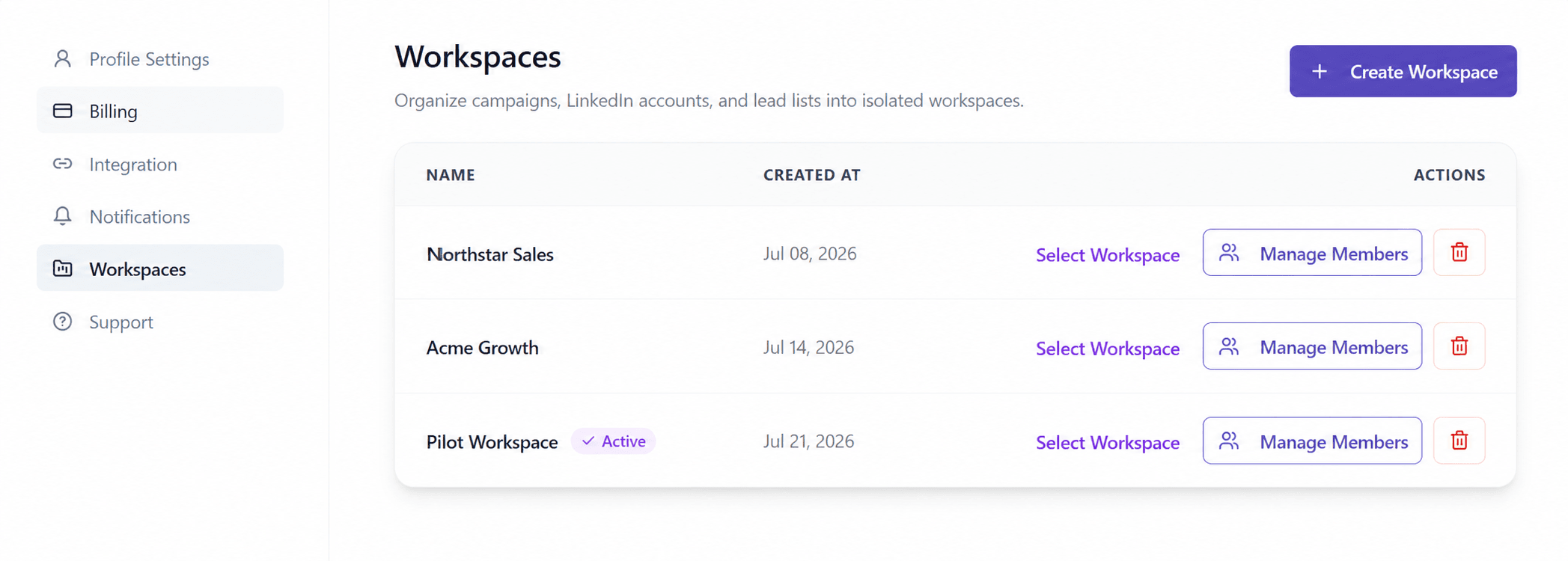
From here you can:
- Create Workspace to spin up a new, separate operation.
- Select Workspace to switch which one you're actively working in, with the current one marked Active.
- Manage Members to control who's in a workspace and what they can do.
When you create a workspace, give it a clear name that reflects the team, client, or operation it contains.
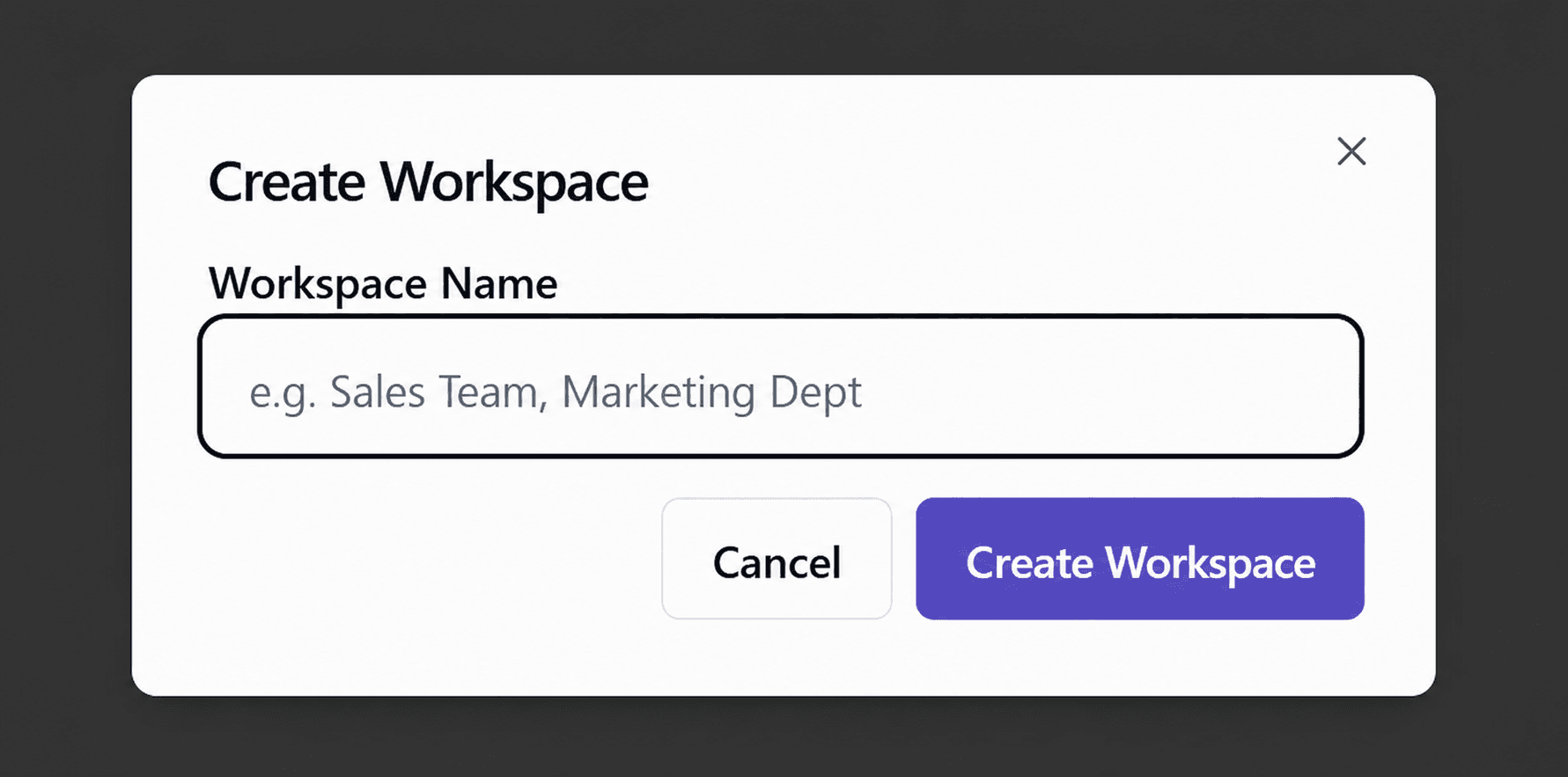
Put each client, team, or line of business in its own workspace, and one client's campaigns or leads never show up inside another's.
Manage Multiple LinkedIn Accounts in One Shared View
You don't need one large plan for the whole team. Each person can bring their own connected LinkedIn account into a shared workspace, and once they're in, every account runs together instead of in isolation.
That's the payoff of a shared workspace. Every connected account's conversations flow into one Unibox, so replies land in a single stream instead of scattered across separate logins. Your dashboard reports across all of those accounts too, and you can scope it to any single sender or campaign when you need to. One workspace, one inbox, and one set of numbers, however many LinkedIn accounts are inside it.
Invite Team Members and Clients Two Ways
Open Manage Members on a workspace and you get two ways to bring someone in:
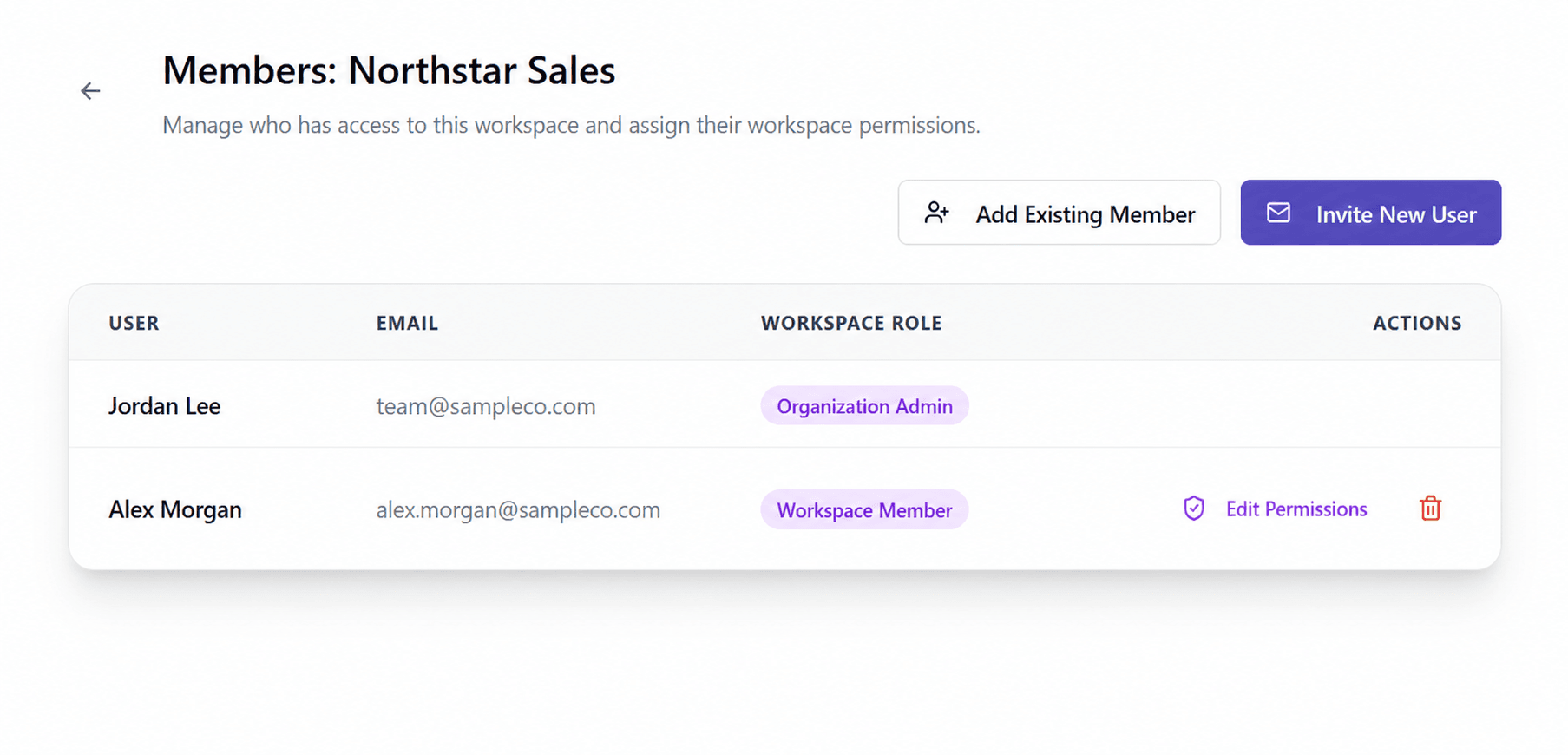
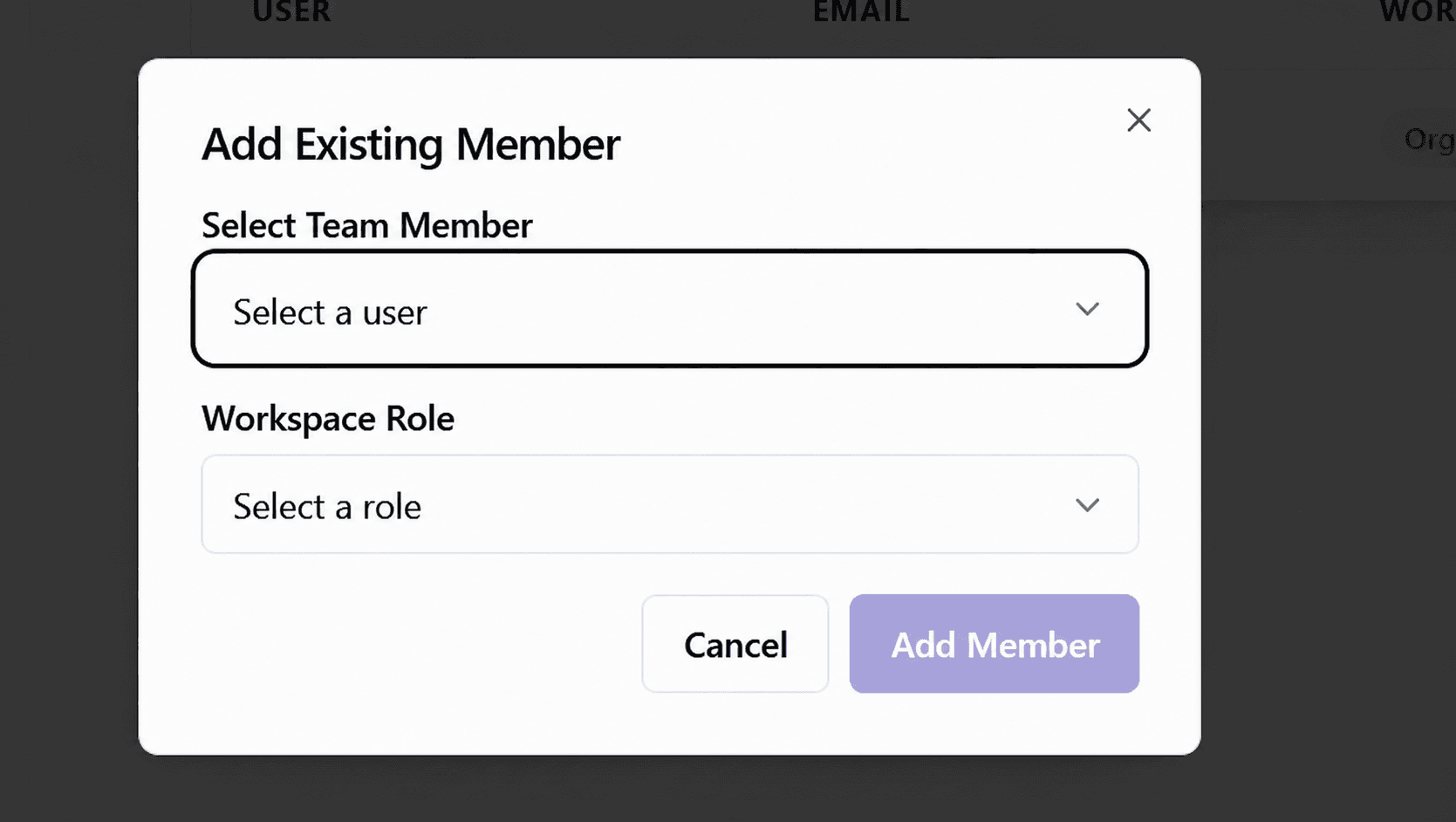
- Add Existing Member is for people already in your organization. Pick them from the Select Team Member list, choose their role, and they're in.
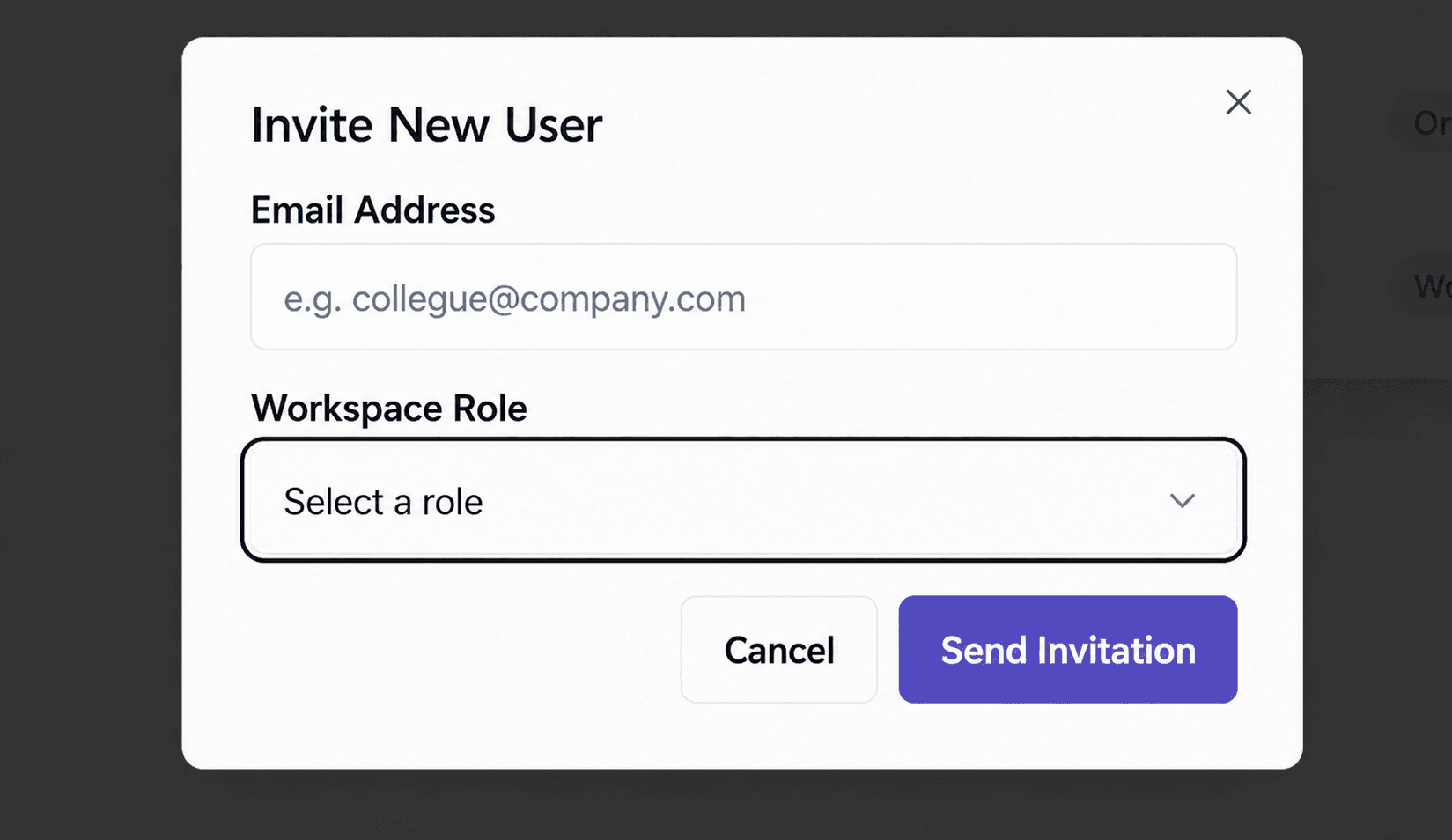
- Invite New User is for someone not in OutFlo yet. Enter their email address, choose their role, and OutFlo sends them an invitation to join that workspace directly.
The Three Roles
Every person sits at one of three levels, shown in the Workspace Role column of the member list.
- Organization Admin sits at the top and owns the whole account, every workspace included.
- Workspace Admin runs a single workspace, its members, and its settings, without needing organization-wide control.
- Workspace Member is the role you shape with granular permissions, so a member sees and does only what you allow.
For any member, click Edit Permissions to open their access controls.
Roles and Permissions Across the Workspace
A Workspace Member's access is set individually for the parts of OutFlo they need. For most areas, you can give someone view-only access or let them manage that area. You can also remove a section from their navigation when they do not need to see it.
Hide entire section when view access is off removes that section from a member's navigation when they do not have view access. It is a navigation setting, not an additional permission: turn on view access to let them see the section, or leave view access off and choose Hide to keep it out of sight.
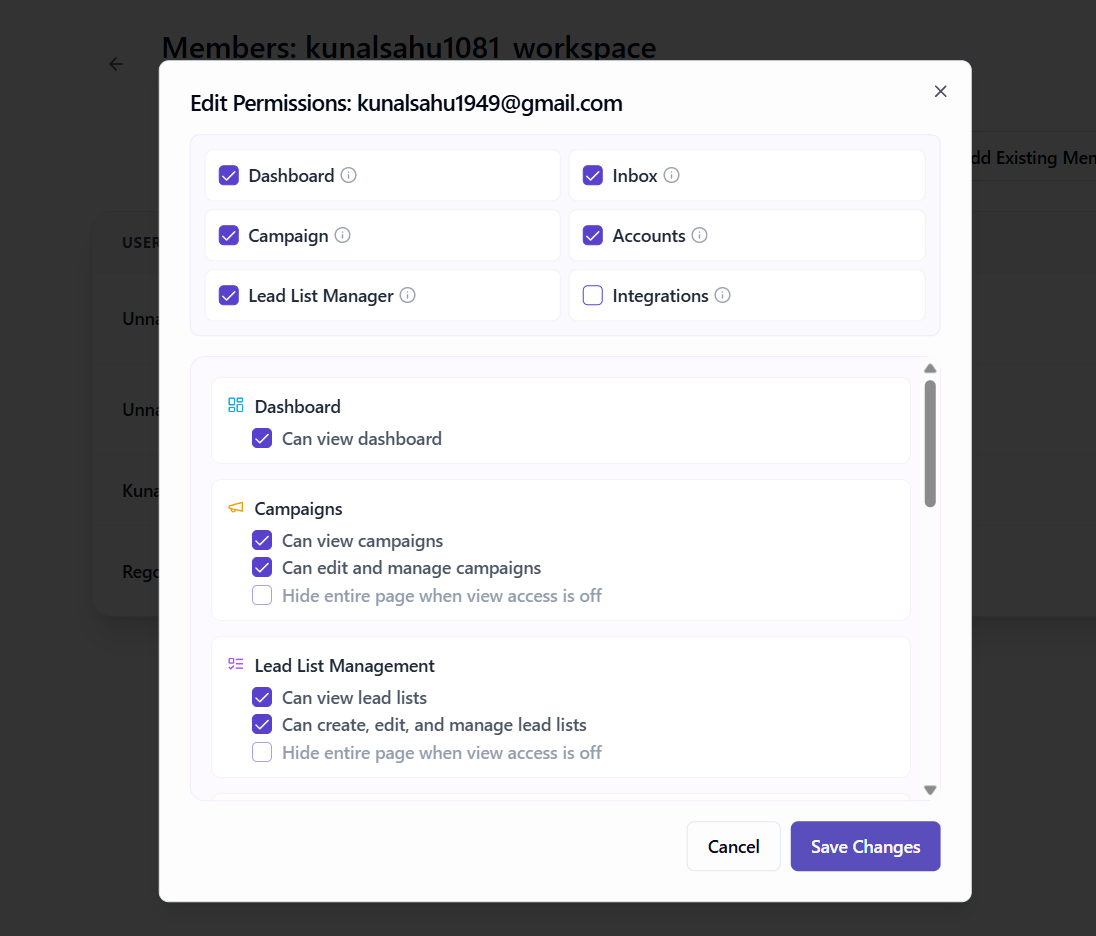
The areas you can control are:
- Dashboard — Let a member see the workspace dashboard, or keep it out of their navigation.
- Campaigns and lead lists — Let a member view campaigns and their lead lists, or create, edit, and manage both. Campaign access always includes the matching lead-list access.
- LinkedIn Social Outreach — Let a member view posts and engagement, or create, publish, and manage posts.
- LinkedIn Accounts — Let a member view connected senders, or connect, edit, and remove accounts from the workspace.
- Unibox — Let a member read sender inboxes, or let them reply to conversations too.
- Integrations — Set separate access for webhooks, API keys, MCP, HubSpot, Slack, Social Signals, HeyReach migrations, and campaign action events. You can allow someone to view an integration or manage it, depending on the integration.
- Workspaces — Members can see the workspaces they belong to. Managing workspace members and workspace settings remains with Workspace Admins and Organization Admins.
Notifications and billing are managed by workspace administrators, rather than through individual Workspace Member permissions.
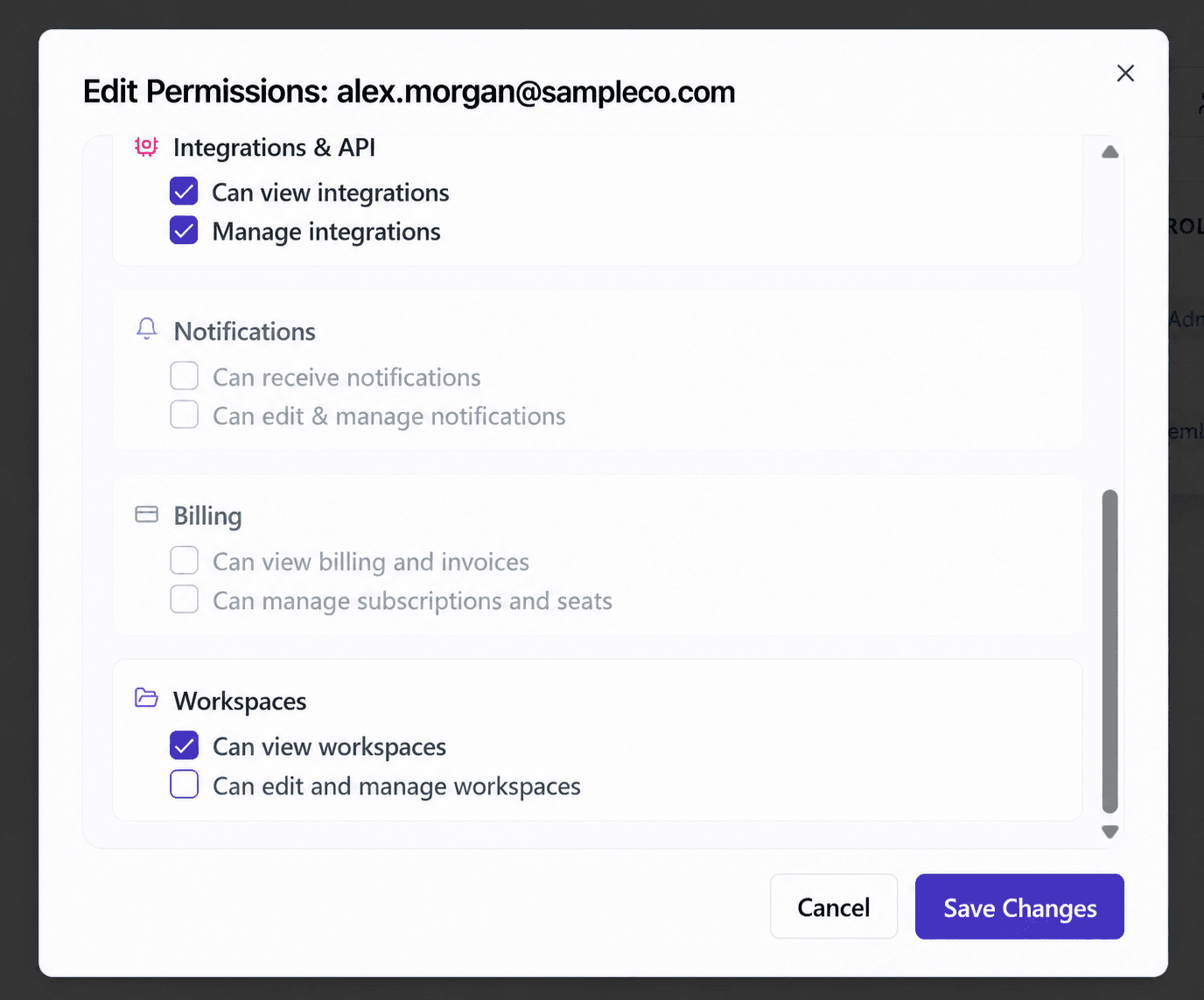
The permission panel keeps these areas separate, making it easy to review the exact access a member has before saving changes.
Set the toggles, click Save Changes, and that member's access updates. Because permissions are set per workspace, the same person can hold a completely different set in each workspace they belong to, with no spillover between them.
When to Use This
A solo operator running their own accounts doesn't need any of this. Workspaces start earning their keep the moment a second person or a second operation shows up. Separate workspaces for separate clients or teams keep everything walled off. Shared accounts in one workspace give your team a single inbox and one set of numbers. Member permissions let you bring in help without handing over everything.
Start people narrow. Give a new member the smallest set of permissions that lets them do their job, and widen it when a real need appears. It's easier to add access than to walk it back.
Quick Summary
- Open Workspaces under Profile Settings to create, switch between, and manage separate operations.
- Bring multiple LinkedIn accounts into one workspace to get a single Unibox and one dashboard across all of them.
- Add people two ways: Add Existing Member for someone already in your organization, or Invite New User to invite by email.
- Assign one of three roles: Organization Admin, Workspace Admin, or Workspace Member.
- Shape a Workspace Member's access with twelve permissions across Campaigns, LinkedIn Accounts, Unibox, Integrations & API, Notifications, and Billing, or use Allow all permissions.
- Permissions are set per workspace, so the same person can have different access in each.
Running outreach with a team doesn't have to mean everyone sees everything. Workspaces give each operation its own space and each person their own lane.