You can send OutFlo reply notifications to Slack as soon as a lead responds on LinkedIn. The reliable setup uses n8n between OutFlo and Slack to normalize each event and build Slack's JSON body safely.
What This Setup Does
Once the workflow is active, a new reply appears in your chosen Slack channel with the person, receiving account or campaign, message, and a link back to OutFlo. The same workflow can also format connection events.
Why You Need a Middle Step
Slack incoming webhooks expect a payload with a top-level text field:
{ "text": "Hello, World!" }OutFlo sends richer event data. Slack cannot use that payload directly, so n8n, Zapier, or Make needs to transform it first.
Two details matter:
- 1.OutFlo webhook events do not all use the same nested fields.
- 2.LinkedIn messages can contain real line breaks, quotes, backslashes, ampersands, and angle brackets.
If an n8n expression assembles JSON as a string, a multiline reply can turn that string into invalid JSON. The workflow may accept the webhook but fail before Slack receives anything. The recommended configuration below returns a JavaScript object, which lets n8n serialize the JSON correctly.
Understand the OutFlo Payload Shapes
Choose fields according to the event rather than assuming every event contains campaign and lead.
- Event
EVERY_MESSAGE_OR_INMAIL_RECEIVED- Receiving account
account- Person who replied
message.sender_*- Campaign
- Not included
- Message
message- Conversation link
outflo_conversation_link
- Event
FIRST_REPLY_FROM_A_LEAD_IN_OUTFLO_CAMPAIGN- Receiving account
sender_account- Person who replied
lead- Campaign
campaign- Message
message- Conversation link
outflo_conversation_link
- Event
EVERY_REPLY_FROM_A_LEAD_IN_OUTFLO_CAMPAIGN- Receiving account
sender_account- Person who replied
lead- Campaign
campaign- Message
message- Conversation link
outflo_conversation_link
- Event
CONNECTION_ACCEPTED- Receiving account
sender_account- Person who replied
lead- Campaign
campaign- Message
- Not included
- Conversation link
- Not included
| Event | Receiving account | Person who replied | Campaign | Message | Conversation link |
|---|---|---|---|---|---|
EVERY_MESSAGE_OR_INMAIL_RECEIVED | account | message.sender_* | Not included | message | outflo_conversation_link |
FIRST_REPLY_FROM_A_LEAD_IN_OUTFLO_CAMPAIGN | sender_account | lead | campaign | message | outflo_conversation_link |
EVERY_REPLY_FROM_A_LEAD_IN_OUTFLO_CAMPAIGN | sender_account | lead | campaign | message | outflo_conversation_link |
CONNECTION_ACCEPTED | sender_account | lead | campaign | Not included | Not included |
Current payloads identify the event as event_type. The formatter below also accepts event as a fallback for older connection-event payloads.
Payload Examples: What n8n Actually Receives
The examples below use placeholder IDs and URLs, but preserve the fields and nesting sent by OutFlo. In a workflow that starts with an n8n Webhook node, these objects normally appear inside $json.body.
Case 1: Every Message or InMail Received
Use this event when you want every incoming LinkedIn message for an account, whether or not the sender belongs to a campaign.
{
  "timestamp": "2026-08-13T09:02:31.000Z",
  "event_type": "EVERY_MESSAGE_OR_INMAIL_RECEIVED",
  "conversation_id": "linkedin-conversation-123",
  "outflo_conversation_link": "https://reach.outflo.io/inbox?conversationId=outflo-conversation-123",
  "account": {
    "id": "account-profile-123",
    "first_name": "Andrea",
    "last_name": "Orozco",
    "full_name": "Andrea Orozco",
    "profile_url": "https://www.linkedin.com/in/andrea-example"
  },
  "message": {
    "id": "message-123",
    "text": "Hi Andrea, thanks for reaching out.\nI do not handle sales directly.",
    "sent_at": "2026-08-13T09:02:31.000Z",
    "sender_first_name": "Sreemanth",
    "sender_last_name": "Tirumala",
    "sender_profile_url": "https://www.linkedin.com/in/sreemanth-example"
  },
  "recent_messages": [
    {
      "id": "message-123",
      "text": "Hi Andrea, thanks for reaching out.\nI do not handle sales directly.",
      "sent_at": "2026-08-13T09:02:31.000Z",
      "sender_first_name": "Sreemanth",
      "sender_last_name": "Tirumala",
      "sender_profile_url": "https://www.linkedin.com/in/sreemanth-example"
    }
  ]
}What is different in this payload:
- The receiving LinkedIn profile is under
account. - The person who replied is described by
message.sender_first_name,message.sender_last_name, andmessage.sender_profile_url. - There is no
campaign,lead,sender_account, orlead_list. - The message can contain real newline characters even though the JSON example displays them as
\n.
The recommended formatter produces a Slack body similar to:
{
  "text": "New reply in OutFlo\n*Sreemanth Tirumala* replied to *Andrea Orozco*\n> Hi Andrea, thanks for reaching out.\n> I do not handle sales directly.\n<https://reach.outflo.io/inbox?conversationId=outflo-conversation-123|Open inbox>"
}
Case 2: First or Every Campaign Reply
FIRST_REPLY_FROM_A_LEAD_IN_OUTFLO_CAMPAIGN and EVERY_REPLY_FROM_A_LEAD_IN_OUTFLO_CAMPAIGN use the same payload shape. Only event_type changes.
{
  "timestamp": "2026-08-13T12:11:08.000Z",
  "event_type": "EVERY_REPLY_FROM_A_LEAD_IN_OUTFLO_CAMPAIGN",
  "conversation_id": "linkedin-conversation-456",
  "outflo_conversation_link": "https://reach.outflo.io/inbox?conversationId=outflo-conversation-456",
  "campaign": {
    "name": "Founders Outreach",
    "id": "campaign-456",
    "url": "https://reach.outflo.io/campaign/view/campaign-456"
  },
  "sender_account": {
    "id": "sender-profile-456",
    "first_name": "John",
    "last_name": "Dawson",
    "full_name": "John Dawson",
    "profile_url": "https://www.linkedin.com/in/john-example"
  },
  "lead": {
    "id": "lead-profile-456",
    "profile_url": "https://www.linkedin.com/in/lead-example",
    "first_name": "Example",
    "last_name": "Lead",
    "full_name": "Example Lead",
    "location": "London, United Kingdom",
    "headline": "Founder",
    "company_name": "Example Company",
    "job_title": "Founder"
  },
  "message": {
    "id": "message-456",
    "text": "Not keen for this, thanks.",
    "sent_at": "2026-08-13T12:11:08.000Z",
    "sender_first_name": "Example",
    "sender_last_name": "Lead",
    "sender_profile_url": "https://www.linkedin.com/in/lead-example"
  },
  "lead_list": {
    "id": "lead-list-456",
    "name": "UK Founders",
    "data": {}
  },
  "recent_messages": [
    {
      "id": "message-456",
      "text": "Not keen for this, thanks.",
      "sent_at": "2026-08-13T12:11:08.000Z",
      "sender_first_name": "Example",
      "sender_last_name": "Lead",
      "sender_profile_url": "https://www.linkedin.com/in/lead-example"
    }
  ]
}What is different in this payload:
- The receiving LinkedIn profile is under
sender_account, notaccount. - The lead has a dedicated
leadobject, solead.full_nameis the preferred display name. - Campaign information is available and can be included in the Slack message.
lead_listandrecent_messagesare available for custom workflows, but the basic Slack notification does not need them.
The recommended formatter produces:
{
  "text": "New reply in OutFlo\n*Example Lead* replied in *Founders Outreach* to *John Dawson*\n> Not keen for this, thanks.\n<https://reach.outflo.io/inbox?conversationId=outflo-conversation-456|Open inbox>"
}
Case 3: Connection Accepted
A connection acceptance is not a reply, so the payload deliberately has no message, conversation_id, recent_messages, or outflo_conversation_link.
{
  "timestamp": "2026-08-13T13:20:00.000Z",
  "event_type": "CONNECTION_ACCEPTED",
  "campaign": {
    "name": "Founders Outreach",
    "id": "campaign-789",
    "url": "https://reach.outflo.io/campaign/view/campaign-789"
  },
  "sender_account": {
    "id": "sender-profile-789",
    "first_name": "John",
    "last_name": "Dawson",
    "full_name": "John Dawson",
    "profile_url": "https://www.linkedin.com/in/john-example"
  },
  "lead": {
    "id": "lead-profile-789",
    "profile_url": "https://www.linkedin.com/in/lead-example",
    "first_name": "Example",
    "last_name": "Lead",
    "full_name": "Example Lead",
    "location": null,
    "headline": "Founder at Example Company",
    "company_name": "Example Company",
    "job_title": "Founder"
  }
}The recommended formatter detects the event before reading message text and produces:
{
  "text": "Connection accepted in OutFlo\n*Example Lead* accepted the invitation from *John Dawson*\nCampaign: *Founders Outreach*\n<https://www.linkedin.com/in/lead-example|View LinkedIn profile>"
}
Why a Workflow Could Work for Some Leads and Fail for Others
The earlier campaign-only configuration could appear healthy because it depended on both the event shape and the reply text:
- Input
- Campaign reply with a one-line message
- What happens with a campaign-only, string-built template
- Usually works because
campaign,lead, andsender_accountexist and the interpolated JSON remains valid.
- Input
- Account-wide message
- What happens with a campaign-only, string-built template
- Fields such as
lead.full_nameandcampaign.nameare missing because this payload usesaccountandmessage.sender_*.
- Input
- Multiline reply
- What happens with a campaign-only, string-built template
- A real newline can be inserted inside a quoted JSON string, making the evaluated body invalid JSON.
- Input
- Reply containing quotes or backslashes
- What happens with a campaign-only, string-built template
- Unescaped characters can change the JSON string or make it invalid.
- Input
- Connection accepted
- What happens with a campaign-only, string-built template
- There is no
message.textor conversation link to read.
| Input | What happens with a campaign-only, string-built template |
|---|---|
| Campaign reply with a one-line message | Usually works because campaign, lead, and sender_account exist and the interpolated JSON remains valid. |
| Account-wide message | Fields such as lead.full_name and campaign.name are missing because this payload uses account and message.sender_*. |
| Multiline reply | A real newline can be inserted inside a quoted JSON string, making the evaluated body invalid JSON. |
| Reply containing quotes or backslashes | Unescaped characters can change the JSON string or make it invalid. |
| Connection accepted | There is no message.text or conversation link to read. |
This distinction also explains why OutFlo can show a successful delivery while Slack receives nothing. OutFlo successfully delivered the request to the n8n Webhook endpoint. The later HTTP Request node can still fail while evaluating or sending its Slack body. The n8n execution record, HTTP Request response, and resulting Slack message are the end-to-end evidence.
The exact multiline failure
Suppose the HTTP Request node contains this string-built JSON:
{"text":"Reply: {{ $json.body.message.text }}"}A one-line value such as Not keen for this, thanks. evaluates to valid JSON:
{"text":"Reply: Not keen for this, thanks."}A two-line LinkedIn reply can evaluate to the equivalent of:
{"text":"Reply: Hi Andrea, thanks for reaching out.
I do not handle sales directly."}
JSON strings cannot contain an unescaped literal newline, so n8n rejects this body before sending it to Slack. The same problem can occur when a reply contains a quote such as He said "not now" or certain backslash sequences.
With the recommended object-returning expression, n8n holds the two-line value as a normal JavaScript string and serializes it to valid JSON:
{
  "text": "Reply: Hi Andrea, thanks for reaching out.\nI do not handle sales directly."
}
What You'll Need
- An OutFlo account.
- A Slack workspace where you can add an app and choose a channel.
- One automation tool: n8n, Zapier, or Make.
n8n is a good choice if you want a self-hosted workflow without a monthly task cap. Zapier is the quickest option if you do not want to host anything.
Connect OutFlo to Slack with n8n
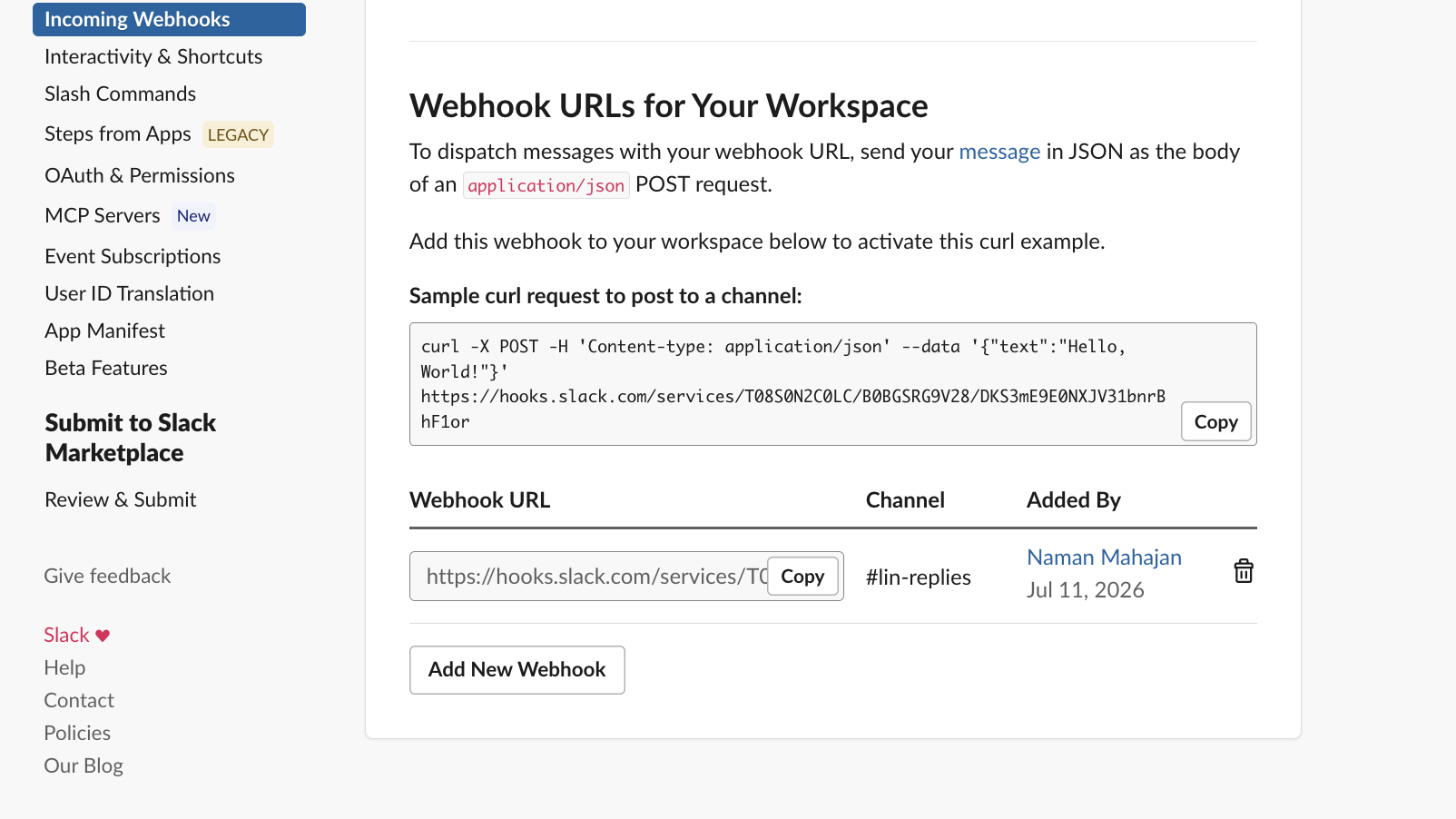
1. Create a Slack webhook
- 1.Go to api.slack.com/apps and select Create New App → From scratch.
- 2.Name the app something like OutFlo Replies and choose your workspace.
- 3.Open Incoming Webhooks, turn the feature on, and click Add New Webhook to Workspace.
- 4.Choose the destination channel, such as
#outflo-replies, and copy the webhook URL. Keep it private.
2. Catch the OutFlo notification in n8n
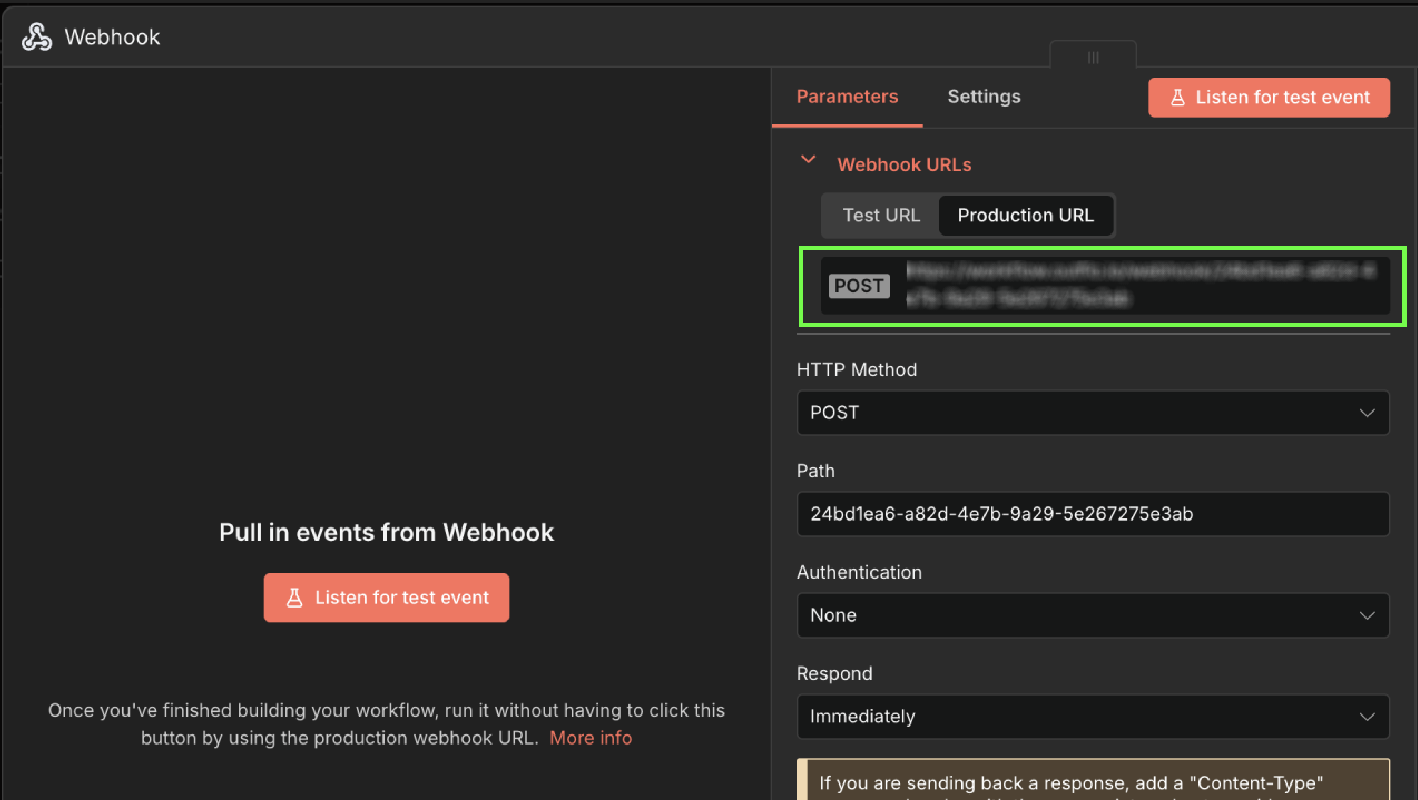
- 1.Create a new n8n workflow and add a Webhook node.
- 2.Set the method to POST.
- 3.Copy the webhook URL shown by n8n.
Use the test URL only while n8n is waiting for a test event. After testing, activate the workflow and switch OutFlo to the production URL.
3. Point OutFlo to n8n
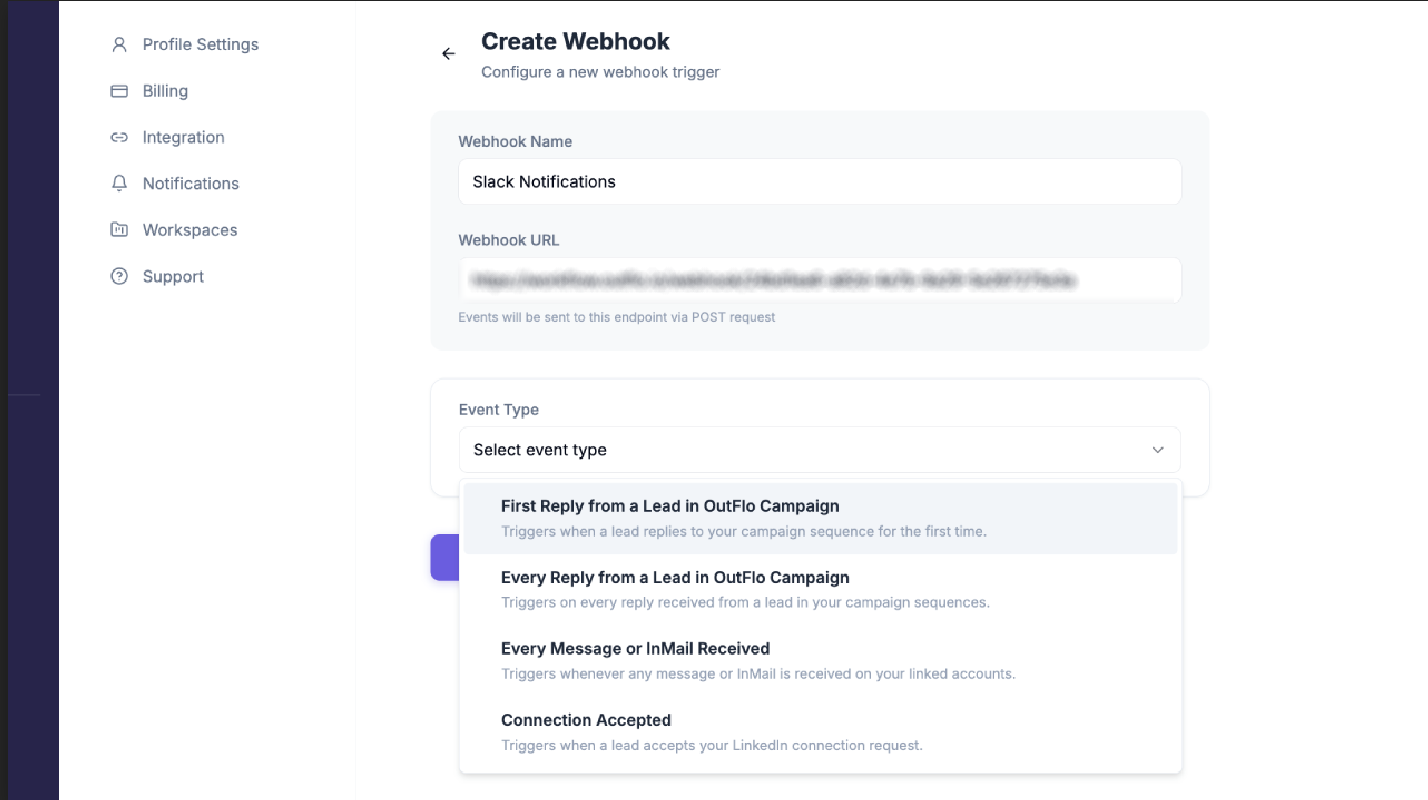
- 1.In OutFlo, open your profile menu in the bottom-left corner and select Integrations.
- 2.Open the webhook settings and click Create Webhook.
- 3.Give the webhook a name and paste in the n8n URL.
- 4.Select an event type:
- Every Message or InMail Received to receive all incoming messages.
- First Reply from a Lead in OutFlo Campaign for the first campaign reply.
- Every Reply from a Lead in OutFlo Campaign for every campaign reply.
- Connection Accepted if you also want accepted invitations in Slack.
- 5.Use OutFlo's test option to send a sample event to n8n.
4. Send the notification to Slack
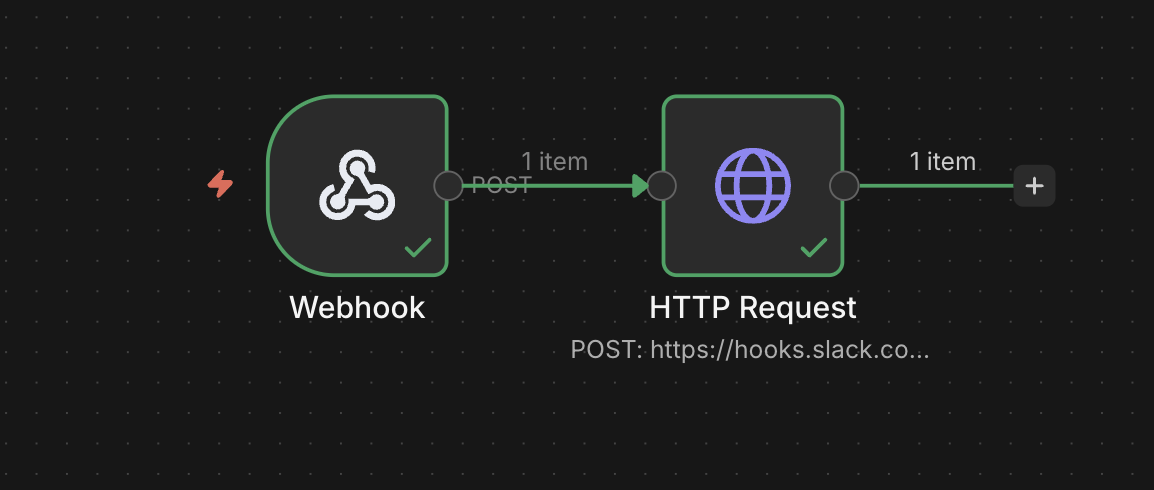
Add an HTTP Request node after the Webhook node and configure it as follows:
- Method: POST
- URL: your Slack incoming webhook URL
- Send Body: on
- Body Content Type: JSON
- Specify Body: Using JSON
[!IMPORTANT] The expression in this guide configures only the JSON body field of this HTTP Request node. It is not a complete n8n workflow, an importable workflow file, or a replacement for the setup above. You must still create the Webhook node, create the HTTP Request node, connect the two nodes, add your own Slack incoming-webhook URL, configure n8n's webhook response behavior, test the entire workflow, activate it, and save the production n8n URL in OutFlo.
Switch the complete JSON field to Expression and paste the formatter below. n8n normally places a Webhook node's request payload under $json.body; the fallback to $json also supports a workflow where an earlier node has already unwrapped it.
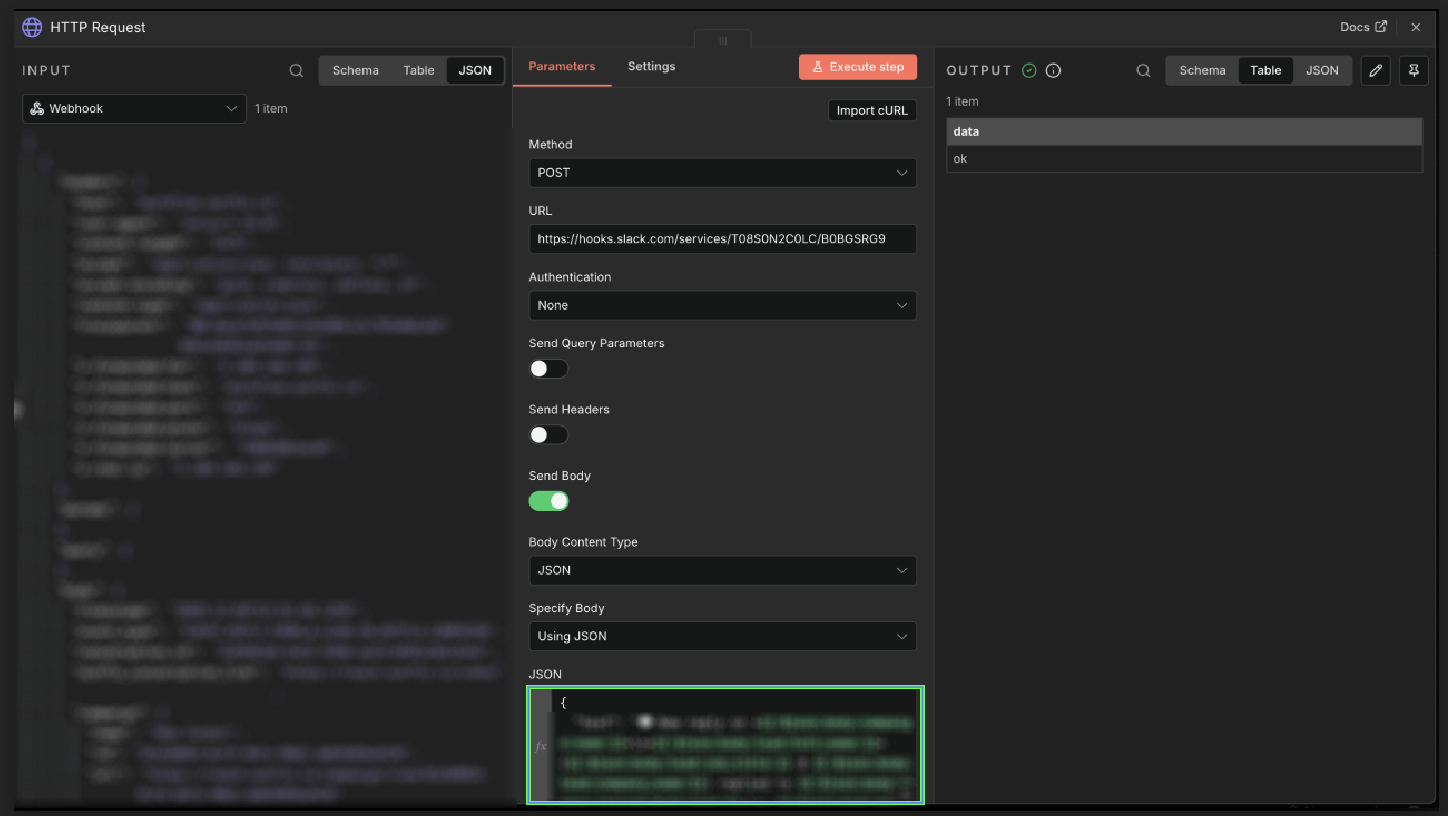
HTTP Request Body Expression
Paste the expression below only into the HTTP Request node's complete JSON body field after switching that field to Expression. It supports account-wide messages, both campaign-reply events, and connection events. It escapes Slack's special text characters and preserves multiline replies as quoted Slack lines.
This snippet does not contain:
- An n8n Webhook node or its test and production URLs.
- The connection between the Webhook and HTTP Request nodes.
- Your Slack incoming-webhook URL.
- Workflow activation, response-mode, retry, or error-handling settings.
- n8n credentials or an importable workflow definition.
={{
(() => {
const payload = $json.body ?? $json;
const eventType = payload.event_type ?? payload.event ?? 'UNKNOWN';
const message = payload.message ?? {};
const lead = payload.lead ?? {};
const receivingAccount = payload.sender_account ?? payload.account ?? {};
const escapeSlack = (value) => String(value ?? '')
.replace(/&/g, '&')
.replace(/</g, '<')
.replace(/>/g, '>');
const leadName = lead.full_name ||
  [message.sender_first_name, message.sender_last_name]
    .filter(Boolean)
    .join(' ') ||
  'A lead';
const accountName = receivingAccount.full_name || 'your team';
const campaignName = payload.campaign?.name;
const profileUrl = lead.profile_url || message.sender_profile_url;
if (eventType === 'CONNECTION_ACCEPTED') {
const lines = [
'Connection accepted in OutFlo',
'*' + escapeSlack(leadName) + '* accepted the invitation from *' +
escapeSlack(accountName) + '*',
campaignName ? 'Campaign: *' + escapeSlack(campaignName) + '*' : null,
profileUrl ? '<' + profileUrl + '|View LinkedIn profile>' : null
].filter(Boolean);
return { text: lines.join('\n') };
}
const replyText = escapeSlack(message.text || '(No message text)')
.replace(/\r?\n/g, '\n> ');
const context = campaignName
? '*' + escapeSlack(leadName) + '* replied in *' +
escapeSlack(campaignName) + '* to *' + escapeSlack(accountName) + '*'
: '*' + escapeSlack(leadName) + '* replied to *' +
escapeSlack(accountName) + '*';
const lines = [
'New reply in OutFlo',
context,
'> ' + replyText,
payload.outflo_conversation_link
? '<' + payload.outflo_conversation_link + '|Open inbox>'
: null
].filter(Boolean);
return { text: lines.join('\n') };
})()
}}Why This Configuration Covers Every Case
The expression is intentionally defensive because one n8n workflow may receive structurally different OutFlo events.
1. Read the Webhook node output or an already-unwrapped payload
const payload = $json.body ?? $json;An n8n Webhook node normally stores the HTTP request body in $json.body. A Set, Edit Fields, or Code node may unwrap it before the Slack step. The fallback supports both layouts without duplicating the workflow.
2. Normalize event and optional objects before reading them
const eventType = payload.event_type ?? payload.event ?? 'UNKNOWN';
const message = payload.message ?? {};
const lead = payload.lead ?? {};event_type is the current contract. The event fallback keeps older saved connection-event samples usable. Empty-object fallbacks prevent an event without message or lead from throwing an error before the formatter can choose the correct branch.
3. Normalize the receiving LinkedIn account
const receivingAccount = payload.sender_account ?? payload.account ?? {};Campaign events use sender_account; account-wide message events use account. Both mean “the LinkedIn account that received the reply,” so the formatter maps them to one local variable.
4. Normalize the person who replied
const leadName = lead.full_name ||
[message.sender_first_name, message.sender_last_name]
.filter(Boolean)
.join(' ') ||
'A lead';Campaign events provide lead.full_name. Account-wide events identify the person through the message sender fields. The final label avoids emitting undefined undefined if LinkedIn profile details are unavailable.
5. Escape Slack markup, but let n8n escape JSON
const escapeSlack = (value) => String(value ?? '')
.replace(/&/g, '&')
.replace(/</g, '<')
.replace(/>/g, '>');Slack uses &, <, and > as control characters in its text markup, so user-provided names and messages need Slack-specific escaping. Quotes and backslashes do not need manual JSON escaping here because the expression returns a JavaScript object. n8n's JSON serializer escapes them when it creates the HTTP request.
URLs are inserted separately into Slack's <URL|label> link syntax. They should come from OutFlo's URL fields rather than from message text.
6. Give non-message events their own branch
if (eventType === 'CONNECTION_ACCEPTED') {
  // Build a connection notification without reading message.text.
}
Connection acceptance has no message or OutFlo conversation link. Branching before reply formatting prevents a misleading “No message text” notification and uses the lead's LinkedIn profile as the available action.
7. Preserve multiline replies as Slack quotes
const replyText = escapeSlack(message.text || '(No message text)')
  .replace(/\r?\n/g, '\n> ');
Slack starts a quote line with >. Replacing both Windows and Unix newline forms makes every original message line render as part of the quoted reply instead of leaving later lines visually detached.
8. Return an object instead of interpolating a JSON string
return { text: lines.join('\n') };This is the most important part of the configuration. The unsafe pattern asks n8n to evaluate lead content inside JSON source code:
{"text":"Reply: {{ $json.body.message.text }}"}If the reply contains a real newline or quote, the evaluated result may no longer be valid JSON. The recommended expression first builds an ordinary JavaScript string and returns { text: ... }. n8n then performs JSON serialization, so newlines, quotes, and backslashes are encoded correctly for the Slack request.
Optional lines use .filter(Boolean), so the formatter omits unavailable campaign names, profile links, and inbox links instead of displaying empty labels.
If you only subscribe to reply events, keeping the connection branch is harmless and makes the workflow reusable later.
Test the Complete Workflow
Test at least these inputs before activating it:
- 1.An account-wide, single-line message.
- 2.An account-wide message with one or more line breaks.
- 3.A campaign reply with
campaign,sender_account, andlead. - 4.Text containing quotes, backslashes,
&,<, and>. - 5.A connection-accepted event if you subscribe to it.
In n8n, click Execute workflow on the canvas before calling the test URL. Clicking Execute step or listening only from inside the Webhook node can stop the test after the Webhook node. That proves ingestion but does not prove that Slack received the message.
Confirm all of the following in the execution record:
- The Webhook node succeeded.
- The HTTP Request node ran after it.
- Slack returned a successful response.
- The message appeared in the intended channel with all lines intact.
After that end-to-end test, activate the workflow and replace the test URL in OutFlo with the production /webhook/ URL.
Set It Up in Zapier Instead
Zapier is a good fit if you want a hosted, click-by-click setup.
- 1.Create a new Zap and choose Webhooks by Zapier → Catch Hook.
- 2.Copy the webhook URL and add it to a new OutFlo webhook under Profile → Integrations.
- 3.Choose the event type, then use Test Webhook in OutFlo.
- 4.Return to Zapier and click Test trigger so Zapier loads the sample reply fields.
- 5.Add a Slack → Send Channel Message action, connect Slack, and select the channel.
- 6.Build conditional fields for both payload families:
accountfor account-wide messages andsender_accountplusleadfor campaign replies. - 7.Test a one-line reply and a multiline reply in Slack, then publish the Zap.
Troubleshooting
Slack receives nothing
Open the n8n execution rather than relying only on OutFlo's delivery status. Confirm that the HTTP Request node ran, that it used the Slack incoming webhook URL, and that its body contains a top-level text field.
n8n accepted the webhook but Slack received nothing
If the execution stops at the Webhook node, that node was tested by itself. Start the entire workflow from the canvas, or activate it and use the production URL. If the HTTP Request node ran and failed, inspect its error and evaluated JSON body.
Single-line messages work but multiline messages fail
The JSON body is probably being assembled as text. Replace it with the object-returning expression above. Do not remove newlines from the lead's message just to make the request pass.
A field shows as undefined
Check the event type and payload family. Account-wide messages contain account but no campaign or lead. Campaign replies contain sender_account and lead. Use the normalizing expression instead of binding the workflow to one family.
n8n says the HTTP Request node is not installed
HTTP Request is a built-in n8n node. This message can appear when an imported workflow uses a newer node version than the installed n8n release. Update n8n through a backed-up, version-pinned rollout, or export the workflow with a node version supported by that instance.
It worked in testing but stopped later
You may still be using n8n's test URL. Replace it in OutFlo with the production URL, activate the workflow, and send another event.
Do I need to pay for anything?
Self-hosted n8n is available without a monthly task cap. Zapier's free tier can also work for smaller volumes, subject to its current task limits.
Quick Summary
Use Slack's incoming webhook, n8n as the transformer, and an OutFlo webhook as the source. Normalize the event shape, return a JavaScript object instead of string-built JSON, and test multiline and campaign/non-campaign events through both workflow nodes. Activate the workflow and use its production URL only after Slack delivery succeeds end to end.