When a sender account is unavailable, workload needs to be balanced, or you want selected prospects handled by a different sender, you can reassign campaign leads without rebuilding the campaign.
The reassignment tool moves the leads you choose among the campaign's active, connected sender accounts. Before you confirm, OutFlo shows a preview of what will be moved and what will stay unchanged.
Reassign Selected Leads
- 1.Open the campaign and go to its Leads table.
- 2.Select the leads you want to move using the checkboxes.
- 3.Click the Reassign Accounts button above the table.
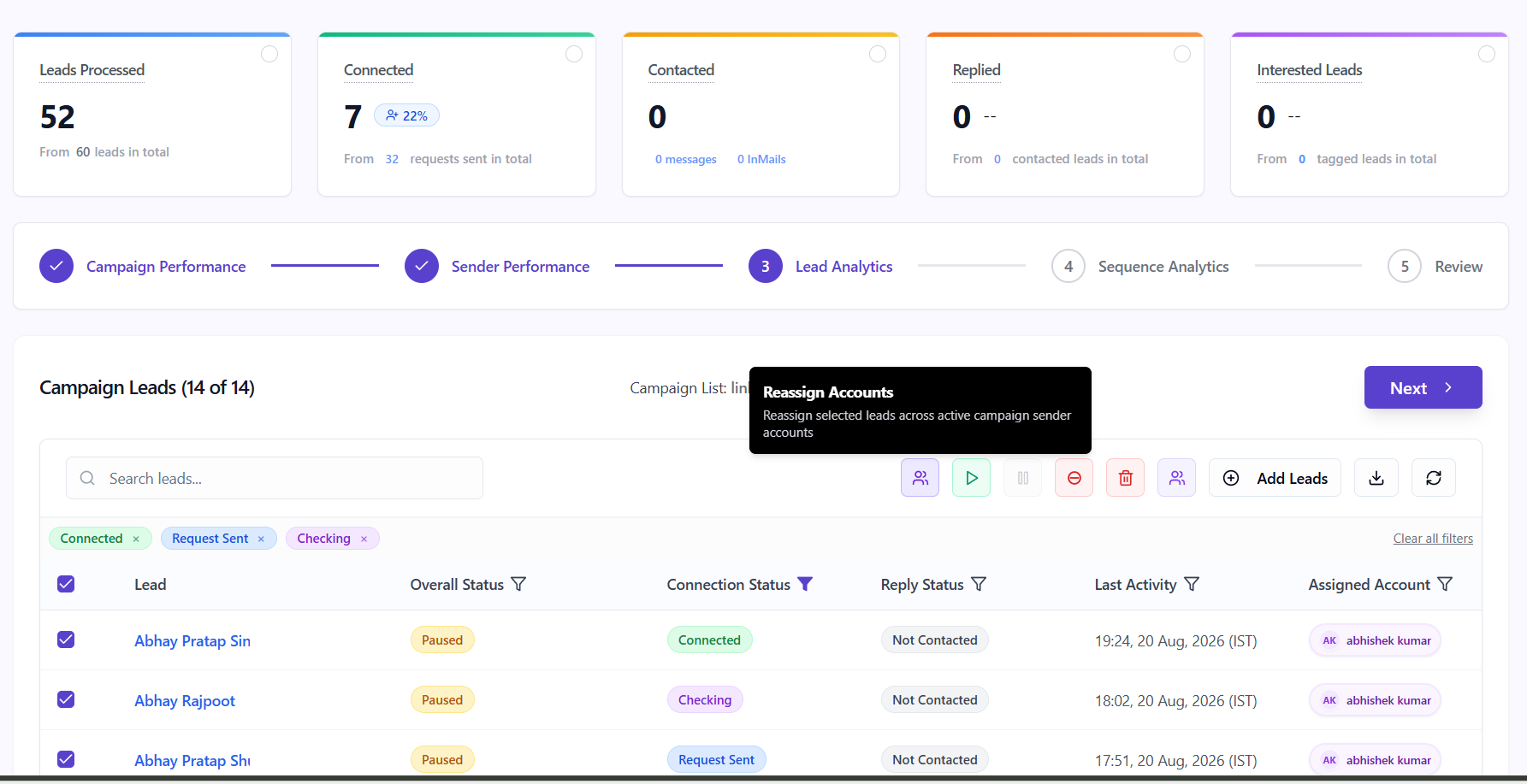
- 4.Under Select Destination Accounts, choose one or more active sender accounts. If your campaign has many accounts, use the search box to find the right one.
- 5.Review the Reassignment Preview. It shows how many leads are selected, how many have already performed actions, how many are already assigned to a selected sender, and how many will be reassigned.
- 6.Click Confirm Reassignment.
When the process is complete, the lead table refreshes with the updated sender assignments.
Keep the Safe Option On in Most Cases
The Reassign leads with no action history only option is on by default. With this option enabled, leads that have already performed actions in this campaign are not moved. This is the best choice when you are simply balancing new or untouched leads across sender accounts.
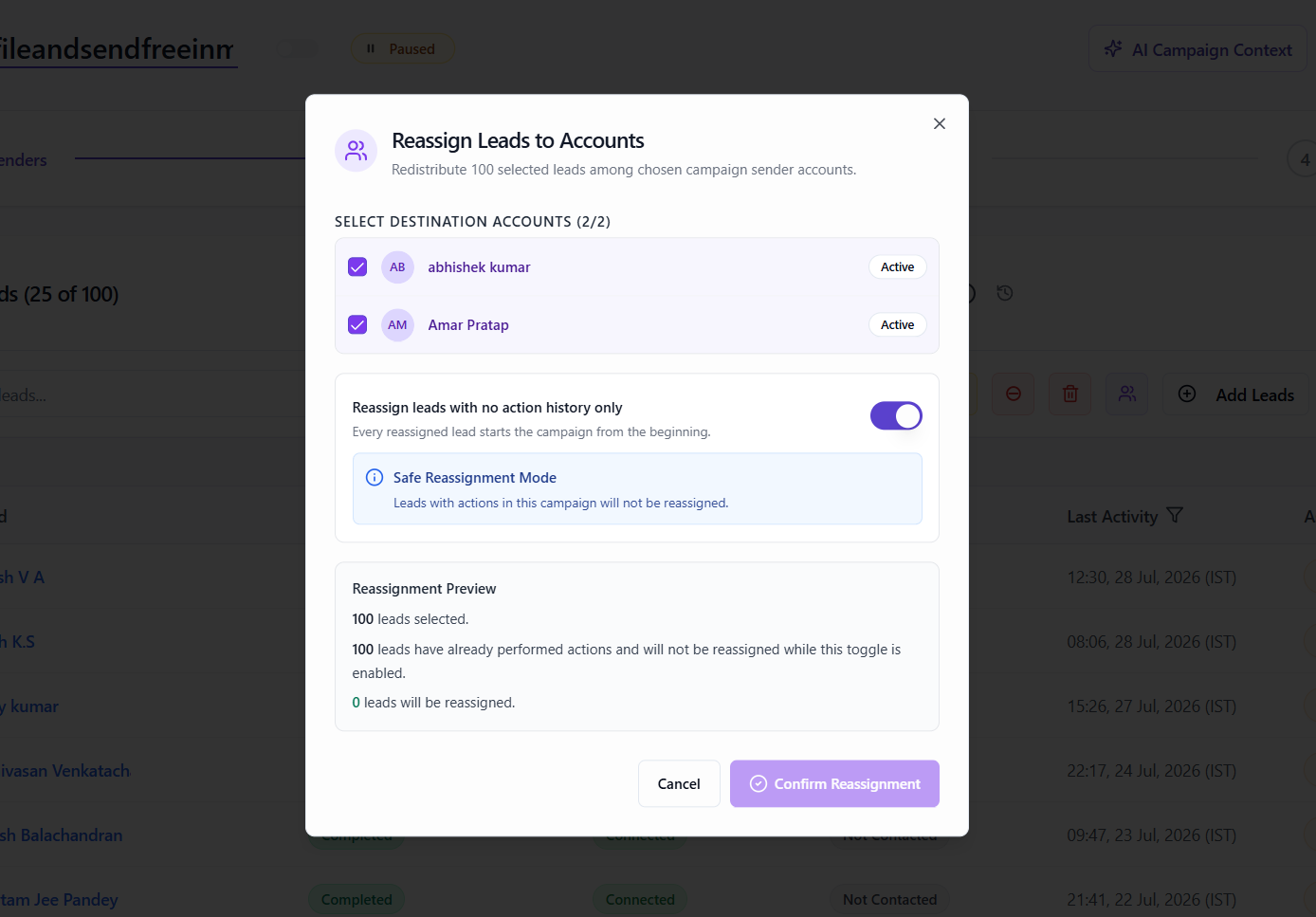
The preview makes this clear before you proceed: it separates leads with prior action history from the leads that will actually be reassigned.
When to Reassign Leads With Action History
You can turn off Reassign leads with no action history only when you deliberately want to restart selected leads under another sender account. OutFlo will show an amber warning before you confirm.
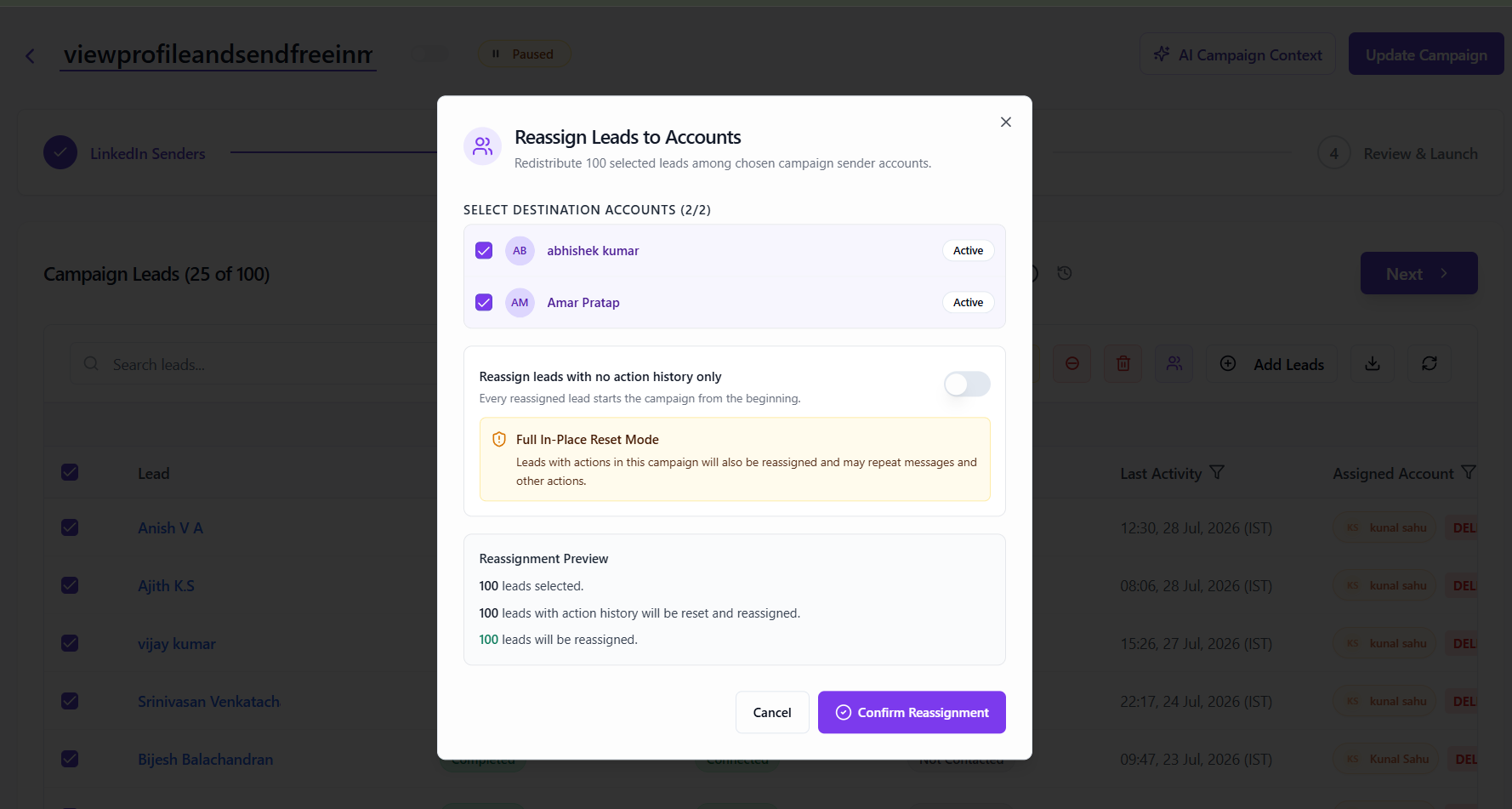
Use this only when restarting those leads is intentional. Because the campaign begins again for reassigned leads, they may repeat messages or other actions they have already received.
Understand the Preview Before You Confirm
The preview helps you catch surprises before making a change:
- Selected shows the number of leads in your current selection.
- Already performed actions identifies leads with existing campaign activity. They remain unchanged while the safe option is on.
- Already belong to a selected sender shows leads that do not need to move because one of your chosen accounts already owns them.
- Will be reassigned is the number of leads that will move when you confirm.
If the preview says there are no leads to reassign, change your selection or destination accounts, or leave the leads as they are.
Quick Summary
- Select leads from a campaign's Leads table, then click Reassign Accounts.
- Choose one or more active, connected sender accounts already in that campaign.
- Use the preview to verify what will move before confirming.
- Keep Reassign leads with no action history only on to protect leads that have already taken campaign actions.
- Turn that option off only when you intentionally want those leads to restart the campaign and accept the chance of repeated actions.