When a LinkedIn post needs a client's or stakeholder's sign-off, use External Reviewers in OutFlo. Set up your LinkedIn post in OutFlo, choose who should review it, and send an email invitation. Reviewers can read the post, leave feedback, and approve or request changes without joining your OutFlo workspace.
This is useful for agencies managing client content, teams writing posts for executives, and anyone who needs approval from someone outside their workspace.
1. Add your external reviewers
In LinkedIn Social Outreach, open the Reviewers tab.
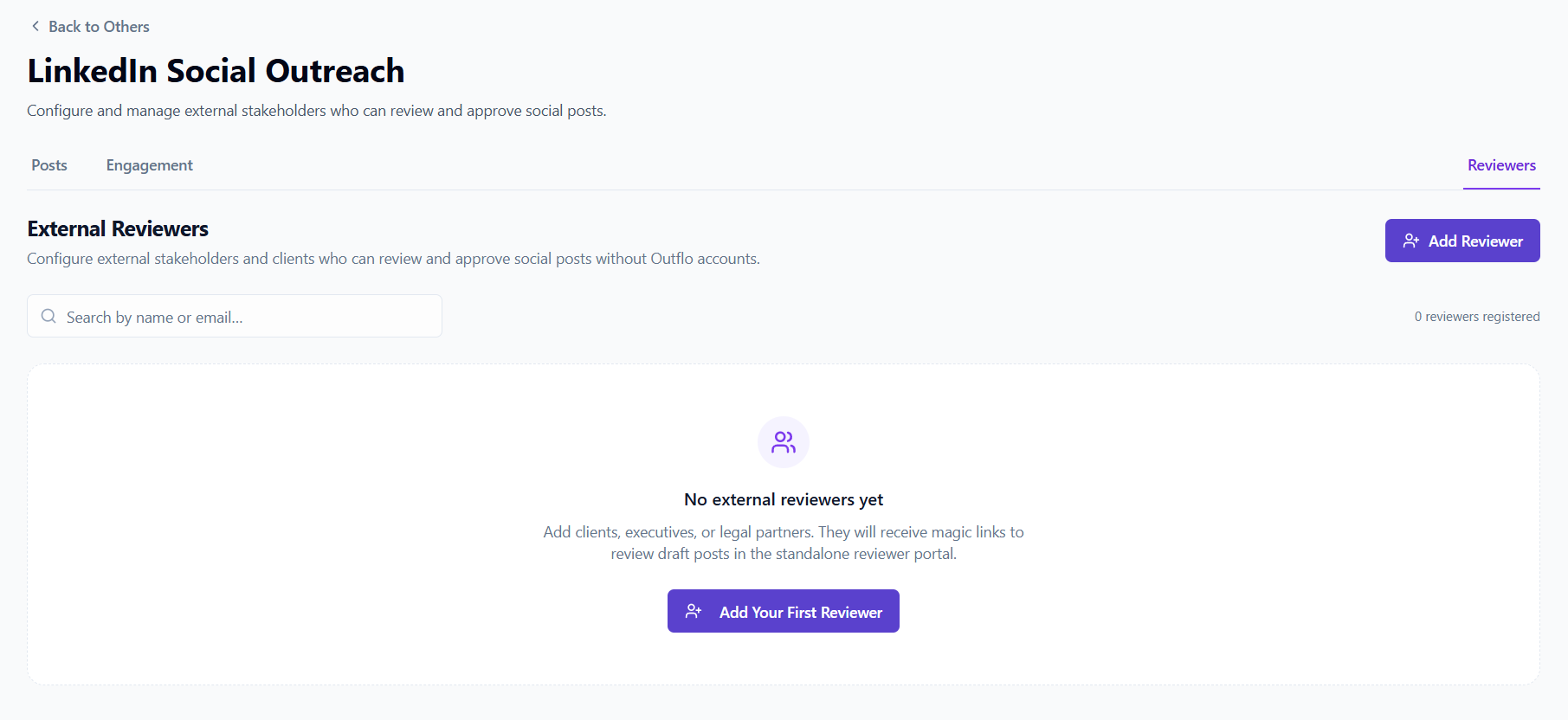
- 1.Select Add Reviewer.
- 2.Enter the reviewer's Full Name and Email Address.
- 3.Choose their Preferred Language.
- 4.Select Add Reviewer to save them.
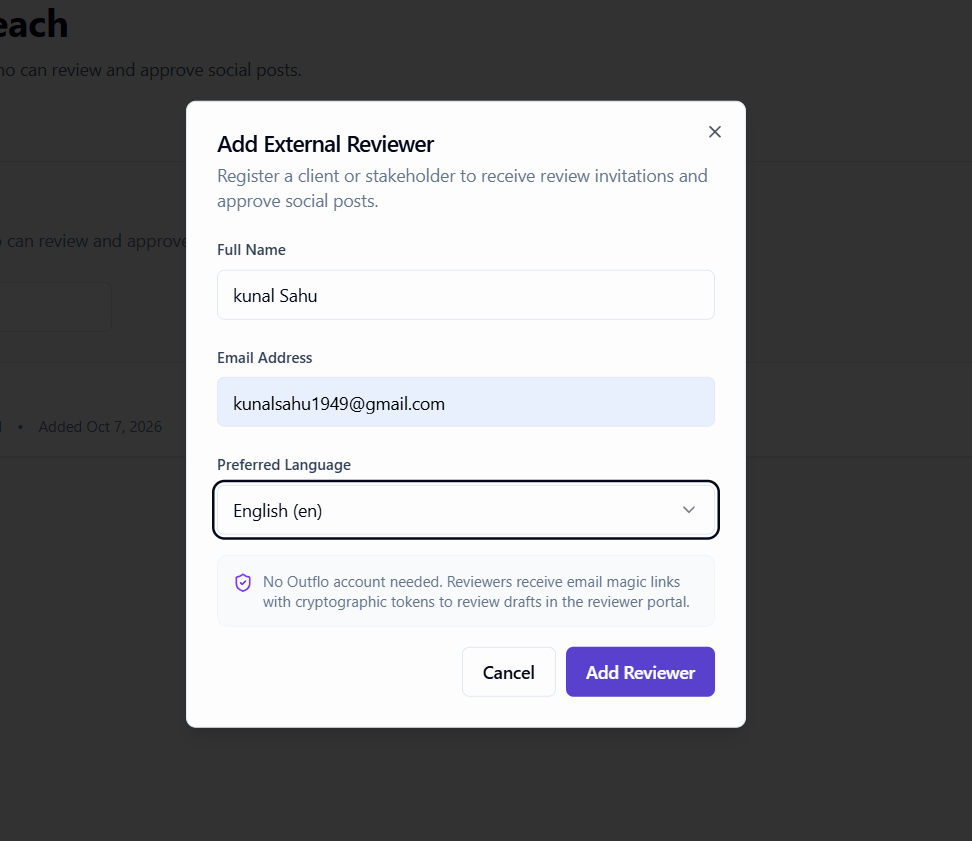
Saved reviewers can be selected again for future posts. Adding someone to this list prepares their contact details; send a review request from a post when you are ready for their approval.
You can search the reviewer list by name or email and edit a saved reviewer's details when needed.
2. Prepare the LinkedIn post
Open Posts and select New post, or open an existing draft.
- 1.Choose the LinkedIn account under Publish from.
- 2.Write your Post copy.
- 3.Add any media and optional First comment you want reviewed.
Approval applies to the version sent for review.
For a walkthrough of writing and publishing a post, see How to Create, Review, Schedule, and Publish LinkedIn Posts with OutFlo.
3. Choose who should approve
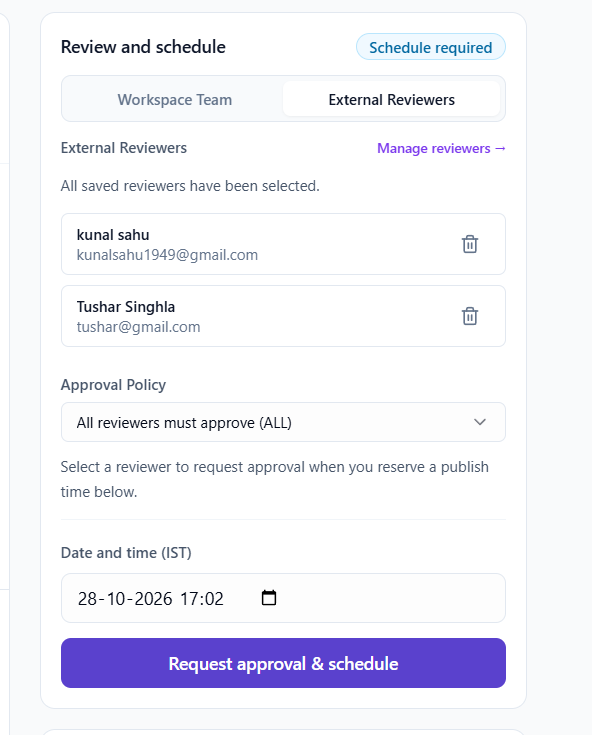
In the post's review section, select External Reviewers.
Use Select saved reviewers… to add the people who should review this post. You can choose up to 10 reviewers. If someone is missing, select Manage reviewers to add them, then return to your post and select them.
Check the selected names and email addresses. Remove anyone who should not receive this request.
When you select more than one reviewer, choose an Approval Policy:
- Option
- All reviewers must approve (ALL)
- What it means
- Every selected reviewer must approve before the post can proceed.
- When to use it
- You need sign-off from each stakeholder.
- Option
- Any single reviewer can approve (ANY)
- What it means
- One selected reviewer's approval is enough, provided no reviewer has requested changes.
- When to use it
- Any one of the selected people can give the final sign-off.
| Option | What it means | When to use it |
|---|---|---|
| All reviewers must approve (ALL) | Every selected reviewer must approve before the post can proceed. | You need sign-off from each stakeholder. |
| Any single reviewer can approve (ANY) | One selected reviewer's approval is enough, provided no reviewer has requested changes. | Any one of the selected people can give the final sign-off. |
A changes-requested decision holds the post for changes under either policy. For example, if you choose ALL for a client and a brand manager, both must approve. If you choose ANY for two people who can each sign off, one approval is enough unless the other has requested changes.
4. Set a publish time and send the request
Choose a future Date and time, checking the timezone displayed beside the field.
With your external reviewers selected, use Request approval & schedule to reserve the time and send the approval request. If you already reserved a publish time, use Request external review in the review section.
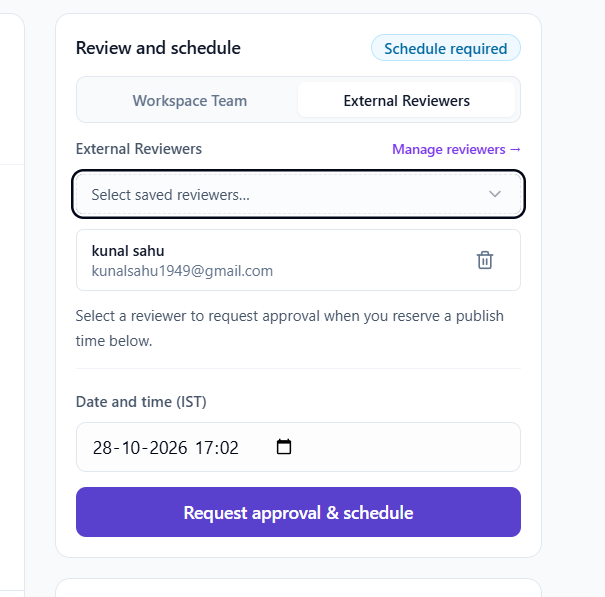
OutFlo sends the selected reviewers an email invitation. The post waits for approval before publishing can proceed.
5. How the reviewer uses the invitation
The reviewer does not need to create an OutFlo account. Ask them to:
- 1.Open the review invitation in their email inbox.
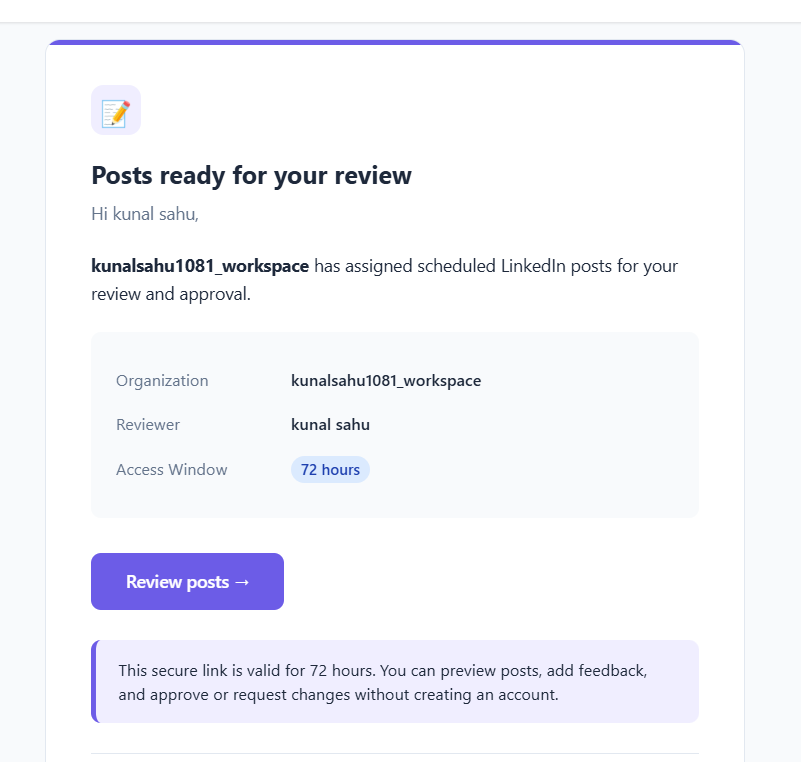
- 2.Select Review posts → in the email to open the reviewer portal. Check the access window shown in the invitation and open it before it expires.
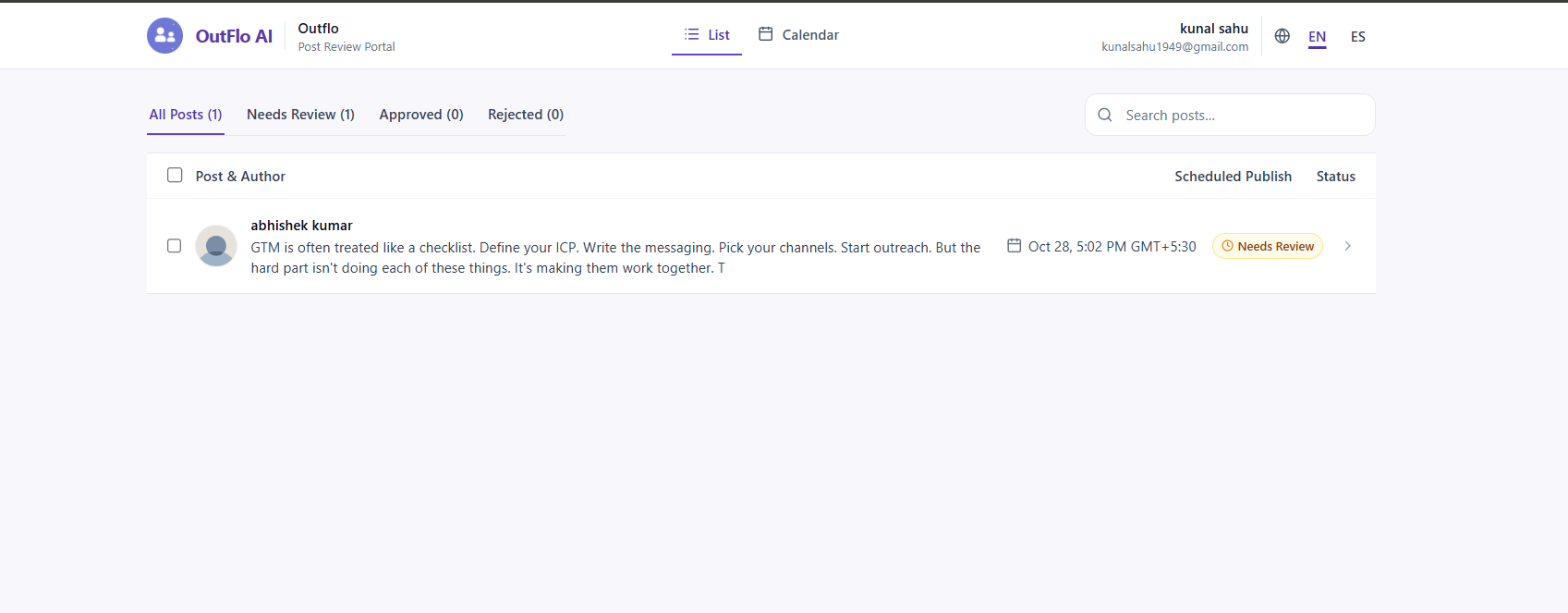
In the portal, select Needs Review to find posts awaiting a decision. The list shows the author, a preview of the copy, the scheduled publish time, and the review status. Open the assigned post to review it.
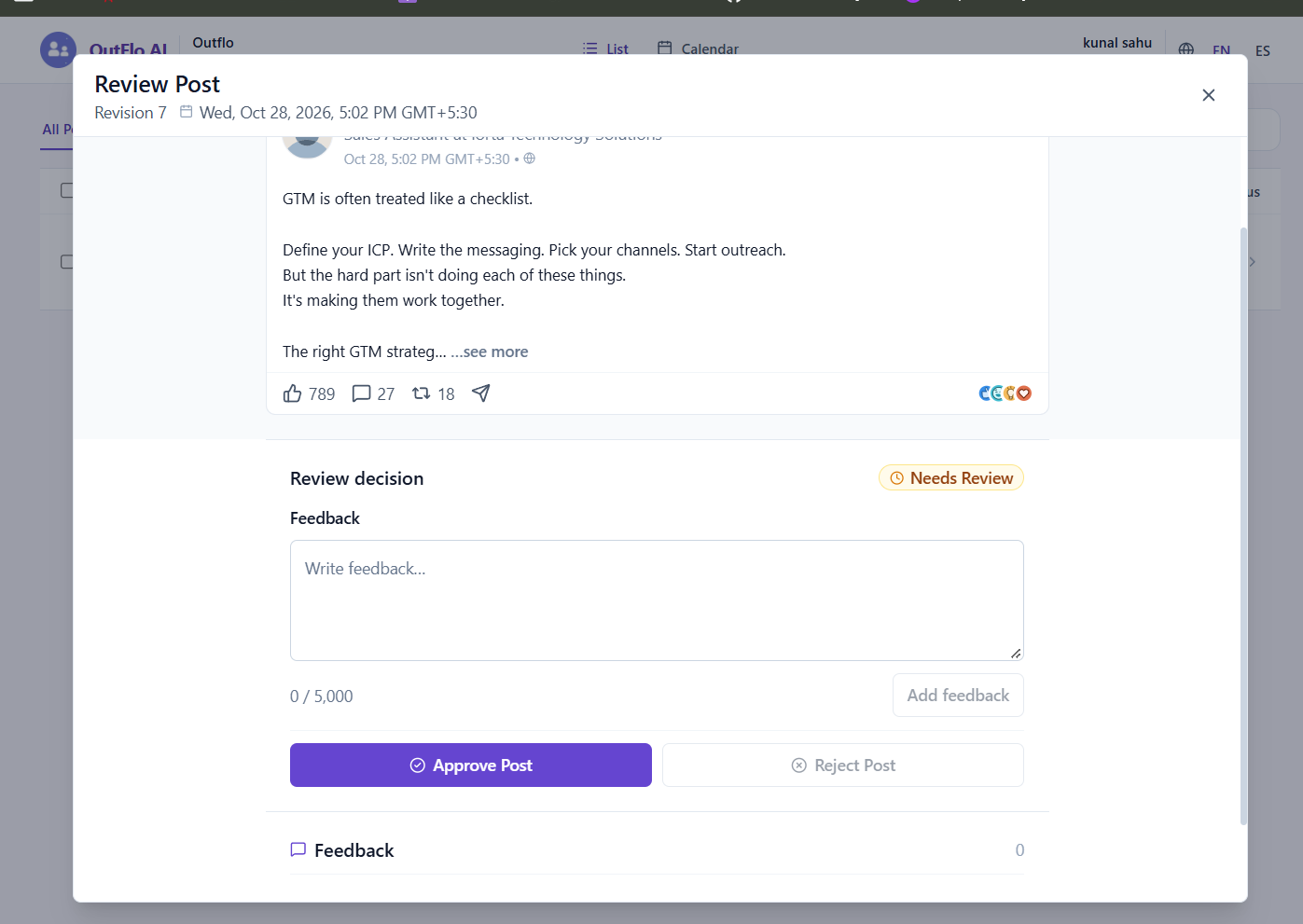
Read the post copy, review the attached media, and check the first comment if one is included. In Review decision:
- To leave a comment, enter it in Feedback and select Add feedback.
- If the post is ready, select Approve Post.
- If changes are needed before publishing, explain them in Feedback, then select Reject Post to request changes.
Specific feedback makes the next step easier. For example: “Please replace the opening sentence with the new product name and update the image before publishing.”
6. Track responses and handle changes
Open the post in OutFlo and check its External Reviewers list. Each reviewer shows a response status:
- Waiting: they have not submitted a decision yet.
- Approved: they have approved the post.
- Rejected: they have requested changes. Read their feedback before proceeding.
Once your approval policy is satisfied, the post becomes Scheduled for its reserved time. Check the board or calendar to confirm the schedule, then check Published after delivery.
If changes are needed, read the feedback and use Withdraw review to edit or Withdraw approval request, as shown on the post. Withdrawing removes reviewer access to that request and cancels its reserved publication.
Update the post, let it finish saving, and choose a future publish time. Select your reviewers and send a new approval request so they can review the updated version.
If a reviewer cannot open an invitation, check that their saved email address is correct and resend the invitation. Ask them to check their spam or junk folder as well. If the request was withdrawn or their assignment was revoked, they will need a new active review request.
Before you finish, confirm the publishing account, review responses, and scheduled time on the post. That gives you a clear record of what your reviewers approved and when it is due to go live.