
Workspaces divide operational scope inside an OutFlo organization. They help teams organize client accounts, campaigns and conversations while controlling what each member can do. The organization remains the tenant and billing boundary.
Start by defining who works on each scope and which operations they actually need. A workspace name alone does not establish that its access is configured correctly.
Decide the workspace boundary
For an agency, a separate workspace per client can make operational responsibility clearer. For an internal team, a workspace might correspond to a business unit or outreach team.
Before inviting members, identify the connected sender accounts, campaigns and people responsible for that scope. Check the active workspace when adding or reviewing data. Similar names across clients make this especially important.
A workspace is an operational boundary within an organization. Do not describe it to a client as a separate billing organization or assume it supplies white-label branding or a custom client domain.
Define roles around actual work
Write a small responsibility map before granting access. For example:
- Team member
- Reply handler
- Needs to do
- Read threads, draft and send replies
- Permissions to review
- Inbox access and supported reply operations
- Team member
- Campaign operator
- Needs to do
- Prepare campaigns and manage leads
- Permissions to review
- Campaign and lead permissions
- Team member
- Account owner or administrator
- Needs to do
- Connect accounts and maintain sender settings
- Permissions to review
- Account permissions
- Team member
- Billing contact
- Needs to do
- Manage subscription or credit-related work
- Permissions to review
- Billing permissions
| Team member | Needs to do | Permissions to review |
|---|---|---|
| Reply handler | Read threads, draft and send replies | Inbox access and supported reply operations |
| Campaign operator | Prepare campaigns and manage leads | Campaign and lead permissions |
| Account owner or administrator | Connect accounts and maintain sender settings | Account permissions |
| Billing contact | Manage subscription or credit-related work | Billing permissions |
These are examples of responsibilities, not built-in role names. Use the roles and detailed permissions actually offered in your organization.
A person who replies to prospects does not automatically need to change billing or manage every account. Conversely, read access to a campaign does not establish permission to edit or launch it.
Invite the member into the intended scope
Add or invite the member from workspace/team management. Check the identity, assigned workspace and role before completing the invitation.
If someone needs access to several client scopes, review each membership rather than assuming one invitation provides the correct access everywhere. For external post approval, consider the separate reviewer workflow instead of providing broad main-application access just to approve posts.
Inspect detailed permissions
Review account, campaign, lead, inbox and billing permissions. Some workflows require more than one resource permission: for example, adding imported leads to a campaign needs campaign-edit access in addition to access to lead operations.
An integration connection and using the data it produces can also have different permissions. Social Signals has its own access controls, and adding a signal to a campaign needs the relevant campaign permission.
Use the member's intended tasks as the checklist. “Can see the page” is a weaker check than “can perform the necessary operation within the correct workspace.”
Verify the member experience
With an authorized member or appropriate role preview where available, check a small set of representative operations:
- 1.Open the intended workspace.
- 2.Confirm the expected accounts and campaigns are visible.
- 3.Open an allowed conversation and check permitted draft/reply actions.
- 4.Confirm restricted settings are not available to that role.
- 5.Check whether any required integration or lead operation is blocked.
Inspect permission failures before increasing access. They may result from the wrong workspace rather than an inadequate role.
Use organization-wide views carefully
Authorized master or organization-wide views can span workspaces. They require the appropriate access, and some master/admin views are read-only.
For day-to-day client work, verify that you have returned to the intended workspace. A broader reporting view should not be mistaken for the normal editing scope of one client.
Review access when responsibility changes
Revisit memberships when a teammate changes role, a client handoff occurs or someone no longer works on the scope. Coordinate campaign and inbox ownership before changing access so pending replies do not lose a responsible person.
If a sender is being retired, review sender archival separately. Archived-account history and paid-seat activation are different concerns; granting a teammate access does not reconnect an inactive account.
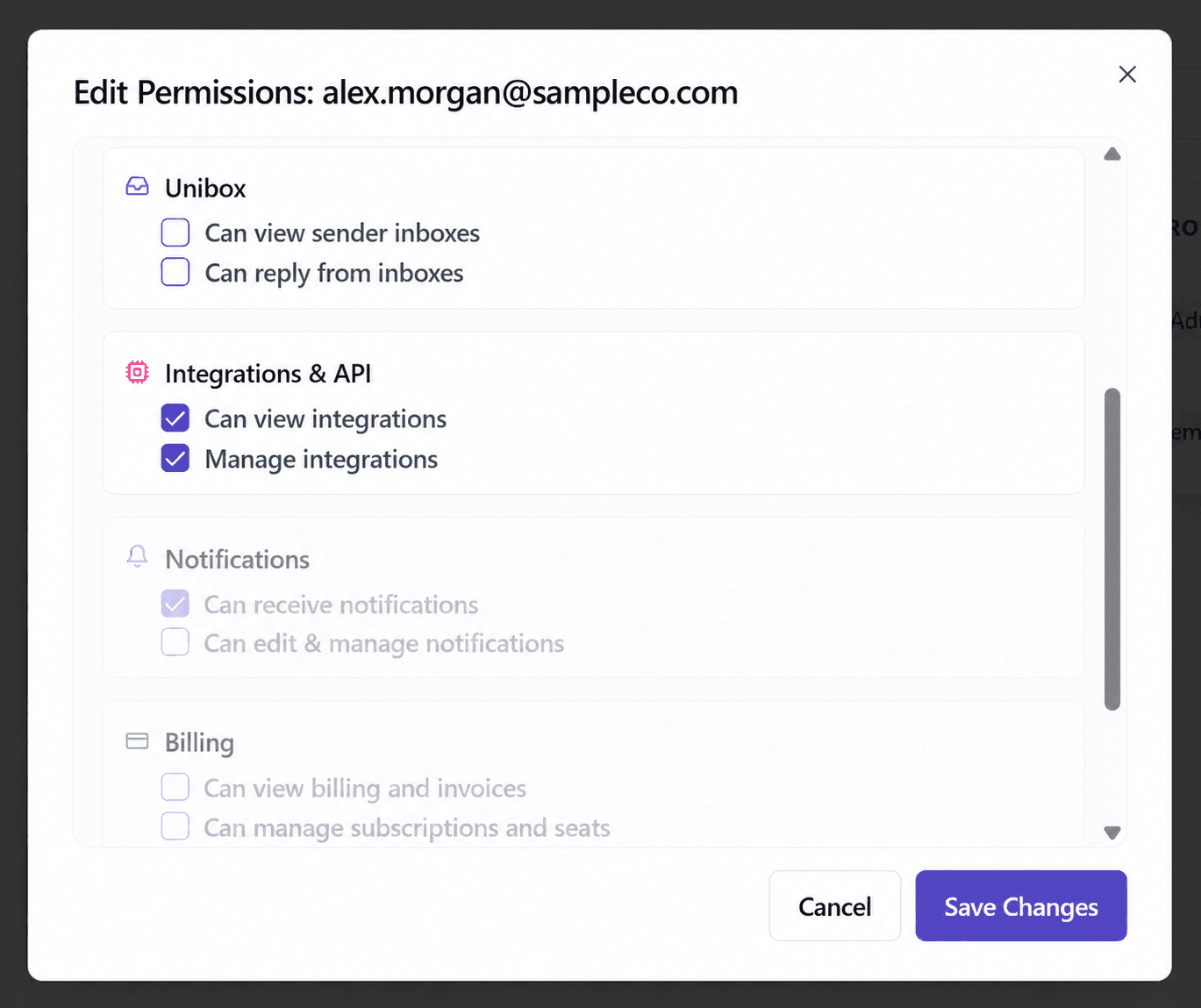
Follow the detailed members, roles and permissions walkthrough or explore Workspaces and Team Access.