
Personalization is useful when it explains why you are contacting this person. A first name alone cannot do that, and extra profile facts do not help if the message draws the wrong conclusion from them.
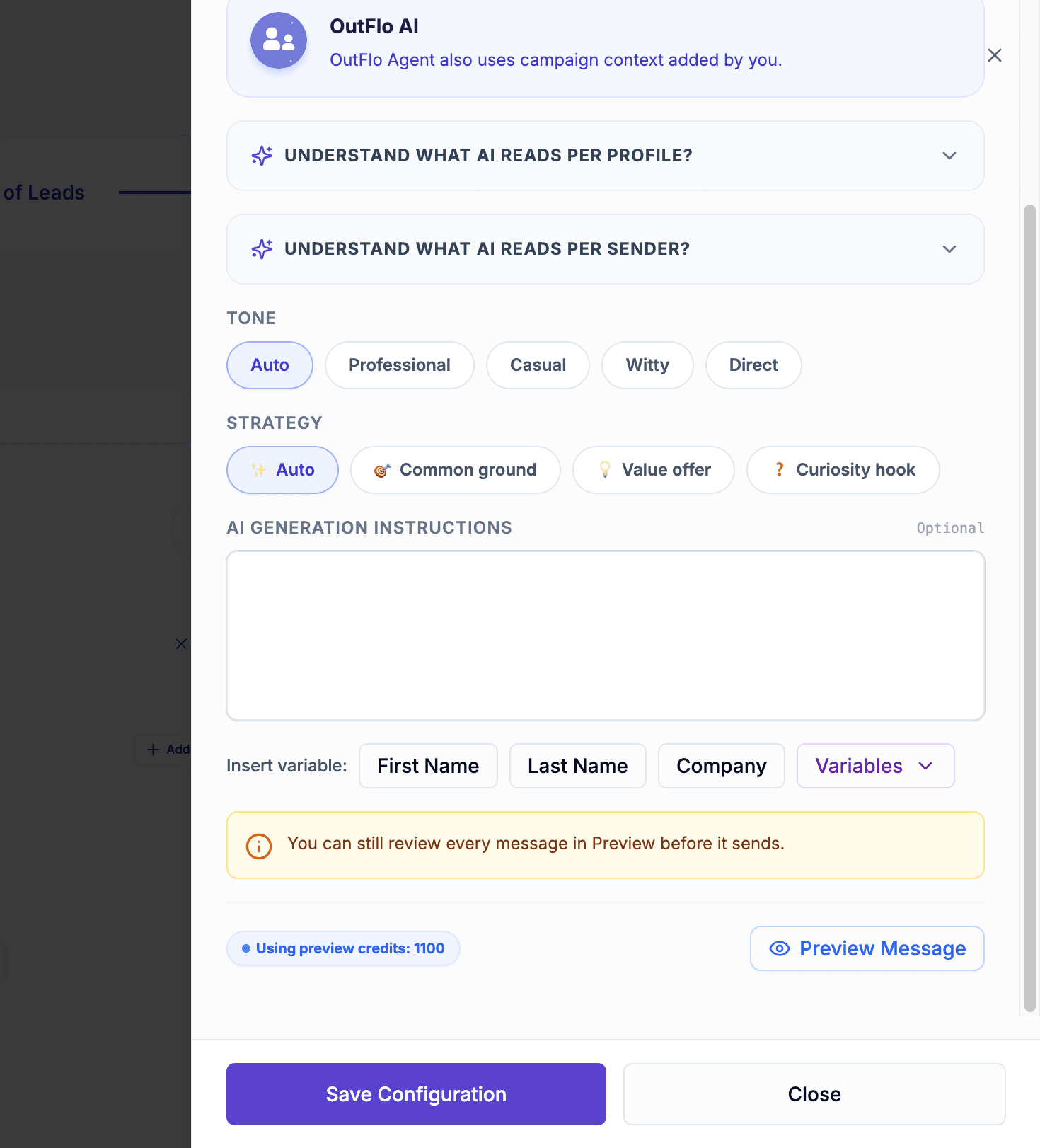
Use OutFlo's variables and AI assistance to prepare relevant copy, then verify what a real recipient would receive.
Start with a reason to contact the person
Write down the audience, the reason for reaching out and the small next step you want. Choose context that supports that reason: a profile role, company detail, relevant post, sender information or conversation history where the generator supports it.
For example, a recruiting message may need the person's experience and your open role. It does not need an unrelated post merely because that post is available.
Give the generator a specific instruction: “Use the supplied role and company context. Explain why the topic is relevant in one sentence. Ask whether they own this work. Do not invent hiring plans, funding or previous contact.” Treat this as a suggested writing instruction, not a guarantee that generated text is accurate.
Distinguish facts from assumptions
Inspect generated openings closely. A job title may support a question about responsibility, but not a statement that the person is currently struggling. A company announcement may explain your timing, but it does not prove budget or intent.
Replace unsupported claims with an honest question. For example, change “Your team must be struggling to handle replies” to “Are you the person who manages outbound replies for your team?” when responsibility is the only fact you have.
Map variables and choose missing-data behavior
Use the variables available from your uploaded data, API fields, LinkedIn context and sender data. Confirm that a placeholder uses the exact mapped key. For example, {recentTrigger} can reference a custom field supplied under that name.
Decide how the message should behave when a field is unavailable:
- Choice
- Skip the lead
- When it makes sense
- The missing detail is essential to the message
- What to inspect
- Whether you are excluding more of the audience than intended
- Choice
- Use a fallback
- When it makes sense
- A generic phrase preserves the meaning
- What to inspect
- Whether the resulting sentence is still natural and truthful
- Choice
- Send a blank value
- When it makes sense
- The sentence genuinely works without it
- What to inspect
- Missing words, punctuation or an unfinished sentence
| Choice | When it makes sense | What to inspect |
|---|---|---|
| Skip the lead | The missing detail is essential to the message | Whether you are excluding more of the audience than intended |
| Use a fallback | A generic phrase preserves the meaning | Whether the resulting sentence is still natural and truthful |
| Send a blank value | The sentence genuinely works without it | Missing words, punctuation or an unfinished sentence |
“I saw {recentTrigger}” needs a real detail or a carefully written replacement. An empty value produces broken copy. A broad fallback can also be misleading if it implies knowledge you do not have.
For the MCP field shape and variableResolution examples, use the custom-variable guide.
Review several representative previews
Check more than the best-populated lead:
- 1.A lead with all required fields.
- 2.A lead missing the optional context.
- 3.A lead whose company or name is unusually long.
- 4.A lead assigned to a different sender, if sender variables are used.
Read each resolved message aloud. Look for raw placeholders, invented details, mismatched sender identity and a call to action unrelated to the audience. Confirm available generation credits before a large batch; a successful preview does not establish that every later generation can run.
Vary wording without changing the promise
Spintax lets you write alternative phrases in a message. In the Direct message editor, use Variables → Add spintax to prepare options. Variables can appear inside those options.
Keep alternatives equivalent in intent. “Would a short overview help?” and “Can I send the details?” can serve the same purpose. An alternative that promises a free service changes the offer, not just the wording.
Preview the alternatives with resolved variables. Spintax provides variation; it does not itself establish a measured A/B test or tell you which wording caused a result.
Check recipient values after a reupload
Version 2 campaign recipients retain the imported values captured for them. Updating a shared list later does not silently replace those saved fields. Live LinkedIn enrichment and sender data are separate from uploaded values.
If a preview still shows an old uploaded detail, inspect the campaign recipient's actual values rather than repeatedly reuploading the shared list. Do not assume an existing recipient changed simply because the import succeeded.
Read the spintax walkthrough or explore AI Personalization.