Prepare the lead list and email campaign
Connect the Instantly workspace that will send your campaigns to OutFlo. Connect OutFlo and Instantly
- In OutFlo, build a list with a LinkedIn profile and a usable work email for each lead. Check that the addresses are in the email field you plan to select in the sequence.
- In Instantly, create the destination campaign, add your email sequence, and assign your sending inboxes. Set the sending days, hours, time zone, and daily limits. Stop sending emails on reply stops Instantly follow-ups when the lead replies by email.
Build the LinkedIn-first sequence
- 1.Create an OutFlo campaign, assign a LinkedIn sender, and add your lead list.
- 2.Add a connection request in the sequence editor. On the Connected branch, add a LinkedIn message. On the Not Connected branch, place the Instantly handoff where you want email enrollment to begin.
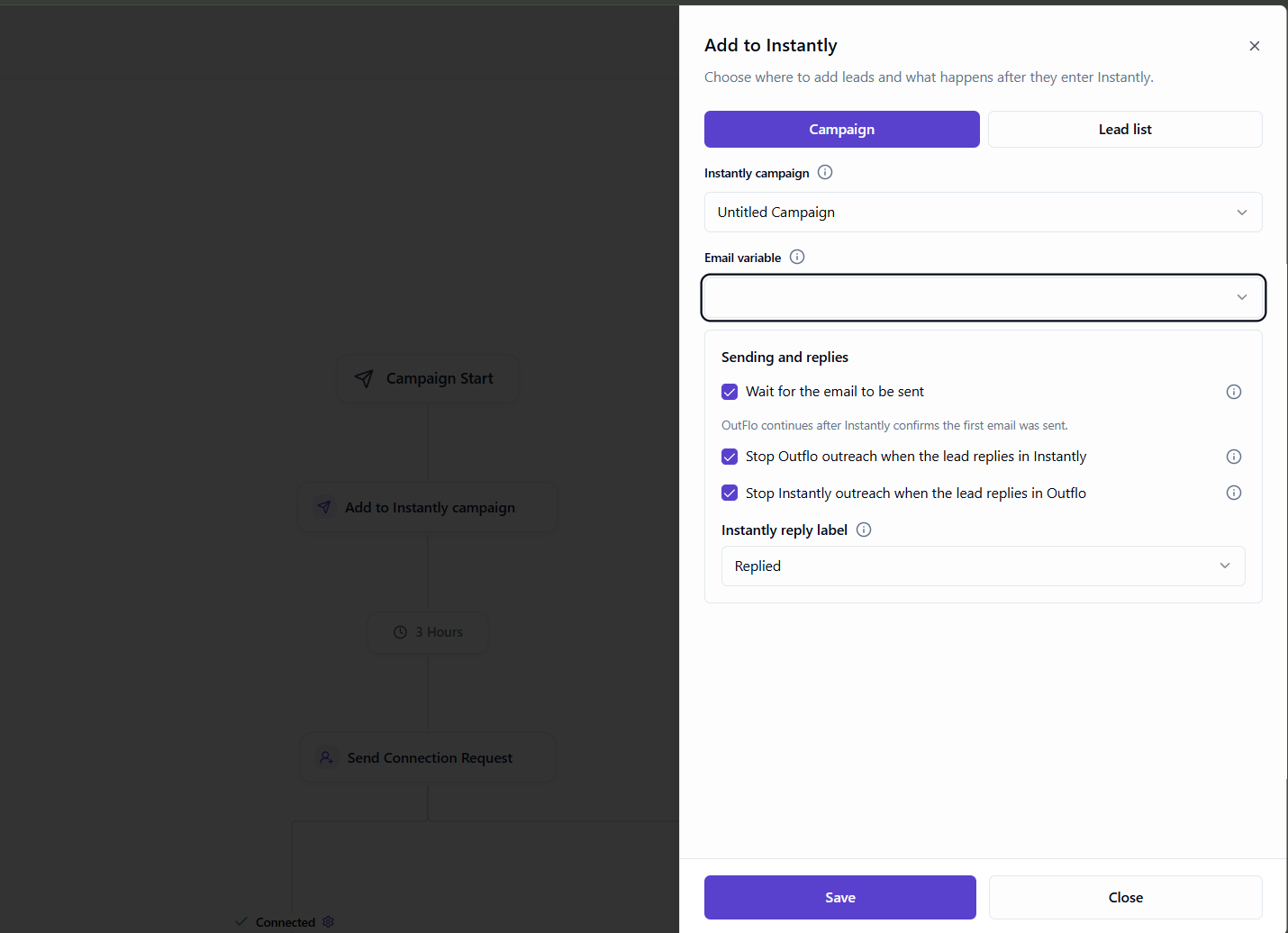
- 3.On the email branch, open Add Action → Multichannel → Add to Instantly campaign. Select Campaign, pick the Instantly campaign you prepared, and set Email variable to the field with the work address. A missing or invalid address in that field skips the step.
Ending the branch at the handoff leaves the remaining outreach to Instantly. If the branch includes a later LinkedIn step, the reply controls below determine whether an email reply can stop it.
Set up reply handling in both directions
If the channels overlap, use the two reply settings in the OutFlo step where available.
- Stop Outflo outreach when the lead replies in Instantly uses Instantly's Reply received webhook to stop LinkedIn follow-ups.
- Stop Instantly outreach when the lead replies in Outflo uses the Instantly reply label you choose. A neutral label such as Replied on LinkedIn helps the team find those leads without counting every reply as an opportunity.
Create and select an Instantly reply label
- 1.In Instantly, open Settings → Lead Labels and select Create New. You can also choose Create Label from the lead status menu in an Unibox conversation.
- 2.Enter a name, such as Replied on LinkedIn, and a description. Choose Neutral for a label that records a reply without counting it as an opportunity, then save it. Custom labels are available on Hyper Growth and higher plans.
- 3.In OutFlo, open the Add to Instantly step, enable Stop Instantly outreach when the lead replies in Outflo, and select your label under Instantly reply label. If the picker cannot load labels, check that the connected Instantly key has lead-label access.
The label records that a lead replied on LinkedIn. Instantly stops pending email follow-ups when the lead moves off the default Lead status, and its status filters let you find leads by label. Create custom lead labels in Instantly · How lead status affects sending · Manage replies in Unibox
Set up the email reply webhook
- 1.In the OutFlo Instantly integration settings, select Show reply webhook setup and copy the webhook URL and secret header details.
- 2.In Instantly, create a webhook for Reply received, select the destination campaign, and enter the URL and secret header from OutFlo.
- 3.In the OutFlo Add to Instantly step, enable Stop Outflo outreach when the lead replies in Instantly and save the step.
Configure the reply webhook in OutFlo · Create a webhook in Instantly
If your Instantly plan lacks webhooks
For a LinkedIn-first campaign, make Add to Instantly the final step on the Not Connected branch. Instantly can still send email and stop its own follow-ups on reply. If the channels overlap, have the reply owner check Unibox and pause the matching OutFlo lead before the next LinkedIn touch. If the label option is unavailable, have them stop pending Instantly emails when a lead replies on LinkedIn.