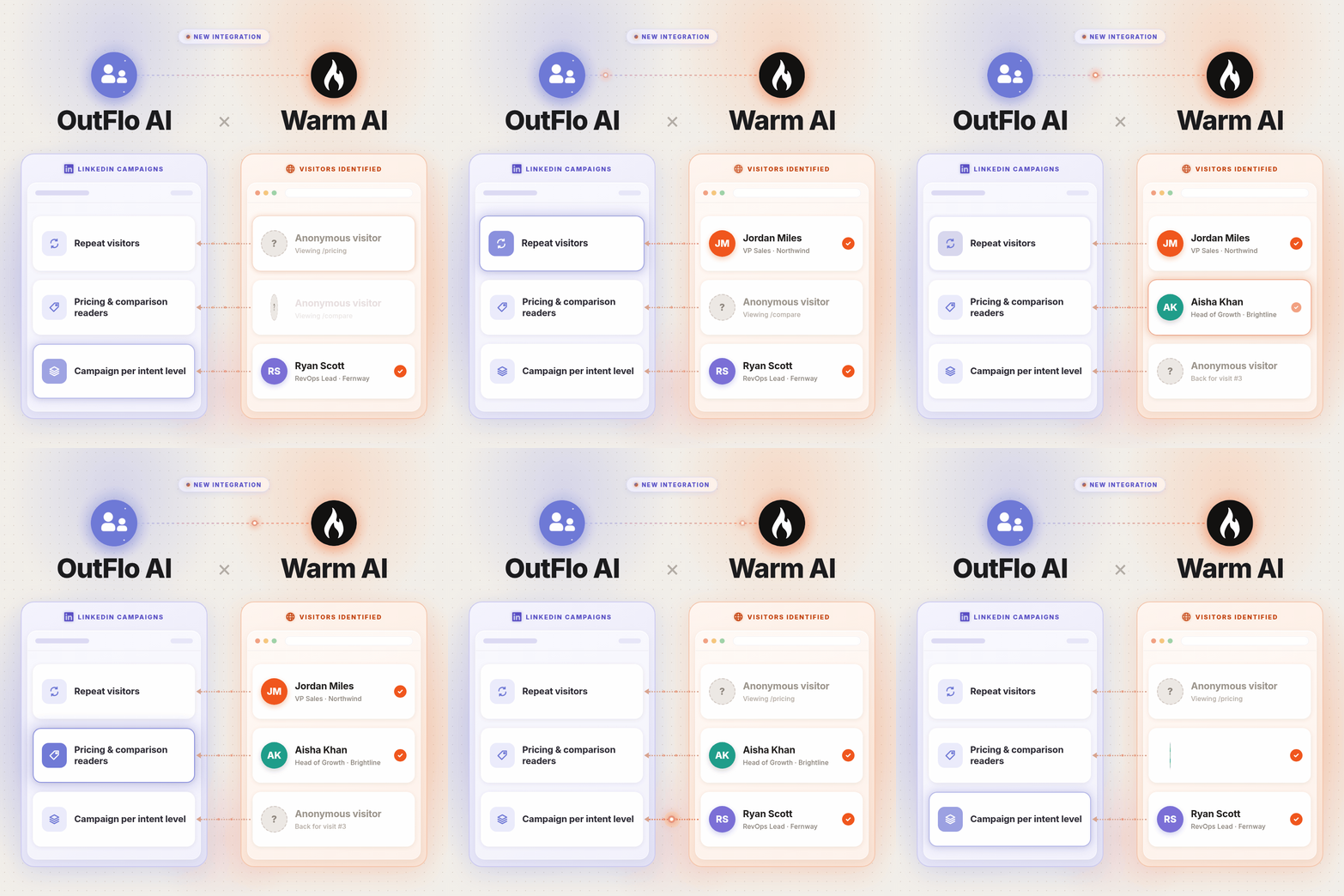
Warm AI shows who visited your site and which pages they viewed. With the OutFlo integration, you can use those visits to choose who to follow up with and which LinkedIn campaign they should join.
Before you start
- OutFlo account and API key
- Warm AI account with website tracking installed. See Warm’s tracking setup guide if you still need to install it.
Warm can send visitors it identifies by name in the US. Company-only matches stay in Warm.
Connect Warm AI to OutFlo
- 1.Sign in to OutFlo and get your API key. Open Settings → Integrations → OutFlo API. Copy your key or choose Create API Key if you need one.
- 2.Sign in to Warm AI and connect OutFlo. Go to Integrations, find OutFlo and select Connect. Paste your OutFlo API key and save it.
- 3.Choose a destination campaign. Select the OutFlo campaign that should receive visitors. Choose one with a people lead list attached.
- 4.Set up automatic sending in Warm. If you want specific segments to go to different campaigns, set those rules first. Then enable automatic sending when you’re ready.
See Warm’s OutFlo documentation for the setup controls in Warm.
Send a visitor manually
Open an identified person’s contact card in Warm, choose to send them to OutFlo and select a campaign. Check the destination campaign’s lead list in OutFlo to confirm they arrived.
When outreach starts
A running OutFlo campaign can begin its sequence as leads arrive. To review leads first, choose a campaign that isn’t running. You can use a draft campaign if it appears in Warm’s campaign picker, or choose a paused campaign.
When to send a visitor
- A prospect returns to your pricing page. Route repeat pricing visitors to a campaign that offers to answer questions about pricing or plan fit.
- A contact from a past opportunity returns. Check the last conversation. If a new follow-up makes sense, send that person manually and pick a campaign that fits the relationship.
Troubleshooting
Warm cannot connect
Copy your OutFlo API key again and check for extra spaces. If the key was revoked, create a replacement in OutFlo and save it in Warm.
A visitor is missing from the campaign
Confirm that Warm identified the visitor by name and is connected to OutFlo. For automatic sending, check whether the visitor matches the segment and whether that rule points to a different campaign.
The lead arrived and outreach has not started
Check whether the campaign is running. If it is, review the lead’s status and sequence settings to see what action is next.