
A usable lead list answers three questions: who belongs in the audience, where their details came from, and which campaign should contact them. Importing rows is only the first part of that work.
This guide covers people sourcing, import review and audience refinement in OutFlo. Import receipts, recovery and saved recipient values described here apply to the newer version 2 campaign-import workflow; older campaigns can use a different import path.
Choose the source that matches your audience
Start in Lead Management or the campaign's lead-import flow. Choose the source based on the people you need:
- Source
- LinkedIn or Sales Navigator people search
- Useful for
- A role, industry or geographic audience
- What to check first
- The search filters and the connected account's access
- Source
- Recruiter search
- Useful for
- A recruiting audience
- What to check first
- The importing account's Recruiter capability
- Source
- CSV
- Useful for
- A list you have prepared elsewhere
- What to check first
- Profile URLs, headers and field mapping
- Source
- Post reactions or comments
- Useful for
- People engaging with a particular post
- What to check first
- Whether the post topic actually relates to your offer
- Source
- LinkedIn event attendees
- Useful for
- People associated with an event
- What to check first
- Event relevance and the account's access to its audience
| Source | Useful for | What to check first |
|---|---|---|
| LinkedIn or Sales Navigator people search | A role, industry or geographic audience | The search filters and the connected account's access |
| Recruiter search | A recruiting audience | The importing account's Recruiter capability |
| CSV | A list you have prepared elsewhere | Profile URLs, headers and field mapping |
| Post reactions or comments | People engaging with a particular post | Whether the post topic actually relates to your offer |
| LinkedIn event attendees | People associated with an event | Event relevance and the account's access to its audience |
A post reaction or event attendance gives you context for research. It does not establish a person's need for your product.
Company searches are a separate workflow. LinkedIn company search and Sales Navigator account search produce company research lists, which cannot be campaign recipients. Export their available company fields for research, then identify the relevant people separately. Provider data can be incomplete; an empty revenue or headcount field is not zero.
Prepare and inspect a CSV
Use a header row and map the LinkedIn person-profile URL as the identifier. Map any uploaded fields you want to use in messages, then inspect representative rows before importing. Blank or duplicate headers and malformed CSV rows need correction in the source file.
For example, if your message mentions a recent announcement, include a clearly named field for that detail. Check both a populated row and a row without the announcement so you can plan the missing-value behavior.
Read the import result correctly
In the import review, distinguish processed rows from unique people:
- Result
- Added
- Meaning
- Created a new membership in the destination list
- Result
- Merged
- Meaning
- Updated an existing membership with nonblank supplied data
- Result
- Duplicate
- Meaning
- The membership already contained the supplied data
- Result
- Rejected
- Meaning
- The row lacked a valid LinkedIn profile URL; inspect its reason
| Result | Meaning |
|---|---|
| Added | Created a new membership in the destination list |
| Merged | Updated an existing membership with nonblank supplied data |
| Duplicate | The membership already contained the supplied data |
| Rejected | The row lacked a valid LinkedIn profile URL; inspect its reason |
If one person appears three times in a file, those rows may produce one Added result and two Merged or Duplicate results. Three processed rows do not mean three new recipients. List acceptance also does not guarantee campaign enrollment: campaign exclusions and Do Not Contact rules still apply.
Refine the list before outreach
Use saved-list operations according to the audience you want:
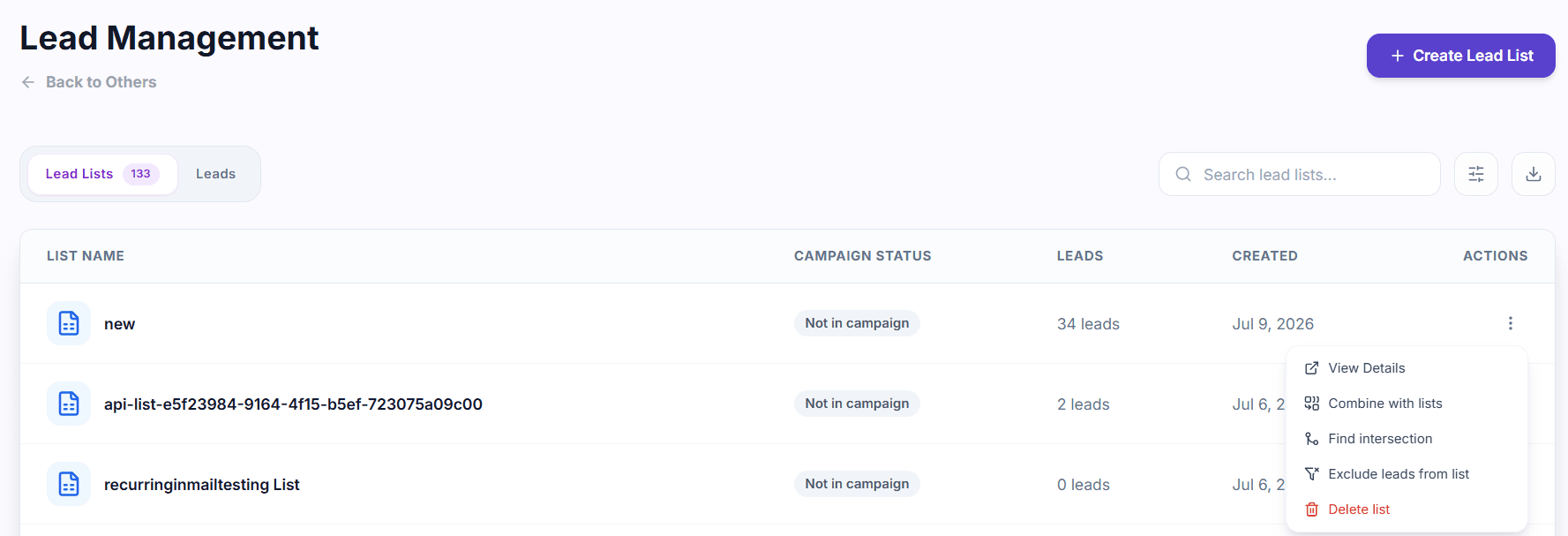
- Combine for everyone in either list.
- Intersect for people present in both lists.
- Exclude to remove one list's members from another audience.
Suppose you have a people-search list and an event-attendee list. Intersect them when you want only attendees who also match your target role. Exclude a known-connections list when the campaign is intended for new relationships. If you want an existing relationship to determine the sender, review the connection-aware assignment guide.
Decide which campaigns receive additions
In the version 2 workflow, an import initiated from a campaign adds eligible recipients to that originating campaign. Other eligible campaigns sharing the list require an explicit selection after a successful import; none are selected by default. Inspect each campaign-addition result.
Updating the shared list does not rewrite the imported values already saved for an existing version 2 recipient. Review that recipient's message preview rather than assuming a reupload changed their copy.
Recover an import without guessing
A failed import can leave completed pages saved. Use the available retry action to resume the same job after resolving a temporary failure. For an expired Sales Navigator connection, reconnect the account used for the search first. For a malformed CSV, correct the file and submit a new upload; retrying the same file cannot repair it.
Before launch, check the final recipient count, exclusion results and a few resolved messages.
Continue with list operations or explore Lead Sourcing and Management.