
Running several campaigns from one LinkedIn account means they share that sender's capacity. Creating another campaign does not create another account limit. Allocations let you decide which campaigns receive a dedicated portion of the available actions.
Start with the account's limits, then divide capacity across campaigns. The numbers below are a fictional planning example, not a recommended LinkedIn sending volume.
Set the sender's limits first
In Accounts, open the sender and review Daily limits. Different actions have their own controls. Check connection state, current usage and any pacing or auto-increase settings before assigning campaign allocations.
The scheduler checks recent action usage over a rolling 24-hour window. Available capacity does not necessarily reset at midnight. Account cooldowns, connection-request controls and effective daily limits can still prevent an action even if the campaign has an allocation remaining.
Understand reserved and shared capacity
Suppose a sender has an effective limit of 20 actions for one action type. Campaign A reserves 8 and Campaign B reserves 7. That leaves 5 in the unallocated pool for campaigns without a dedicated allocation.
- Capacity
- Allocation on a launched campaign
- How it behaves
- Reserved for that campaign; unused capacity does not spill into another campaign
- Capacity
- Allocation on a draft
- How it behaves
- Shown while planning, but does not become a hard runtime reservation until launch
- Capacity
- Unallocated capacity
- How it behaves
- Shared by active campaigns without a dedicated allocation
| Capacity | How it behaves |
|---|---|
| Allocation on a launched campaign | Reserved for that campaign; unused capacity does not spill into another campaign |
| Allocation on a draft | Shown while planning, but does not become a hard runtime reservation until launch |
| Unallocated capacity | Shared by active campaigns without a dedicated allocation |
A reservation is a capacity cap, not a promise of delivered messages. The campaign still needs eligible leads, a runnable step, an allowed schedule and an available sender.
Paused or completed campaigns can retain allocations. If Campaign A has no work left, its unused reservation does not automatically enlarge Campaign B's capacity. Review and release allocations you no longer need rather than immediately raising the account limit.
Configure the allocation in the appropriate place
For one campaign, open the campaign builder's LinkedIn Senders step. Select the sender, use its allocation control, enable the relevant action types, enter the amounts and save.
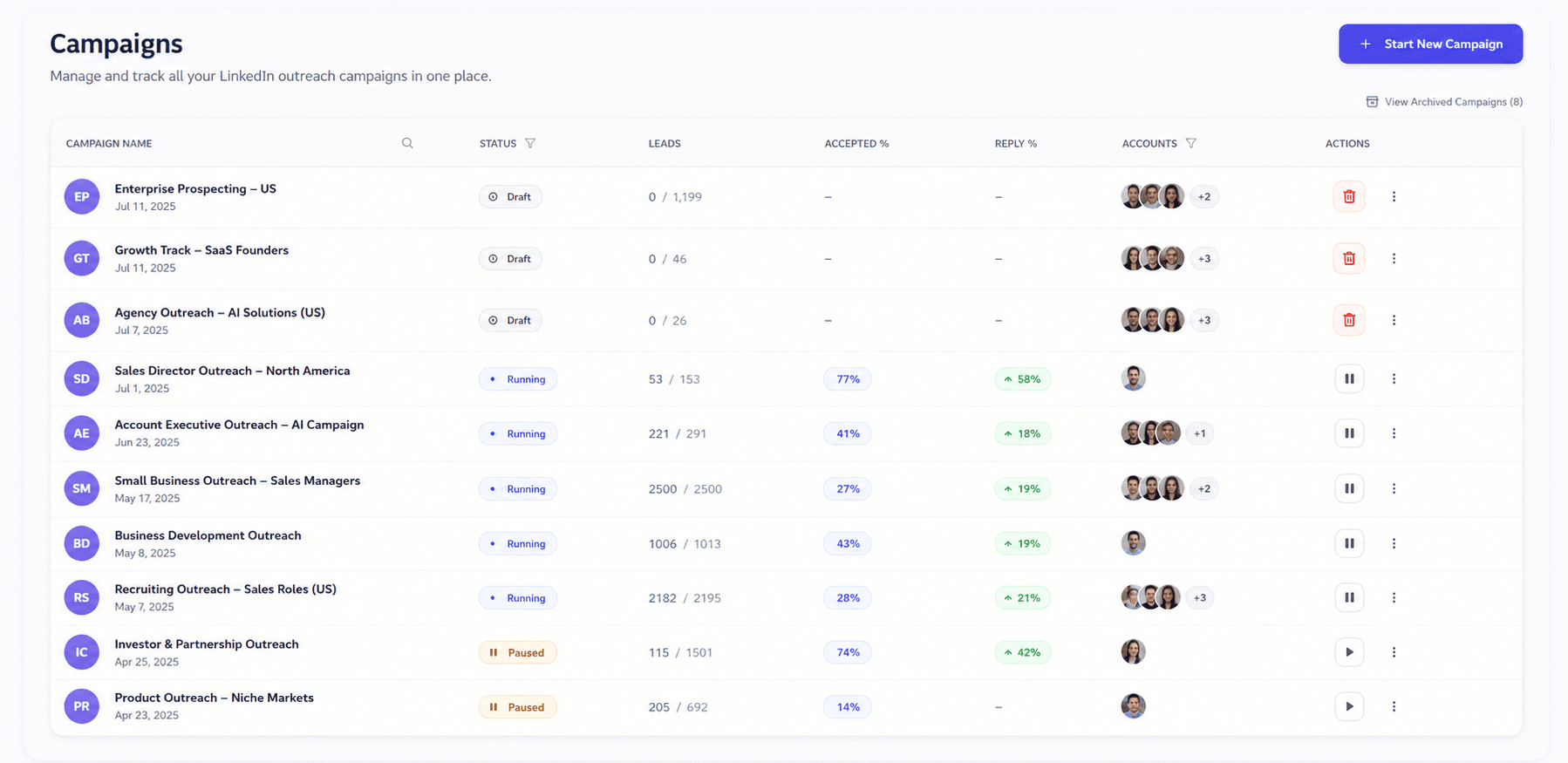
For several campaigns, review the sender's campaign allocations from Accounts. This makes it easier to see capacity held by paused, finished or idle campaigns. Recheck the total whenever you change the account limit or launch a draft with a planned allocation.
A practical review asks: which campaign needs predictable capacity, which can use the shared pool, and which is holding capacity without runnable leads?
Duplicate a setup without copying its audience
Campaign duplication creates a new draft containing the reusable sequence, senders, schedule and portable settings. Source leads are not automatically copied.
Before launching the copy:
- 1.Rename it so its purpose is clear.
- 2.Select or import the intended audience.
- 3.Review senders, timezone and operating hours, even if they came from the original.
- 4.Check message variables against the new audience and resolve missing data.
- 5.Review capacity alongside the original campaign.
This is useful when you want the same workflow for a different segment, but the old campaign's audience and assumptions are not automatically appropriate.
Reassign leads with attention to prior activity
In a campaign's Leads table, select leads and choose Reassign Accounts. Choose eligible active, connected sender accounts already in the campaign and inspect the preview.
Keep Reassign leads with no action history only enabled when moving untouched leads. If you disable that option, reassigned leads with prior actions restart from the campaign's beginning and may receive repeated messages or other actions. This is a restart decision, not simply a change of owner that preserves their place.
A replied lead needs its own deliberate resume decision. Read the conversation before returning it to automation; a request to stop should not become a follow-up opportunity.
If a campaign is sending less than expected
Inspect the lead's next action and timeline, then check the sender's connection, rolling usage, effective limits, other allocations and campaign hours. Confirm there are eligible leads for that action. A campaign waiting for connections to be accepted may have no messages ready even though message capacity remains.
See the detailed guides to allocations, sender reassignment and resuming replied leads, or explore Multi-Account Campaigns.