
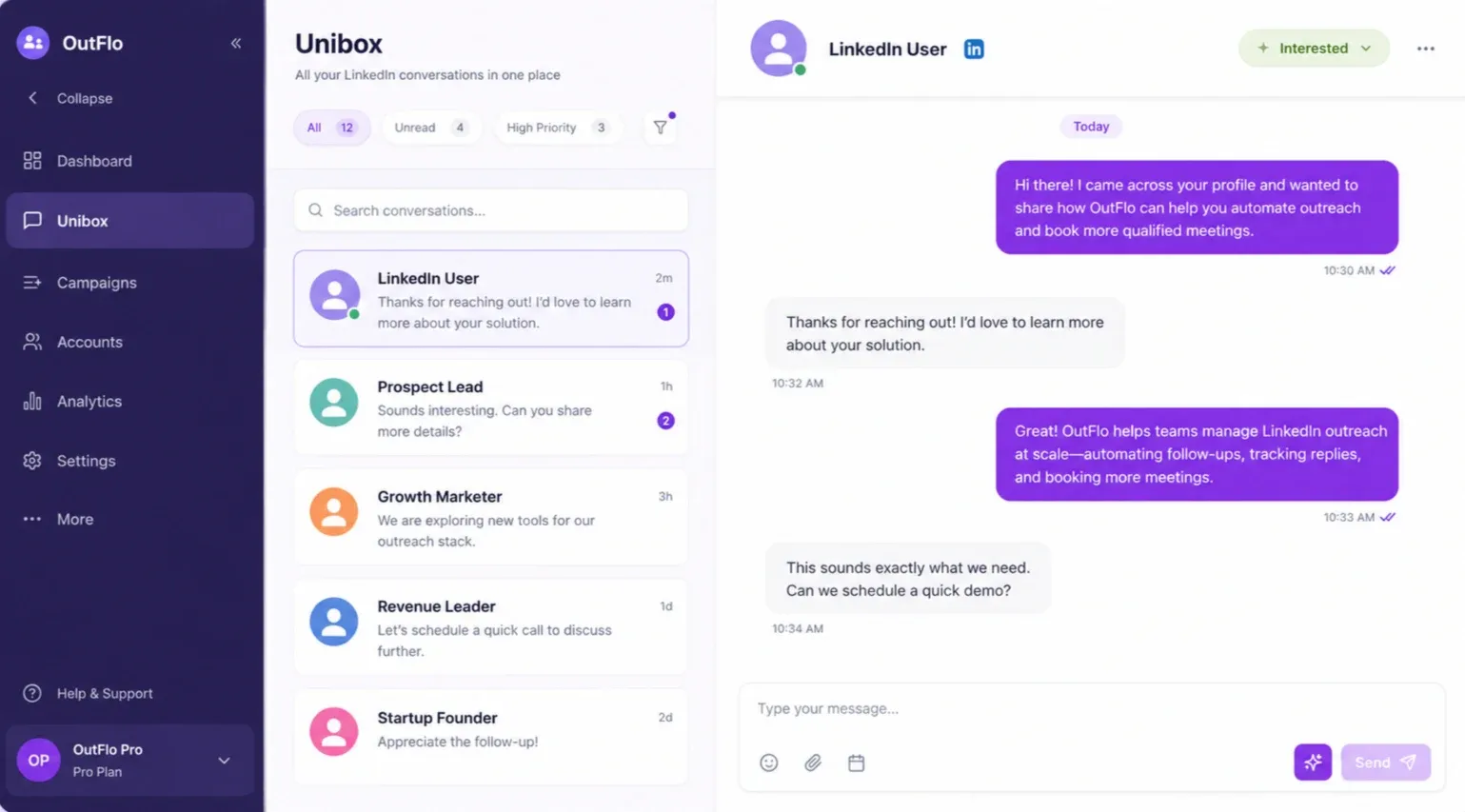
When several LinkedIn accounts are running outreach, the first challenge is finding the conversations that need a response. Unibox brings conversations into one place, but an effective queue still needs clear filters, ownership and review.
This guide walks through finding a thread, organizing the queue and sending a reviewed reply from the correct account.
Check your workspace and synchronization scope
Start in the workspace containing the senders you manage. Your permissions determine which inboxes and operations you can access.
Account privacy settings distinguish full inbox synchronization from synchronization of OutFlo-originated campaign conversations. Full sync can bring in conversations outside your campaigns. Campaign-only sync narrows the collection scope.
Historical conversations load progressively, with more history loaded when a thread is opened. If an old conversation is missing, first check the account connection, synchronization setting and sync progress. A missing thread in the current view does not necessarily mean there was no LinkedIn conversation.
Choose the right kind of search
Use sender and campaign filters to narrow the relevant scope. Then choose search according to what you remember:
- What you know
- A person's name or company
- Search approach
- Conversation finder
- What you know
- A phrase someone sent
- Search approach
- Message-content search
- What you know
- Wording prepared but not sent
- Search approach
- Draft-content search
| What you know | Search approach |
|---|---|
| A person's name or company | Conversation finder |
| A phrase someone sent | Message-content search |
| Wording prepared but not sent | Draft-content search |
If you remember someone asking about a pilot but not their name, search for the phrase and inspect the surrounding conversation. A message-search result is a route into context, not enough context by itself to send a response.
Search stays within the inbox scope you are authorized to access. Recheck filters if a result seems missing.
Build a queue with custom tags
Agree on a small set of workflow tags, such as Need to reply, Waiting on us and Meeting confirmed. These are examples your team can create, not automatic product outcomes.
Use tag matching deliberately:
- Any selected tag gives you a wider queue containing at least one selected tag.
- All selected tags keeps conversations carrying every selected tag.
- Exclude removes conversations carrying the unwanted tags.
For example, match All for Interested and Need to reply, then exclude Closed, if those are your team's custom tags. Automatic reply classifications are separate from the custom-tag filter; review which filter you are using.
Select multiple conversations to add or remove tags or star them in bulk. Check the selection before applying a batch action so unrelated accounts or conversations are not swept into the queue.
Read the thread and prepare the reply
Open the conversation and confirm the sending account. Read recent messages and any saved draft before composing. If a teammate already prepared a reply, review their work rather than treating the draft as a sent message.
You can write a reply yourself or use AI to generate or refine a draft. Check that it answers the prospect's question, uses supported facts and makes a next step you can actually fulfill. Save a draft for review when another teammate owns the answer.
An example: if a prospect asks whether a particular integration is available, verify the integration and their access before sending. A confident AI-generated answer is not evidence of availability.
Send and confirm the result
Use the composer for text, supported attachments or recorded voice replies. Inspect the selected file or audio before sending. Upload acceptance alone does not prove delivery; review the send result and thread.
Message reactions are also available, but change and removal behavior can depend on the connected provider. Use a written reply when a reaction alone would leave an important question unanswered.
After sending, update your workflow tags so the next person can see what remains. A saved draft is not a scheduled send. See shared drafts for that workflow.
Keep AI draft assistance separate from AI Reply Setter
Current assisted drafts remain replies you review and send. AI Reply Setter is a separate staged-release workflow for Copilot approvals or eligible Autopilot conversations. Do not assume generating an inbox draft enables automatic conversation handling.
Continue with OutFlo Agent, reply classifications or Unified Smart Inbox.