
A scheduled post needs more than a time on a calendar. The copy, media, publishing account and approved revision all need to agree. OutFlo's LinkedIn Social Outreach workflow brings drafting, review, scheduling and publication results together.
Use this guide to organize a repeatable review process. For screen-by-screen setup, follow the publishing walkthrough.
Start with the publishing account
Open LinkedIn Social Outreach and choose the connected account that should publish. Confirm the author before drafting, especially when managing several clients or executives.
Prepare the post copy, supported media and an optional first comment. Inspect the media itself: a filename is not enough to establish that you attached the right version.
Upload support and provider publication support are separate checks. OutFlo accepts several media formats, but you should verify the delivery result for the chosen format rather than treating successful upload as proof that LinkedIn published it.
Decide who can approve
Use internal review for teammates or external review for clients and stakeholders. External reviewers can use the emailed review portal without creating a main OutFlo account.
When selecting external reviewers, check the saved names and addresses. The current workflow supports up to ten reviewers on a request and provides two approval policies:
- Policy
- All reviewers must approve
- Requirement
- Every selected reviewer must approve
- Policy
- Any single reviewer can approve
- Requirement
- One approval is sufficient if no reviewer has requested changes
| Policy | Requirement |
|---|---|
| All reviewers must approve | Every selected reviewer must approve |
| Any single reviewer can approve | One approval is sufficient if no reviewer has requested changes |
A changes-requested decision holds the post under either policy. Use All when distinct stakeholders each need to sign off; use Any when the selected people are interchangeable approvers.
Choose a review owner who will resolve feedback. Sending a request is not the same as obtaining approval.
Review the complete revision
Ask reviewers to inspect the copy, attachments and first comment together. Comments and decisions relate to the revision the reviewer saw.
For example, a client may approve an announcement and then ask for a different product date. Once you make that change, verify review status for the updated revision. Approval of the earlier date should not be treated as evidence that the client approved the new text.
Leave clear feedback: identify the sentence or asset, the requested correction and why it matters. This makes the next review more useful than a vague request to “make it better.”
Schedule after checking the timezone
Choose the intended date and time and check the displayed timezone. With external reviewers selected, Request approval & schedule reserves a future time while requesting review. The post still waits for the required approval before publication can proceed.
If an approval or correction arrives late, inspect the post's current state and planned time. Do not assume a missed publishing slot has automatically been moved to a new suitable slot.
Review invitation access also has a window. If a reviewer cannot access a withdrawn or revoked request, arrange a new active request instead of assuming the old link still grants access.
Use revision history deliberately
Review history when you need to understand what changed or recover earlier wording. Restoring an earlier version creates a new draft; it does not undo a post that has already been published.
Before scheduling a restored draft, compare its copy and media against the current intended message and check review status. An old version can contain outdated dates, claims or attachments even if its wording was once approved.
Verify publication and any follow-up engagement
Check the recorded delivery result and the resulting LinkedIn post. A completed or in-flight publication is not an ordinary editable draft. If the result is unclear, inspect it before creating another publication attempt.
For manual engagement, select the sender, open the source post and choose a like or prepare a comment. Review the comment before explicitly publishing it. Drafting a comment does not publish it, and this manual workflow does not establish that every campaign can automatically comment on posts.
Keep a simple review routine
Before publication, confirm author, current revision, review decisions and timezone. After publication, confirm the live post and first comment where used. Keep unresolved feedback with the post so the next reviewer can understand the decision.
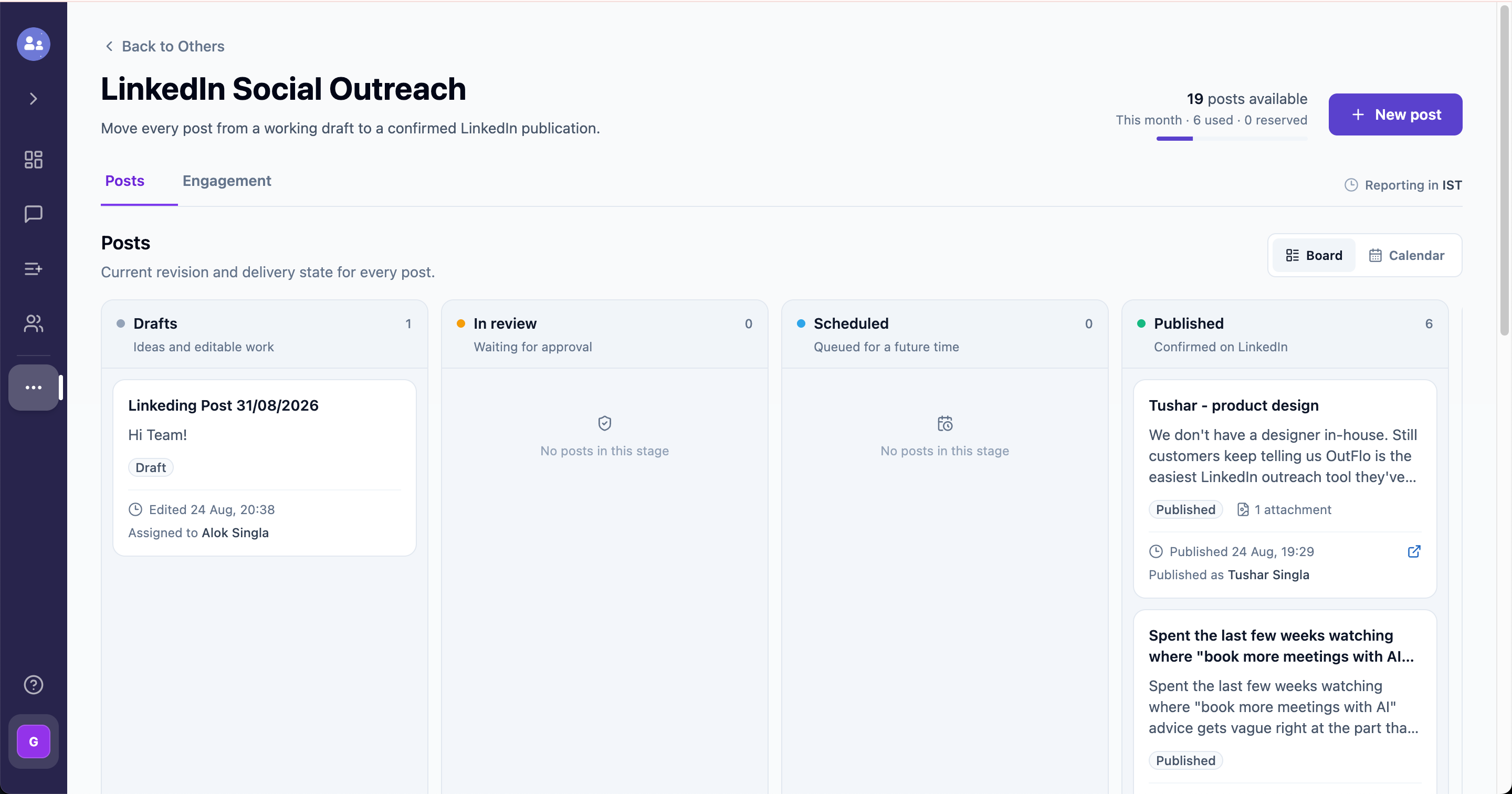
Continue with external approvals or explore LinkedIn Social Outreach.