
Outreach controls help your team avoid preventable mistakes: sending from a disconnected account, contacting a protected person, or leaving capacity reserved for a finished campaign. Review those controls together rather than treating a daily-limit setting as the whole setup.
OutFlo safeguards do not guarantee that LinkedIn will never restrict an account. This guide focuses on the settings and operational checks available in OutFlo, without prescribing a universal safe sending volume.
Confirm account connection and ownership
In Accounts, inspect the sender's connection state. Use the supported connection flow and let the account owner complete any required verification or reconnect step.
If an owner needs to restore access without joining the main operational workflow, use the supported secure owner reconnect link. Verify that the intended account reconnects before resuming work dependent on it.
A checkpoint request is a reason to complete the required verification. Repeatedly retrying campaign actions does not resolve a disconnected sender.
Review limits for each action type
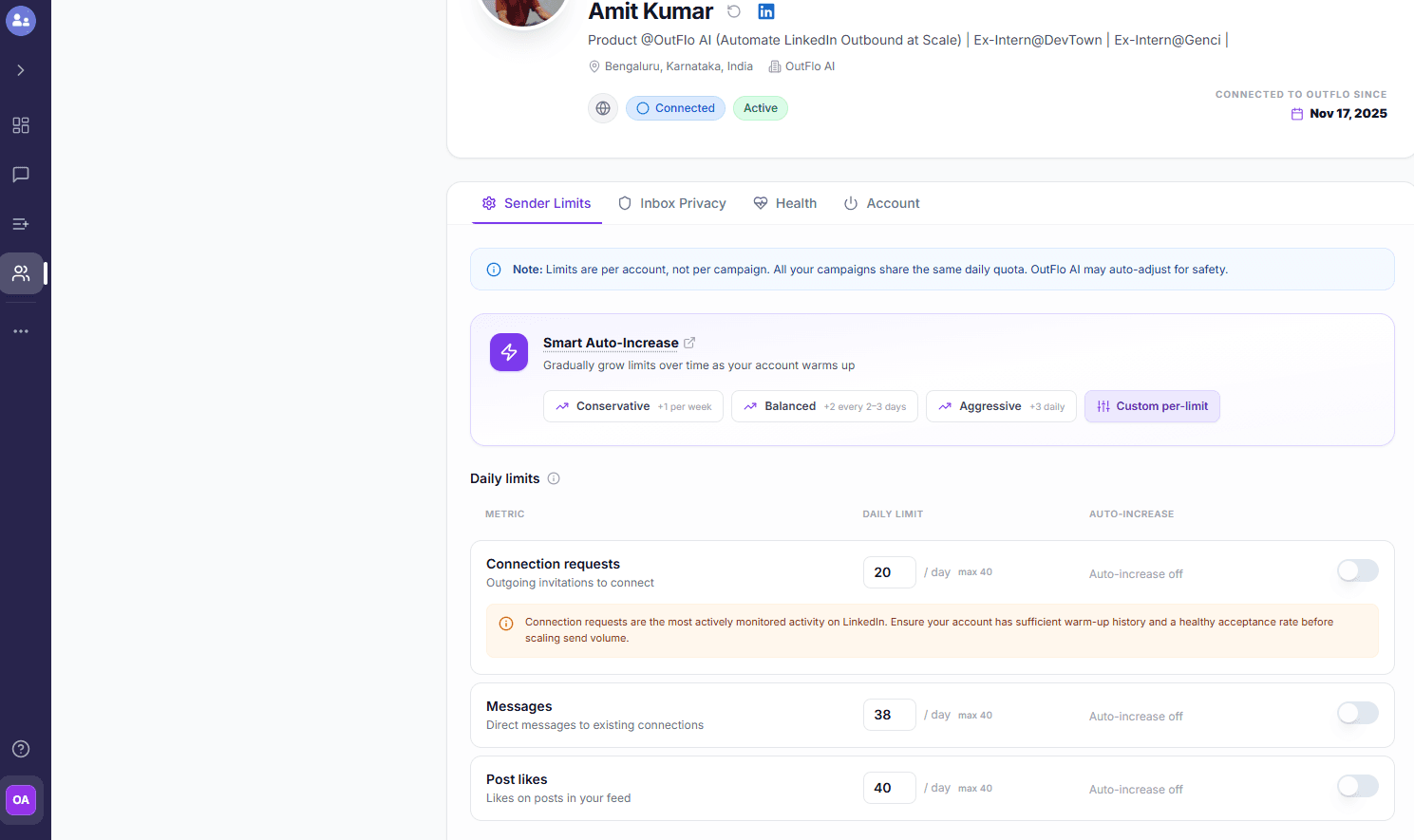
Check the sender's configured limits, effective daily pacing and recent usage. Different actions can have separate controls, while some share capacity: message and voice-note activity are considered together by the campaign scheduler's message limit.
Variable daily limits adjust effective pacing. Smart Auto-Increase can change selected action limits over time. Inspect which metrics are enabled and the chosen settings instead of assuming one toggle controls every activity.
Review results and connection state as you operate. Automatic changes to configured limits do not prove that the account has earned a higher allowance from LinkedIn.
Reconcile campaign allocations with sender capacity
Several campaigns using one sender share its limits. Dedicated allocations on launched campaigns hold capacity for those campaigns, including when a campaign is idle or paused. Draft allocations behave differently until launch.
If a campaign is slow, check the sender's rolling usage and capacity held elsewhere before raising limits. Release allocations that are no longer needed. Operating hours, action prerequisites and cooldowns can still prevent execution even with apparent capacity available.
Use the campaign-capacity guide for a worked allocation example.
Apply Do Not Contact rules at the correct scope
Use person-level protection for an individual and company-level protection for a protected business. Check whether the rule applies to a workspace or the organization so it matches the intended boundary.
For example, a client-specific exclusion and an organization-wide protected customer are different policies. Review the stored identity and scope before starting a campaign.
Do Not Contact is separate from excluding existing connections or people contacted by other campaigns. Connection status describes a relationship; DNC expresses a contact restriction. Do not remove a restriction just to make a lead eligible for automation.
Distinguish outgoing and incoming invitation controls
- Workflow
- Pending outbound invitation withdrawal
- Purpose
- Manage requests your sender previously sent
- What to inspect
- Withdrawal settings and the affected requests
- Workflow
- Received invitation review
- Purpose
- Explicitly accept or ignore incoming requests
- What to inspect
- Sender, request context and rollout access
- Workflow
- Automatic incoming acceptance
- Purpose
- Accept received requests under enabled sender settings
- What to inspect
- Whether the sender has the feature and whether it suits the account
| Workflow | Purpose | What to inspect |
|---|---|---|
| Pending outbound invitation withdrawal | Manage requests your sender previously sent | Withdrawal settings and the affected requests |
| Received invitation review | Explicitly accept or ignore incoming requests | Sender, request context and rollout access |
| Automatic incoming acceptance | Accept received requests under enabled sender settings | Whether the sender has the feature and whether it suits the account |
Received-invitation controls have staged access. Withdrawing an outgoing invitation is not the same as accepting an incoming one.
For paid InMail, check both the stored balance and its refresh time. A balance display is not a promise that every recipient is eligible or that an old value reflects the current provider state.
Retire a sender without losing the conversation context
Archive an inactive sender when appropriate. Stored historical conversations remain accessible under authorized scope. Restoring an archived sender returns it to inactive status; it does not automatically reconnect it or reactivate a paid seat.
Before retiring it, identify pending replies and leads that may need another owner. Reassigning leads with prior campaign actions can restart their sequence, so review that decision separately.
Use the timeline when a send is blocked
Inspect the recorded failure or waiting state, sender connection, DNC/exclusion status, next action, schedule, usage and allocations. Resolve the actual cause before retrying or changing limits.
See the guides to DNC, variable limits and Smart Auto-Increase, or explore Account Safety and Controls.